

This article gives you 141 SEO prompts for Claude, ChatGPT, Codex or any AI assistant.
With these SEO prompts, you can:
- Run a SERP analysis and read the ranking pages, their outlines and the topics they cover
- Find the questions people ask, from People Also Ask and the ranking pages’ headings
- Decide whether two keywords need one article or two
- See what ChatGPT, Gemini, Perplexity and Google AI Mode answer for a keyword, and which sources they cite
- Track whether Google’s AI Overviews cite your domain or name your brand
- Group keywords into topic clusters and find the ones you don’t rank for
- Build a content brief, edit it and rewrite its outline
- Write AI drafts and send batches of keywords through the Content Pipeline
- Chain several steps in one message, from keyword to draft
These prompts use live SERP data. Here’s how it works: you connect your AI assistant to thruuu, an SEO content optimization platform, through MCP tools.
thruuu is the bridge between your assistant and live SERP and AI Search data. It also gives your assistant thruuu’s other tools: keyword clustering, content briefs and the Content Pipeline.
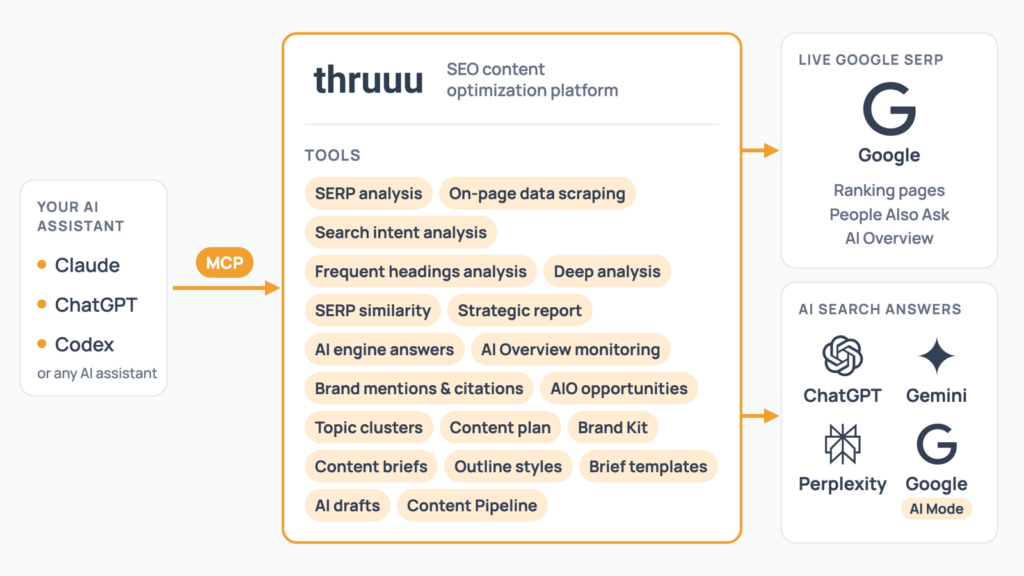
Table of Contents
Before Starting, Connect thruuu’s SEO MCP Tools
You need a thruuu account, on any plan (yes, even on the free plan!), and the AI assistant you already use.
thruuu is an SEO content optimization platform: your assistant connects to its MCP server with your MCP key, and every prompt below then runs on your account.
There are two ways to connect.
The fastest way is to let your assistant do it. Paste this in, and it reads the instructions, asks for your MCP key and connects itself:
Set me up for thruuu using https://app.thruuu.com/agent-setup.mdYou can also set it up yourself.
In thruuu, open API & Bulk Tools → MCP. It shows your MCP key and the exact setup for each assistant, key already filled in.
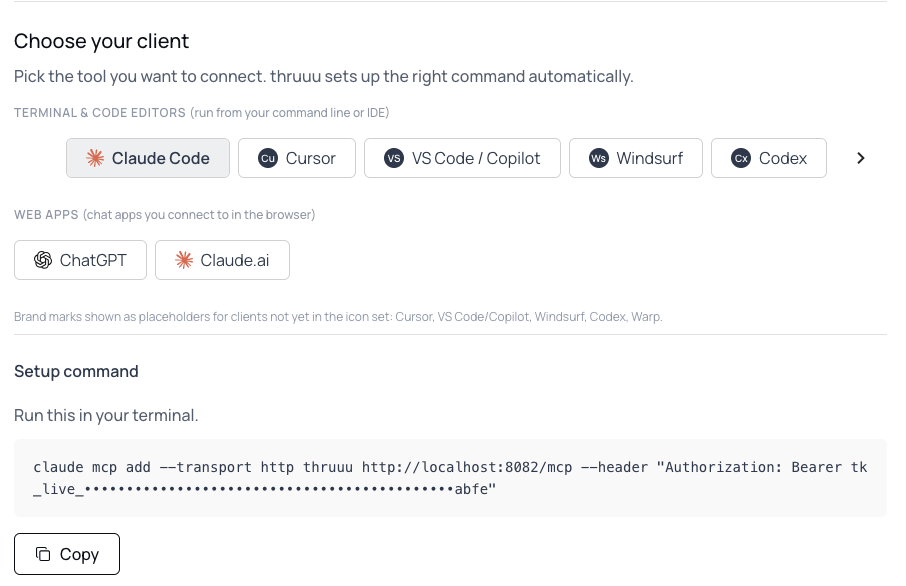
Then ask “What is my thruuu credit balance?” If your balance comes back, you’re connected.
Reading data is free. Before anything that uses credits, the assistant shows the cost and waits for your yes.
To learn more and understand all steps for each assistant, you can explore our SEO MCP server guide.
SEO Prompts for SERP Research and Competitor Analysis
Where does every content decision start? On the Google results page.
These prompts run a SERP analysis, read it back section by section, compare two keywords, and pull the full data behind each ranking page, down to its schema, headings, and outbound links.
Run an Analysis
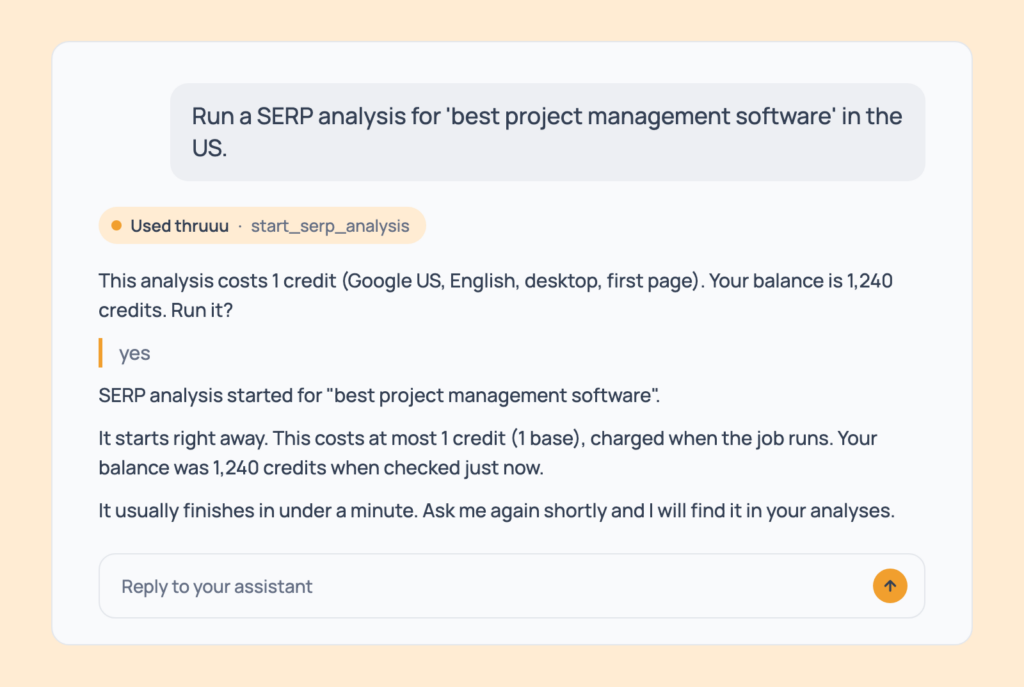
Prompt 1: Run a SERP analysis
Run a SERP analysis for 'best project management software' in the US.The assistant captures who ranks, People Also Ask, the AI Overview and more, usually in under a minute.
- Cost: 1 credit, every plan.
- Tip: add “with search volume” for monthly volume, CPC and competition (+1 credit).
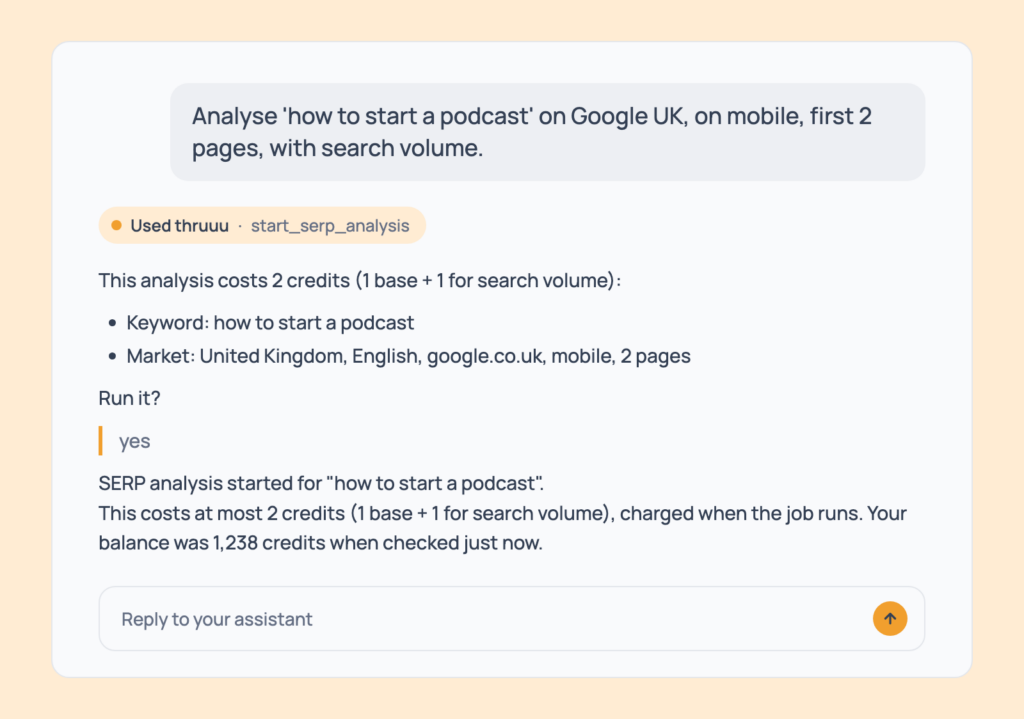
Prompt 2: Choose the market, device and depth
Analyse 'how to start a podcast' on Google UK, on mobile, first 2 pages, with search volume.The same analysis with your market, device, depth (1 to 10 result pages) and search volume.
- Cost: 2 credits here (1, plus 1 for search volume). Pay as you go and above; Free plan accounts are fixed to US, English, desktop, first page.
- Tip: run “desktop” and “mobile” to compare the two.
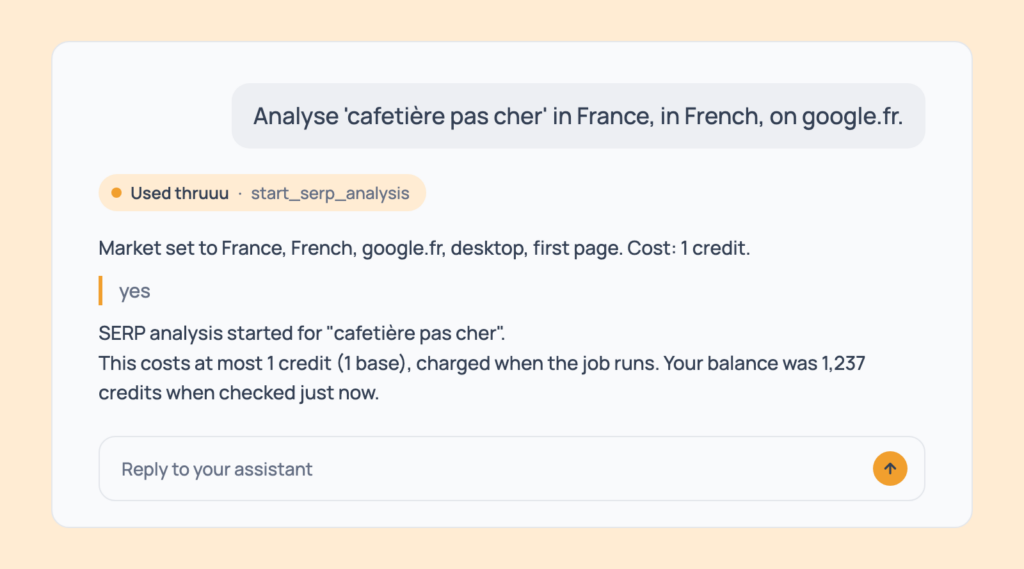
Prompt 3: Analyse another country and language
Analyse 'cafetière pas cher' in France, in French, on google.fr.The assistant picks the exact country, language and Google domain, so you never need a country code.
- Cost: 1 credit. Pay as you go and above.
- Tip: it works for any supported market.
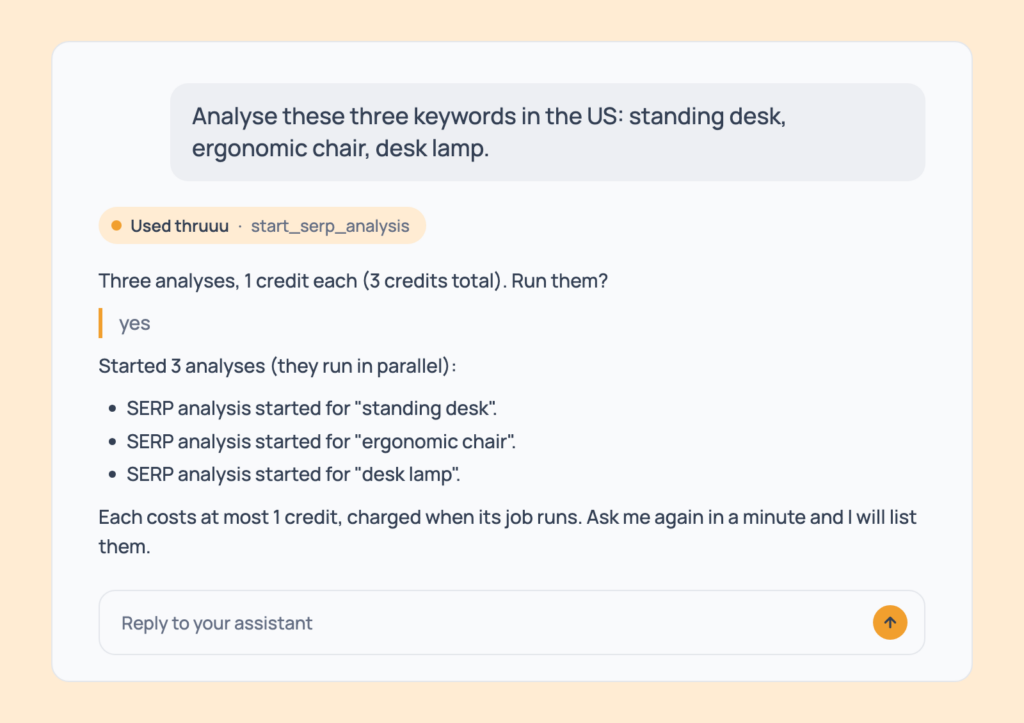
Prompt 4: Analyse several keywords at once
Analyse these three keywords in the US: standing desk, ergonomic chair, desk lamp.One analysis per keyword, all started at once and run side by side.
- Cost: 1 credit each, 3 in total.
- Tip: for dozens of keywords, use the Content Pipeline (Prompt 111).
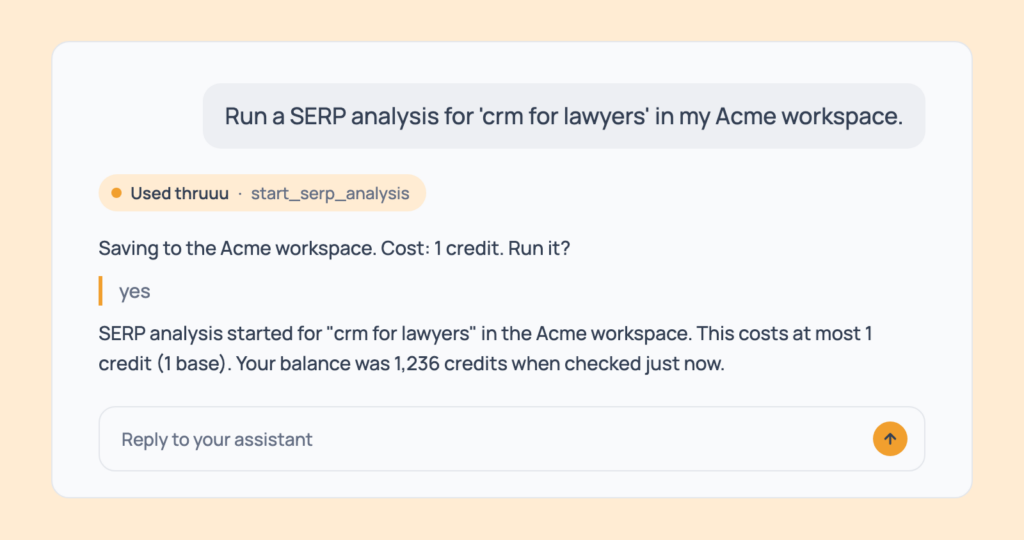
Prompt 5: Save an analysis to a client workspace
Run a SERP analysis for 'crm for lawyers' in my Acme workspace.The analysis is saved under that client or project.
- Cost: 1 credit.
- Tip: leave the workspace out and it goes to your default one.
Find and Read Analyses
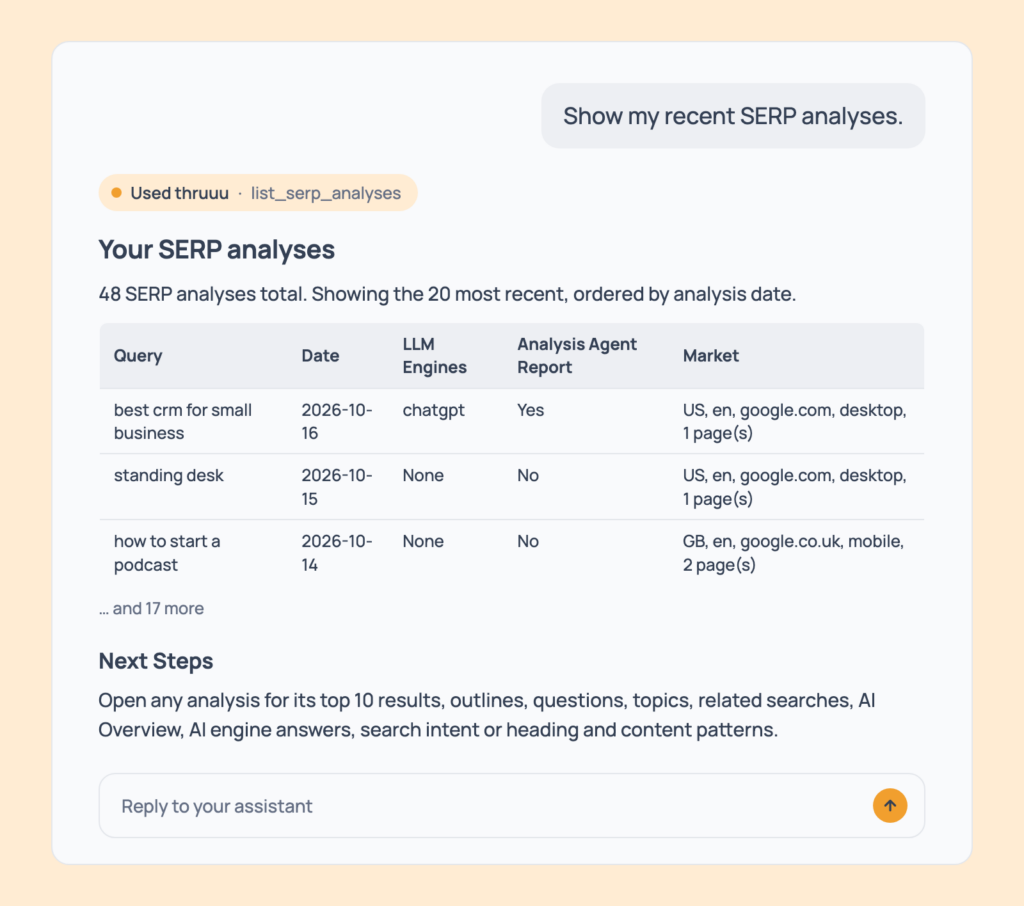
Prompt 6: List your recent analyses
Show my recent SERP analyses.Your latest analyses, newest first, with date, AI engines included, whether a strategic report exists, and a link to each one in thruuu.
- Cost: free. Free and trial accounts see the last 30 days, paid plans their longer history.
- Tip: ask for “the last 50” for a bigger list (20 by default).
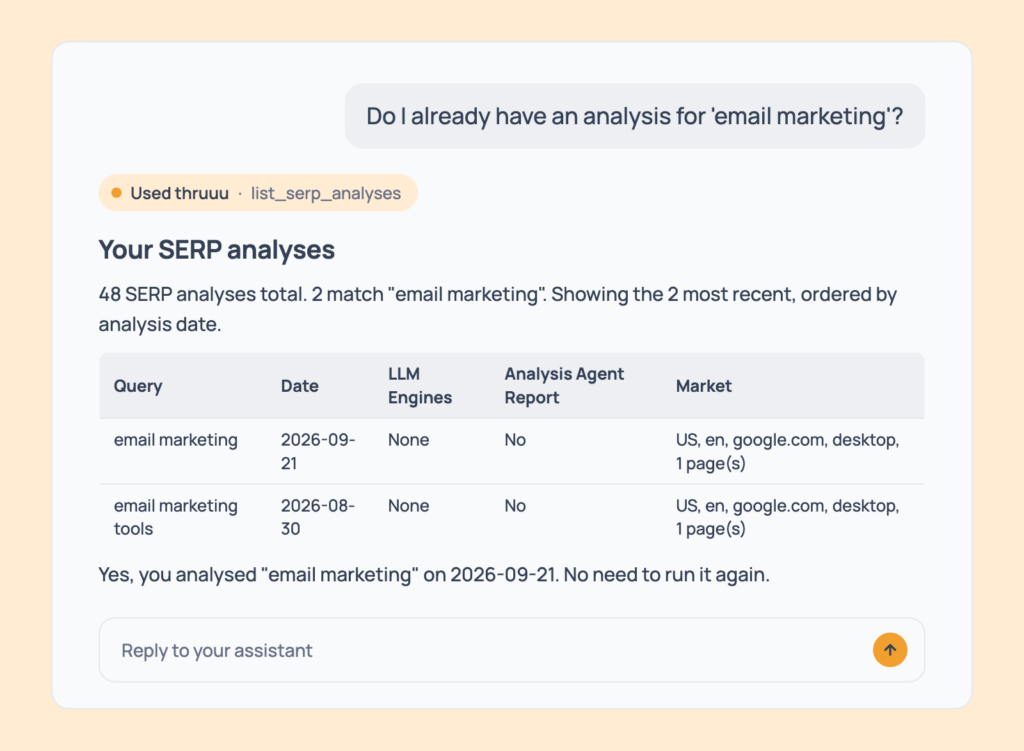
Prompt 7: Check before you pay twice
Do I already have an analysis for 'email marketing'?The matching analyses, or a clear “not yet”.
- Cost: free.
- Tip: run it before any new analysis. It saves you paying twice for the same keyword.
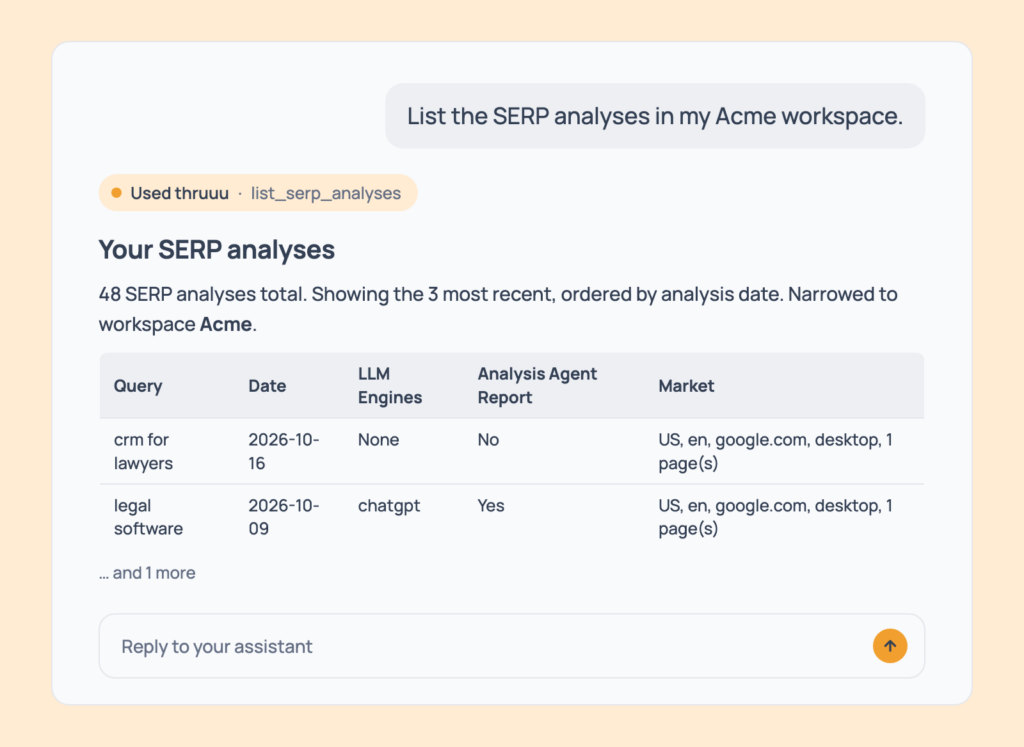
Prompt 8: List one client’s analyses
List the SERP analyses in my Acme workspace.The same list, narrowed to one workspace.
- Cost: free.
- Tip: combine it with a keyword: “email analyses in Acme”.
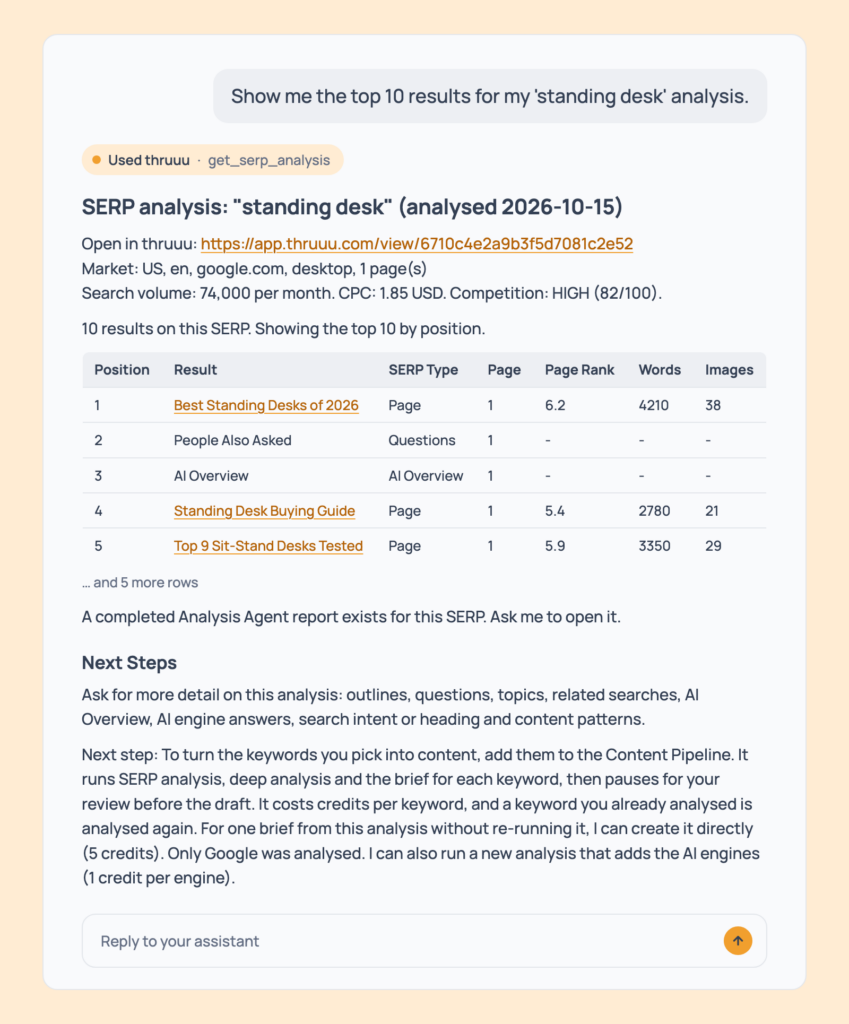
Prompt 9: Read the top 10 results
Show me the top 10 results for my 'standing desk' analysis.The top 10, including the AI Overview, People Also Ask and video slots, with volume, CPC and competition if you ran it with volume, and a link to the full analysis.
- Cost: free, every plan.
- Tip: the assistant ends with next steps, such as turning this analysis into a brief.
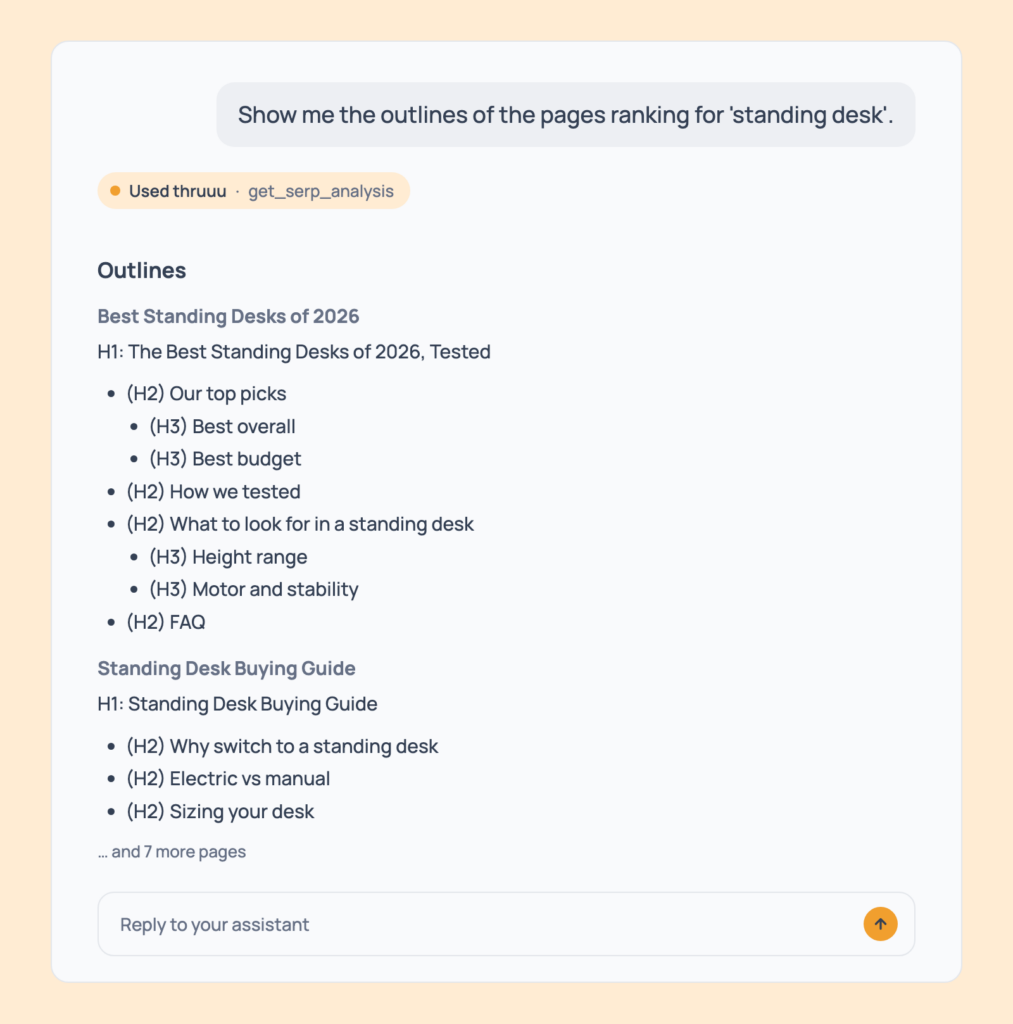
Prompt 10: See the competitors’ outlines
Show me the outlines of the pages ranking for 'standing desk'.Every ranking page’s H1 to H6 structure, side by side.
- Cost: free. Pay as you go and above.
- Tip: follow up with “which headings do most pages share?” to find the must-have sections.
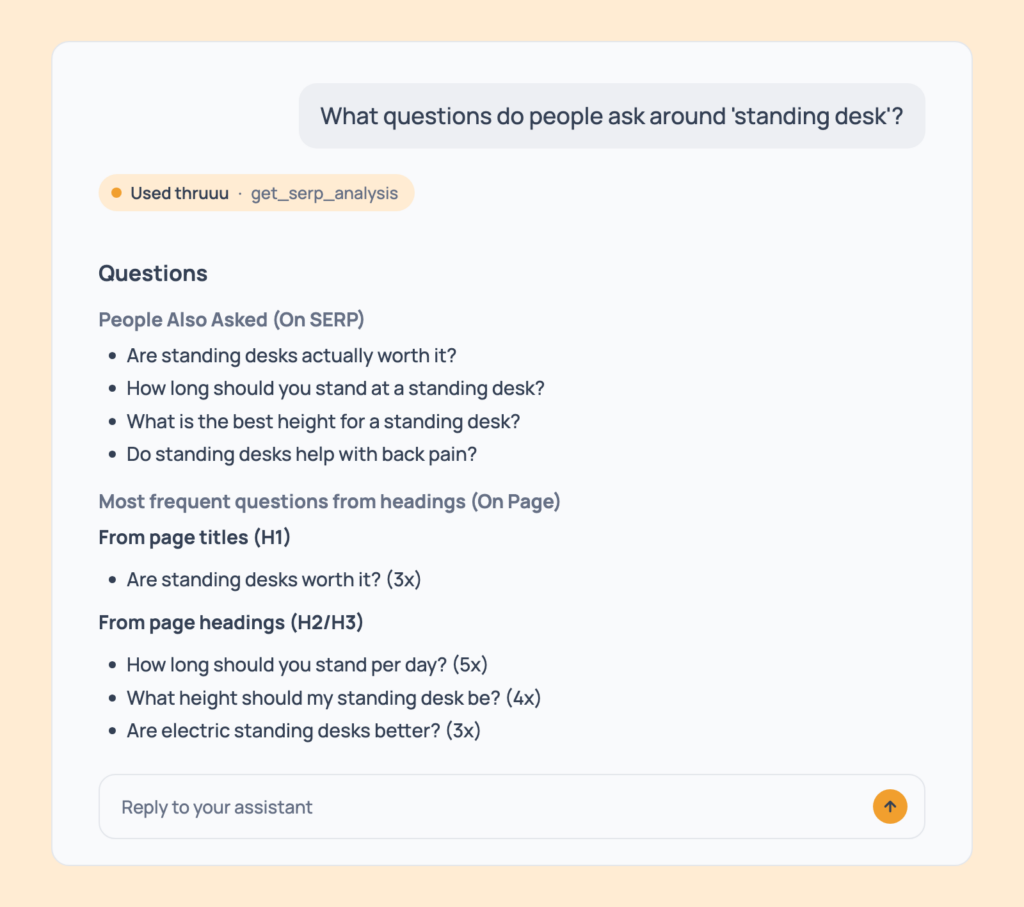
Prompt 11: Find the questions people ask
What questions do people ask around 'standing desk'?People Also Ask plus the questions repeated in the ranking pages’ headings, ordered by how often they come up.
- Cost: free, every plan.
- Tip: use them as raw material for your FAQ section.
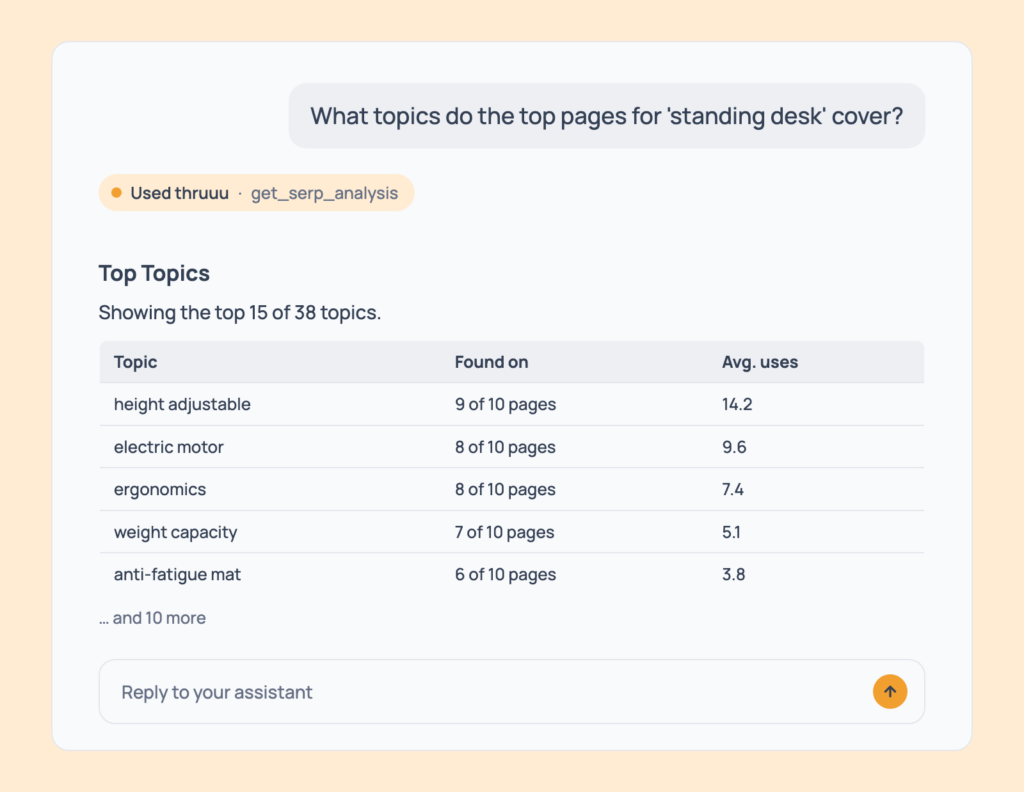
Prompt 12: List the topics the top pages cover
What topics do the top pages for 'standing desk' cover?The topics shared across the ranking pages, with how many pages use each one.
- Cost: free, every plan.
- Tip: use it as a checklist for what your page should cover.
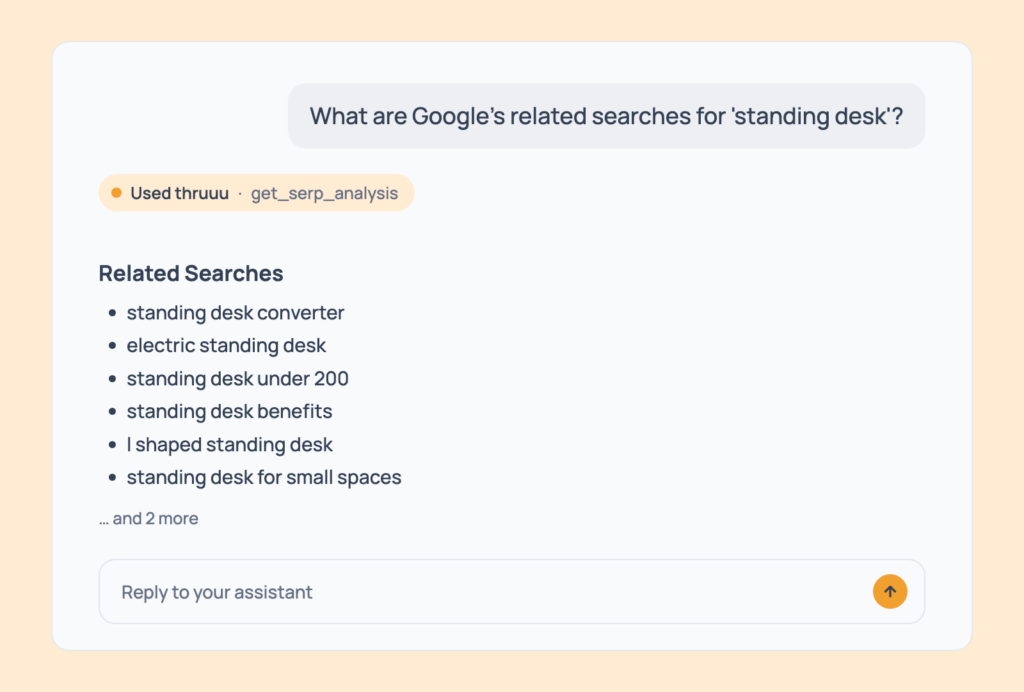
Prompt 13: Get the related searches
What are Google's related searches for 'standing desk'?The related searches Google shows for that keyword.
- Cost: free, every plan.
- Tip: feed them straight into a topic cluster (Prompt 54).
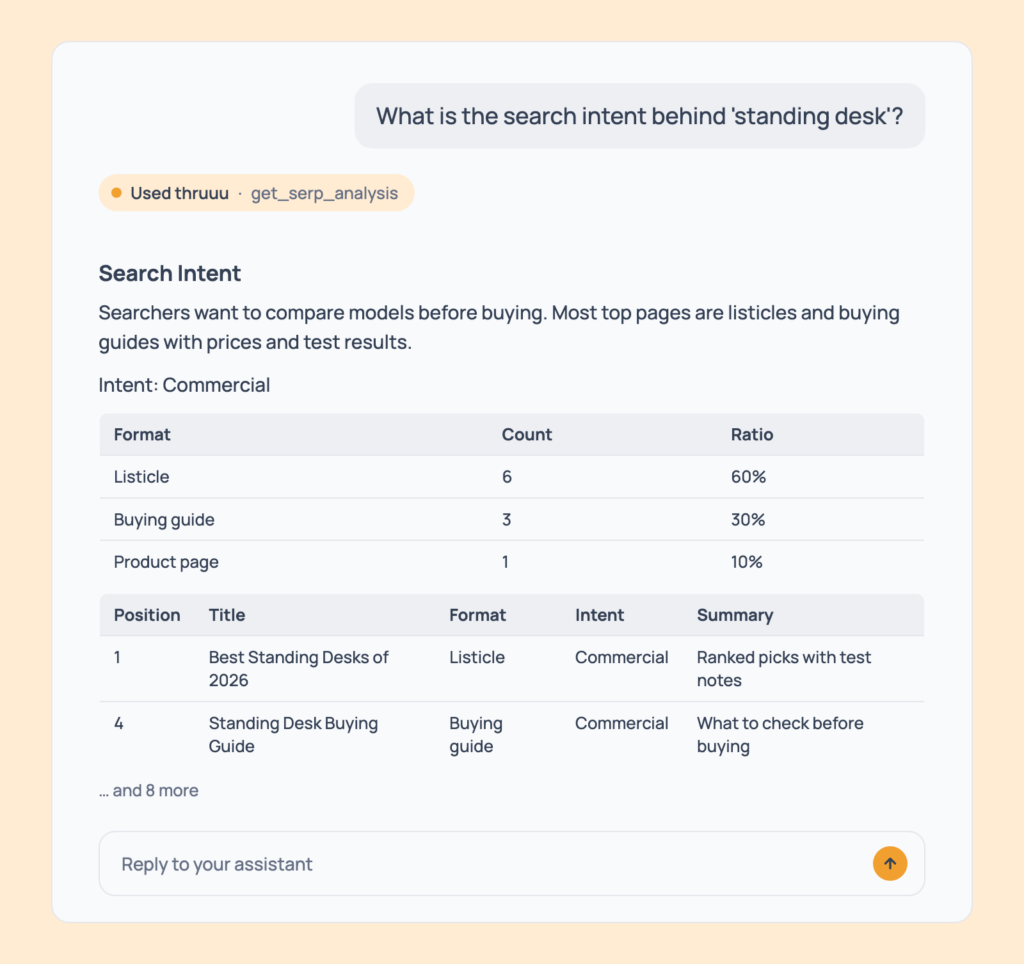
Prompt 14: Read the search intent
What is the search intent behind 'standing desk'?The intent read on the top results: a summary, the format split and the intent of each ranking page.
- Cost: free. Professional and above.
- Tip: ask “is this a buying or a learning search?” for a one-line answer. If the intent analysis hasn’t run yet, the assistant starts it (Prompt 23).
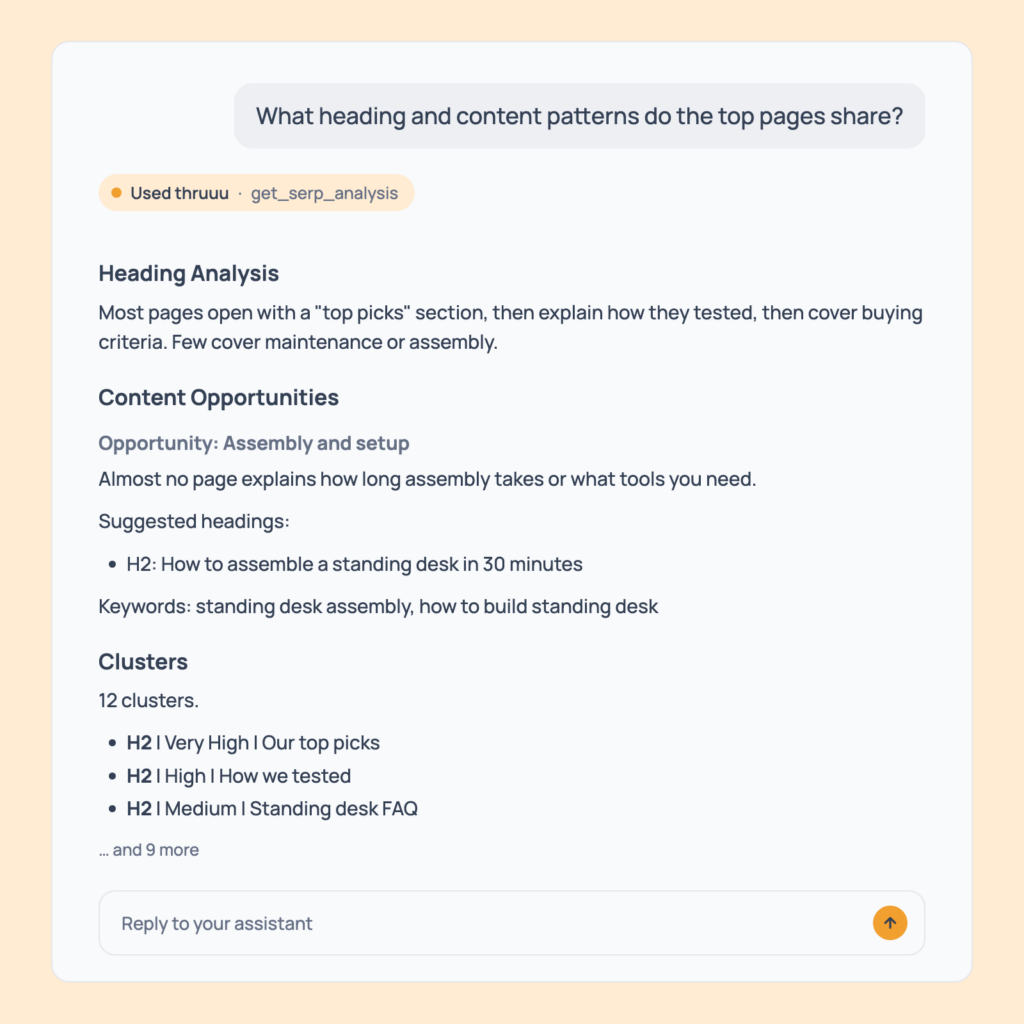
Prompt 15: Find the heading and content patterns
What heading and content patterns do the top pages share?The heading patterns and content patterns found across the ranking pages: the repeated structures and themes.
- Cost: free. Heading patterns from Pay as you go, content patterns from Professional.
- Tip: use the answer to brief a writer on what Google rewards for this keyword. If the analyses haven’t run yet, the assistant starts them (Prompts 24 and 25).
Compare Analyses
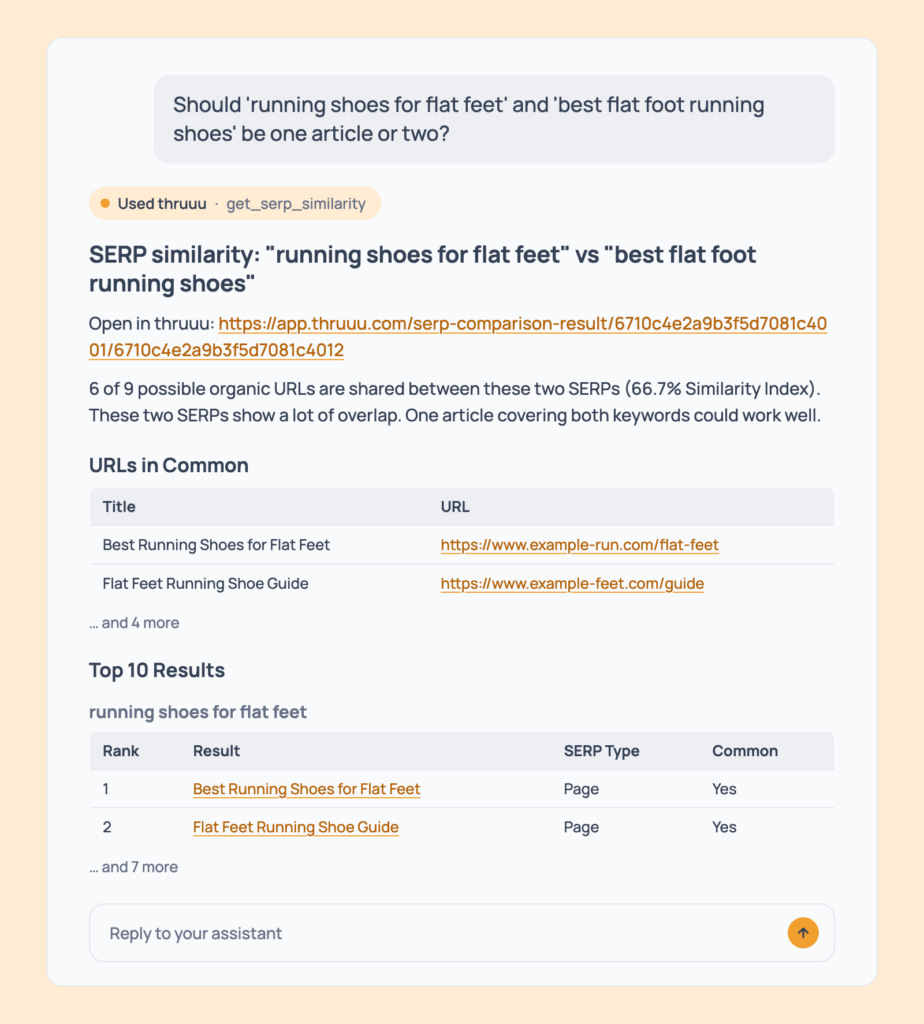
Prompt 16: One article or two?
Should 'running shoes for flat feet' and 'best flat foot running shoes' be one article or two?How many pages the two SERPs share, a similarity score, and a one-or-two recommendation using the same 40 percent rule as the app, with a link to the comparison.
- Cost: free, every plan. Both analyses must already exist.
- Tip: if one is missing, ask the assistant to run it first (Prompt 1).
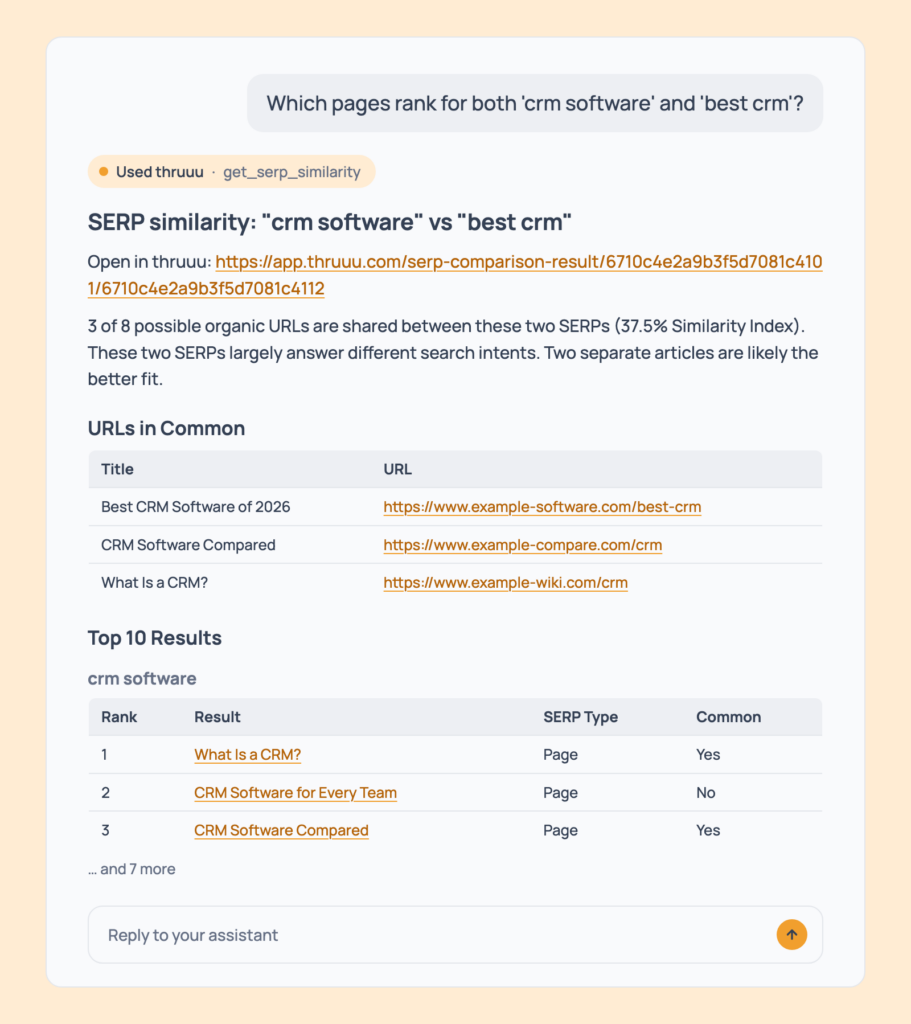
Prompt 17: Find the pages that rank for both keywords
Which pages rank for both 'crm software' and 'best crm'?The URLs both searches share, with both top 10s side by side.
- Cost: free.
- Tip: study the shared pages first.
Analysis Agent (the Strategic Report)
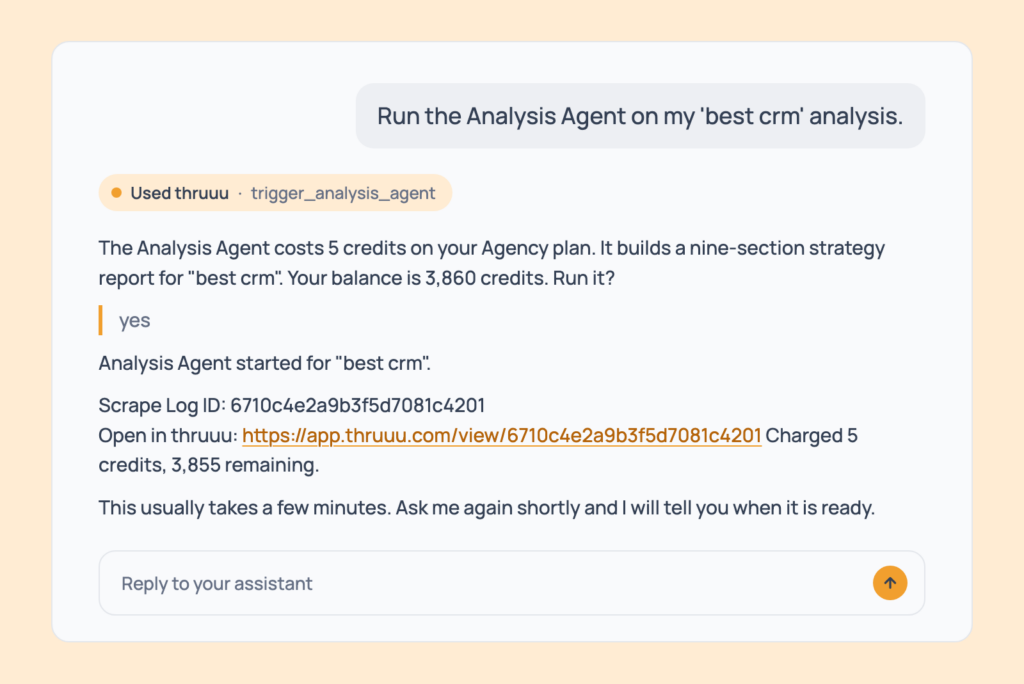
Prompt 18: Run the Analysis Agent
Run the Analysis Agent on my 'best crm' analysis.A nine-section strategy report, ready in a few minutes, with a link to follow it.
- Cost: 5 credits. Agency, or free on an analysis created during your trial.
- Tip: if a report already exists, the assistant points you to it instead.
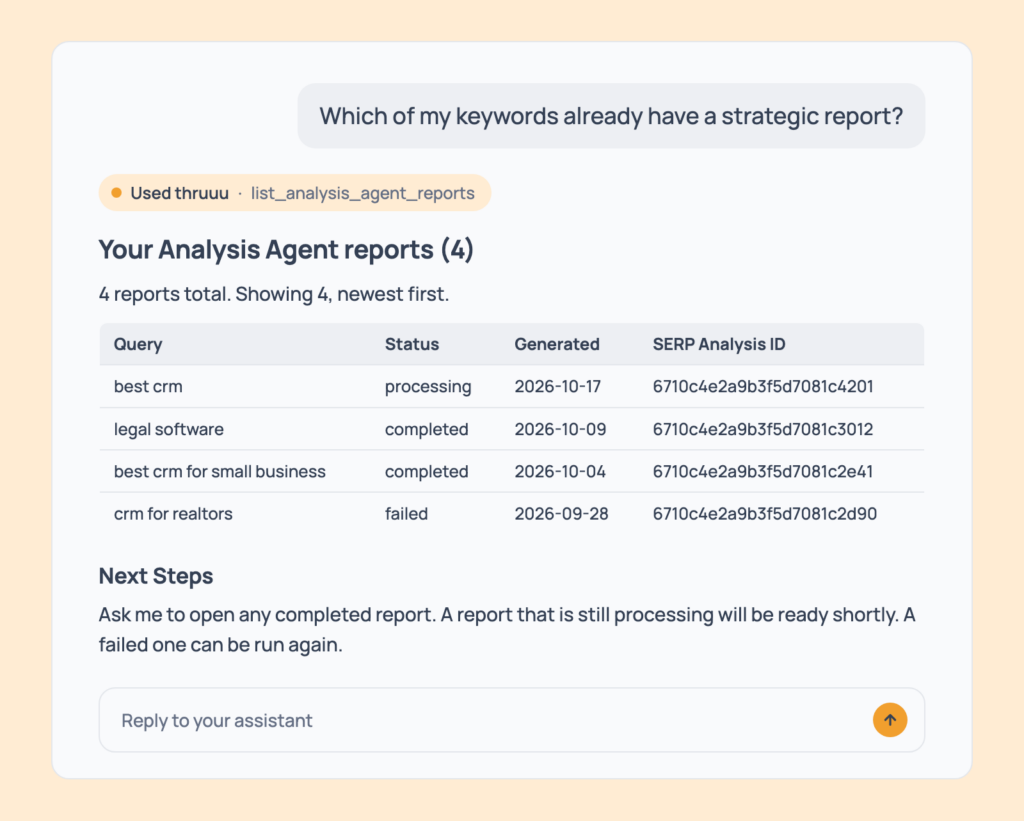
Prompt 19: List your strategic reports
Which of my keywords already have a strategic report?Your reports with keyword, status (running, ready or failed) and date.
- Cost: free, every plan.
- Tip: filter by keyword or workspace.
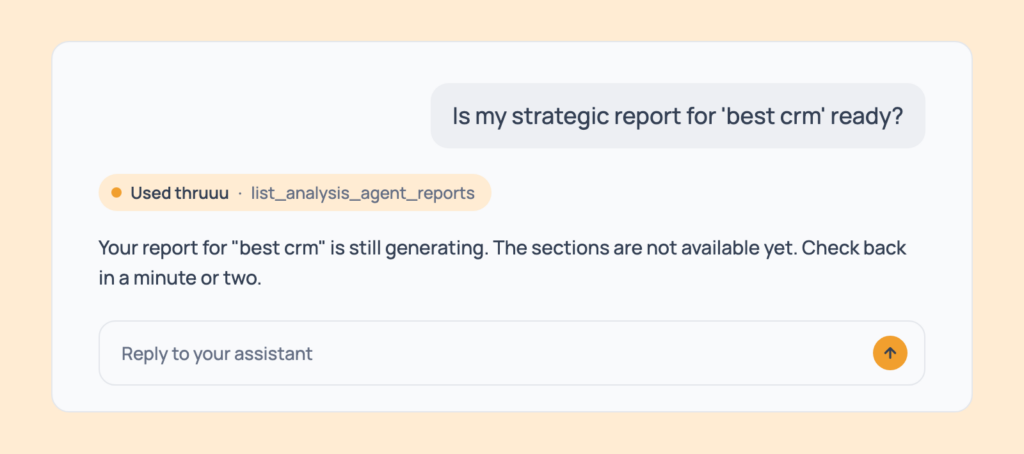
Prompt 20: Check a report’s status
Is my strategic report for 'best crm' ready?Ready, still running, or failed with the reason and how to retry.
- Cost: free.
- Tip: still running? Ask again in a minute or two.
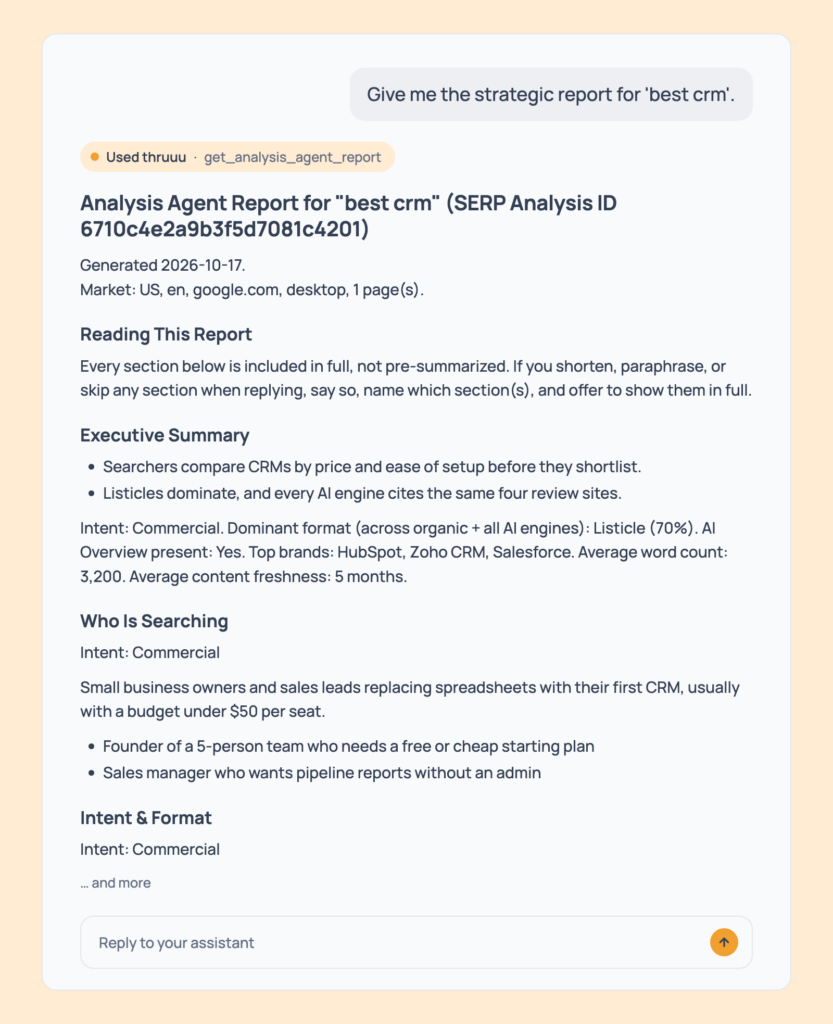
Prompt 21: Read the full report
Give me the strategic report for 'best crm'.All nine sections: summary, who is searching, intent and format, competitive landscape (top 8), AI engine landscape, brand landscape, topic coverage, recommendations and a content brief blueprint.
- Cost: free, every plan.
- Tip: ask for one section at a time if you want it shorter.
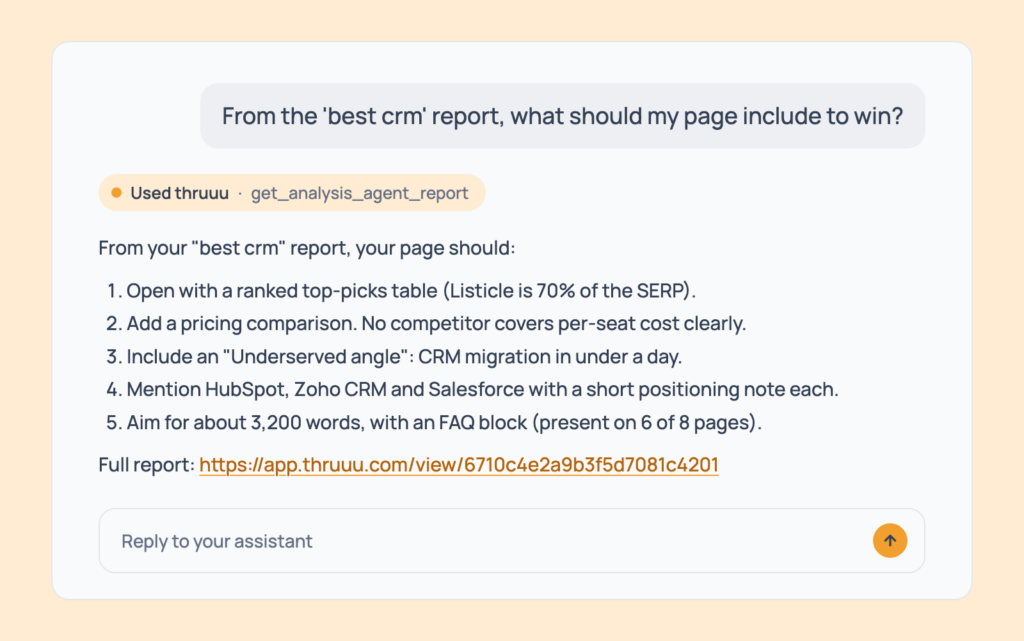
Prompt 22: Turn the report into a to-do list
From the 'best crm' report, what should my page include to win?A short list of what to include, taken from the report’s recommendations and blueprint.
- Cost: free.
- Tip: follow with Prompt 128 to push it into a brief.
Run the Analyses from the Chat
Search Intent, Heading Analysis and Content Analysis start from the chat on any SERP analysis you already have.
They’re free, take a couple of minutes at most. You read the result by asking for it (Prompts 14 and 15).
Each prompt below has a longer version that asks for the full section in the same message.
Prompt 23: Run the search intent analysis
Run the search intent analysis on my 'standing desk' analysis.The intent, the format table and the intent of every ranking page. If the analysis is linked to a brief, the brief’s Search Intent block fills in too, without overwriting anything you edited.
- Cost: free. Professional and above.
- Tip: use the longer version to get the full section in one go:
Run the search intent analysis on my "standing desk" analysis. When it has finished, show me the whole Search Intent section: the summary, the format table and the intent of every ranking page.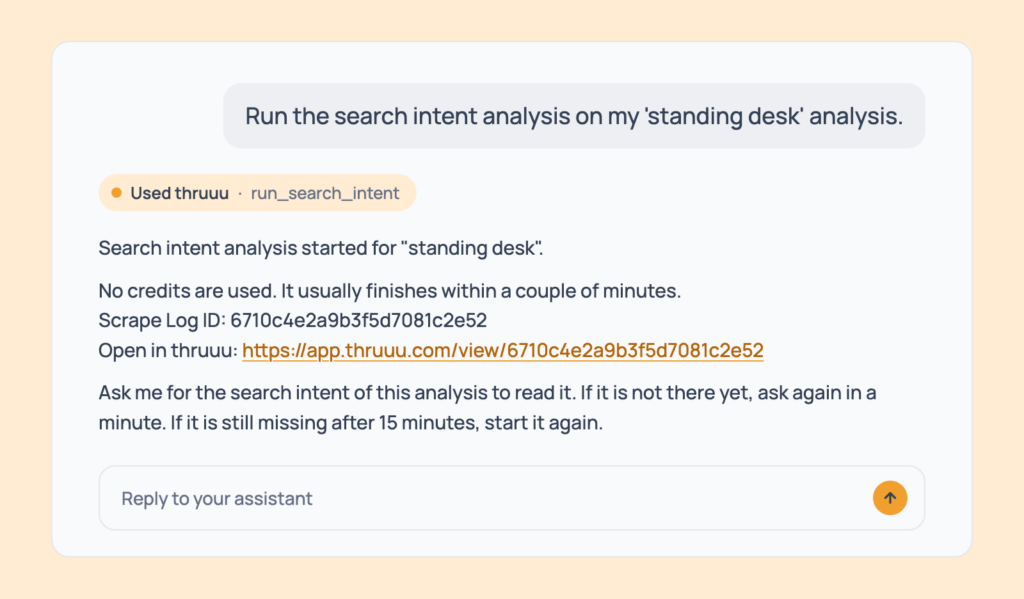
Prompt 24: Run the heading analysis
Run the heading analysis on my 'standing desk' analysis.Heading clusters classed Very High, High, Medium or Low, plus the content opportunities.
- Cost: free. Pay as you go and above.
- Tip: run it with Prompt 25 and read both in one call. The longer version:
Run the heading analysis on my "standing desk" analysis. When it has finished, show me the whole Heading Analysis section with the content opportunities.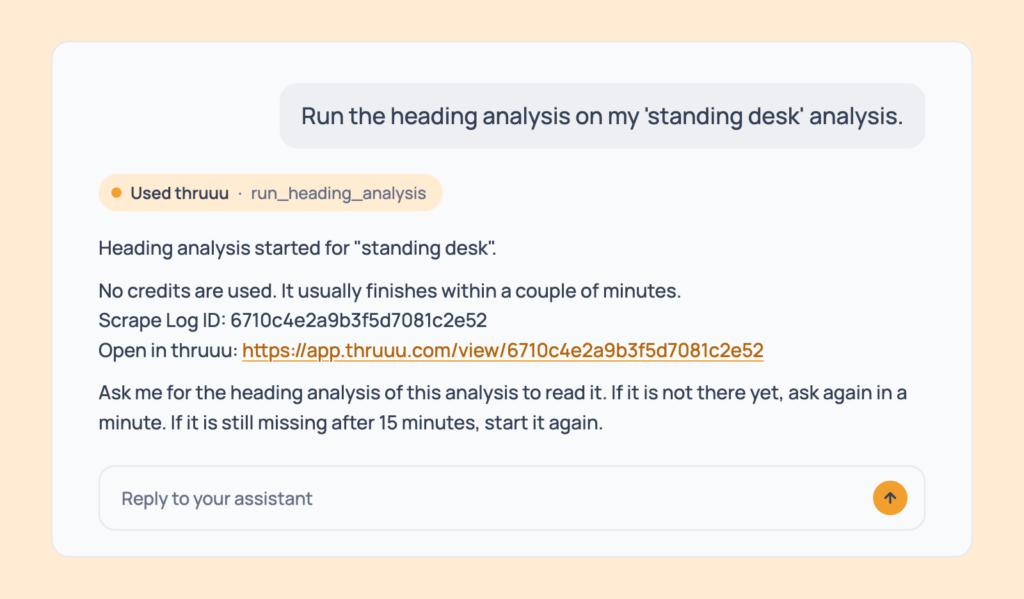
Prompt 25: Run the content analysis
Run the content analysis on my 'standing desk' analysis.The repeated topics and content patterns with their classification, plus content opportunities.
- Cost: free. Professional and above.
- Tip: ask for all three in one message: “Run the search intent, heading and content analyses on my ‘standing desk’ analysis, then show me all three.” The longer version:
Run the content analysis on my "standing desk" analysis. When it has finished, show me the whole Content Analysis section.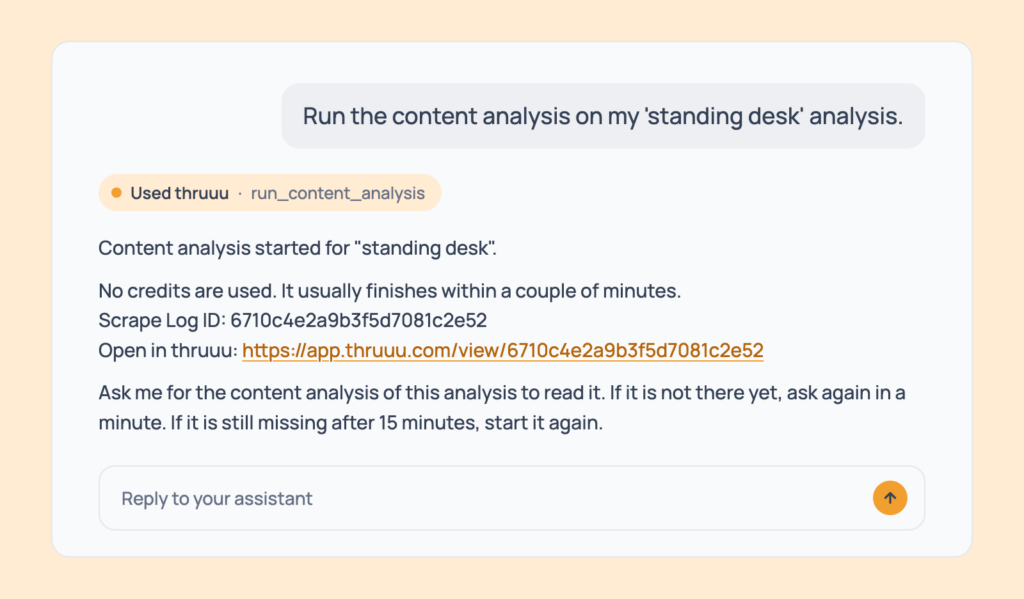
Read the Full Data of a SERP
Prompt 26: Get every page’s title, description, dates and schema
Show me the SERP title, description, dates and schema of every ranking page for 'standing desk'.The Page Details table: Google’s title and description, the page’s meta description, page type, position, publication and modification dates, schema type, on-page FAQ count and link count.
- Cost: free, every plan.
- Tip: ask for the same details on the pages the AI Overview or an AI engine cited. The longer version:
Show me the SERP title, SERP description, meta description, page type, publication and modification dates and schema type of every result for my "standing desk" analysis. Give me the whole table, every row and every column, with no summary.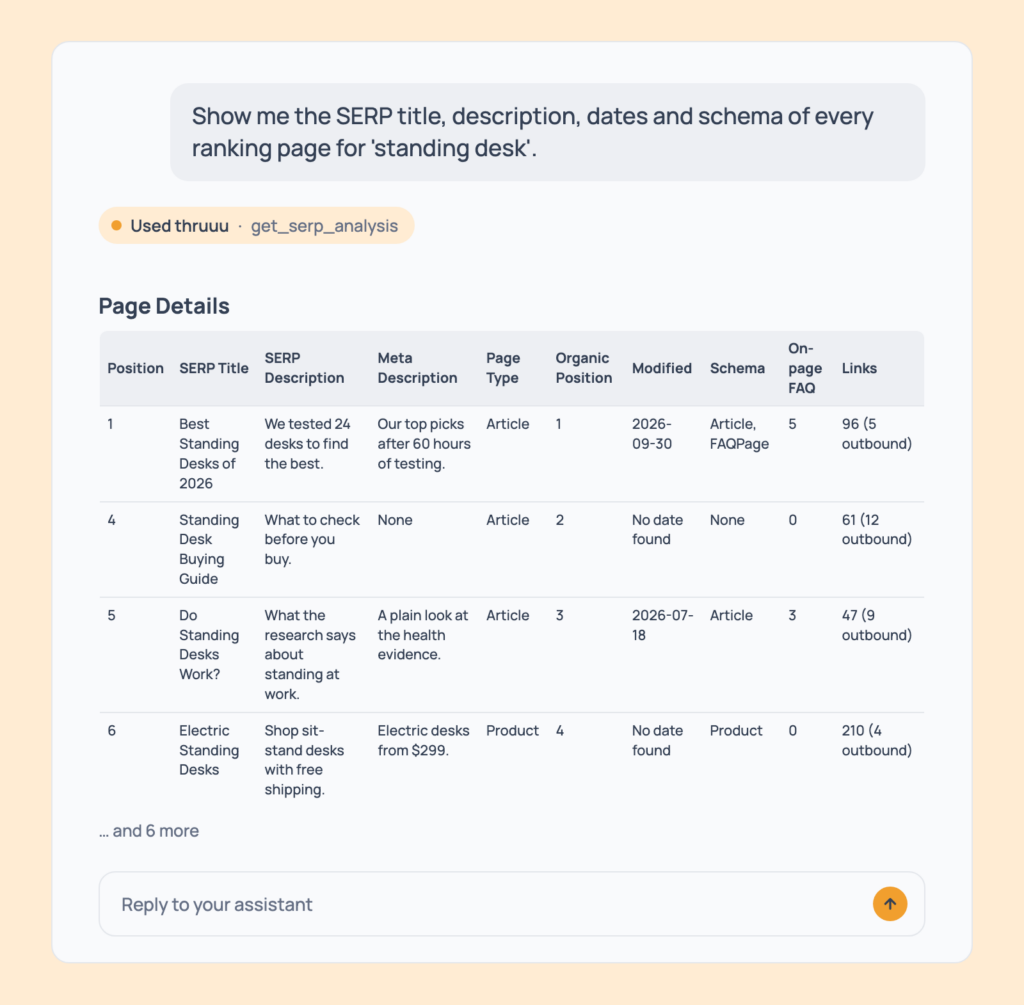
Prompt 27: See every row of a results page
Show me everything on page 1 of my 'standing desk' analysis, with no 10-row limit.Every row of the page in position order, including the AI Overview, People Also Ask and video slots. Ask for page 2, 3 and beyond on a multi-page analysis.
- Cost: free, every plan.
- Tip: the default view stops at 10 rows and says how many it left out. The longer version:
Show me every row of page 1 of my "standing desk" analysis, with no 10-row limit and no summary, together with the page details of each result. Then do the same for page 2 if the analysis has one.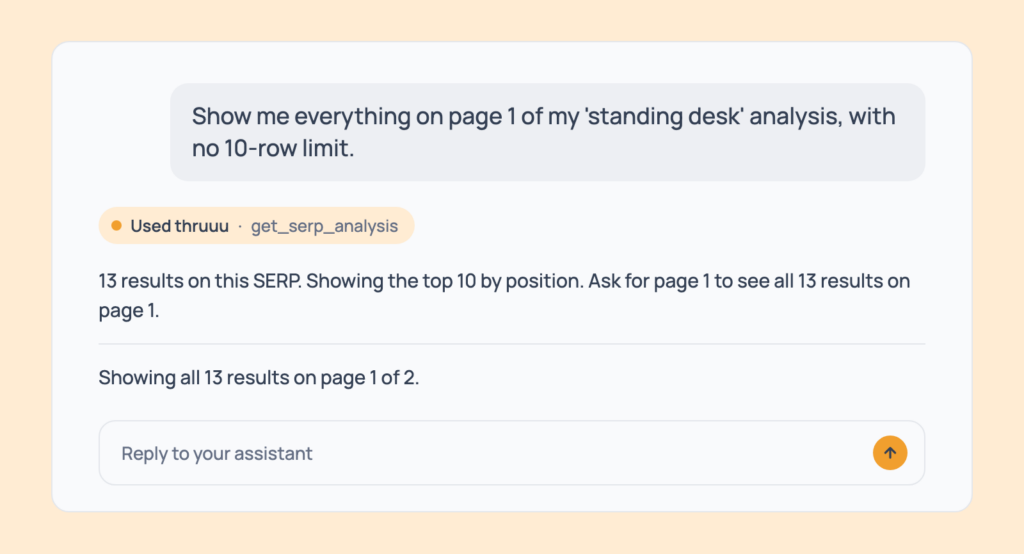
Prompt 28: Read the SERP features in full
Show me the People Also Ask answers, video carousel, local pack and news for 'standing desk'.People Also Ask with each answer and source, the video carousel, the local pack and the news items. A block that wasn’t on the SERP says so.
- Cost: free, every plan.
- Tip: these blocks appear when the SERP provider captured them for that search. The longer version:
For my "standing desk" analysis, show me the People Also Ask questions with their answers, then the video carousel, the local pack and the news, in full.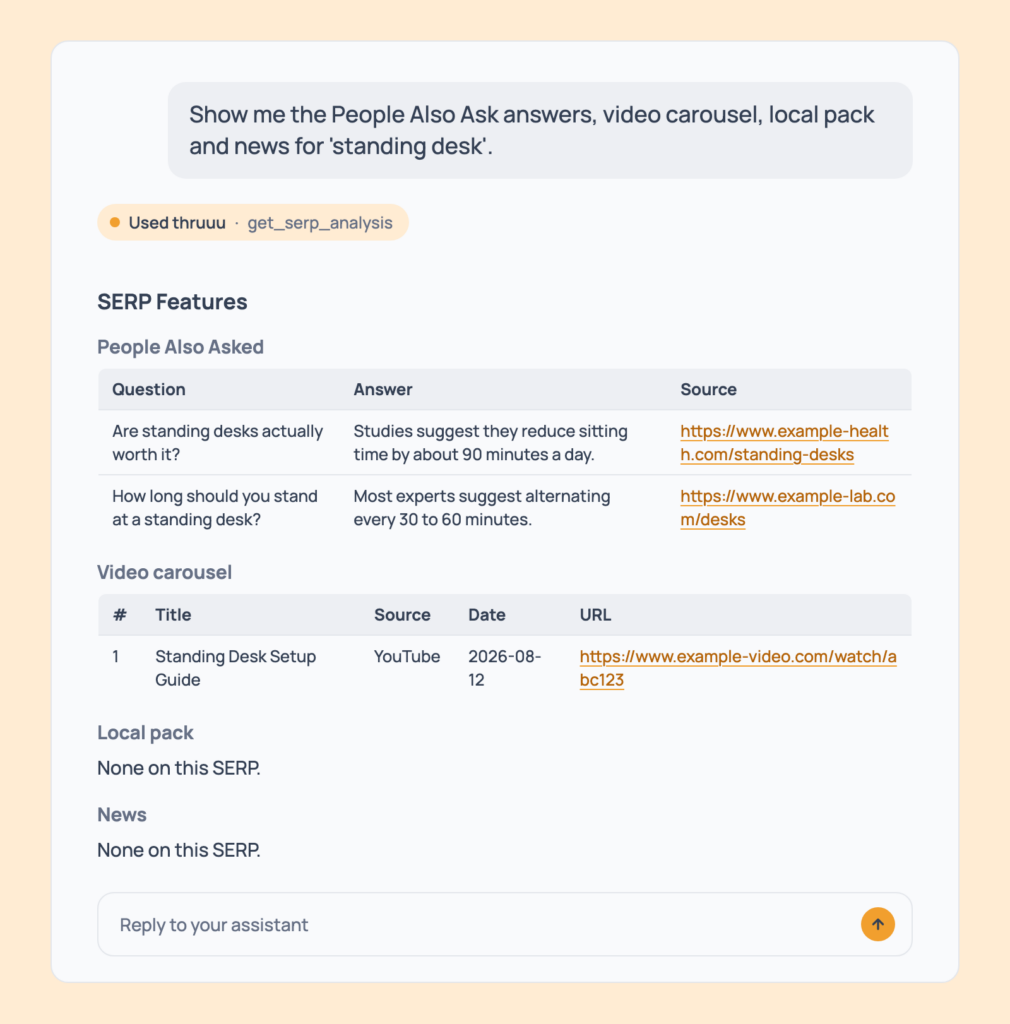
Prompt 29: Read a page’s FAQ and outbound links
Show me the FAQ and the links of the number 1 page for 'standing desk'.The questions and answers on the page, then every outbound link with its label, URL, domain and rel.
- Cost: free, every plan. It also works for a source the AI Overview or an AI engine cited.
- Tip: only outbound links are listed; Page Details still shows the total link count. The longer version:
For my "standing desk" analysis, show me the questions and answers in the FAQ of the result at position 1. Then list every link on that page with its label, URL, domain and rel.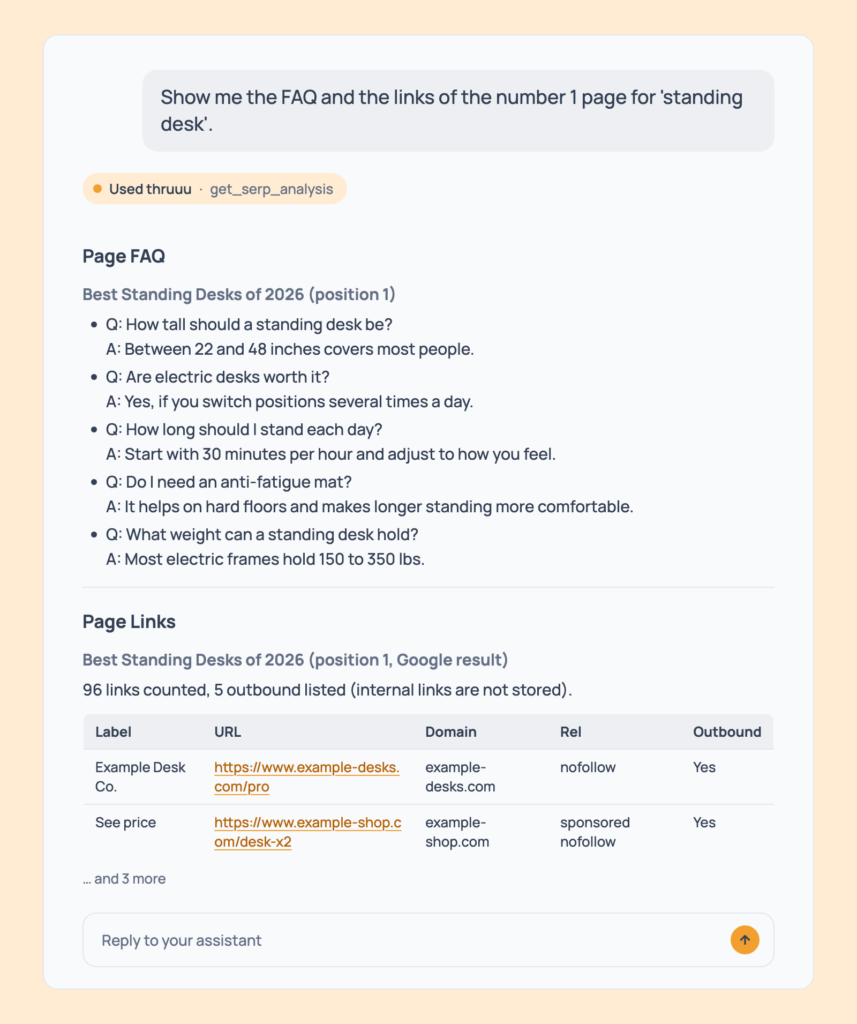
AI Search Prompts: ChatGPT, Gemini, Perplexity, Google AI Mode and AI Overviews
Ranking on Google and being cited in an AI answer are two different results. You need to see both.
The first group adds the AI engines to a SERP analysis, so you read what each one says and cites next to Google’s results.
The second builds AI Overview reports across hundreds of keywords and shows where your brand is cited, named, or missing.
AI Engines in a SERP Analysis
Prompt 30: Add ChatGPT to a SERP analysis
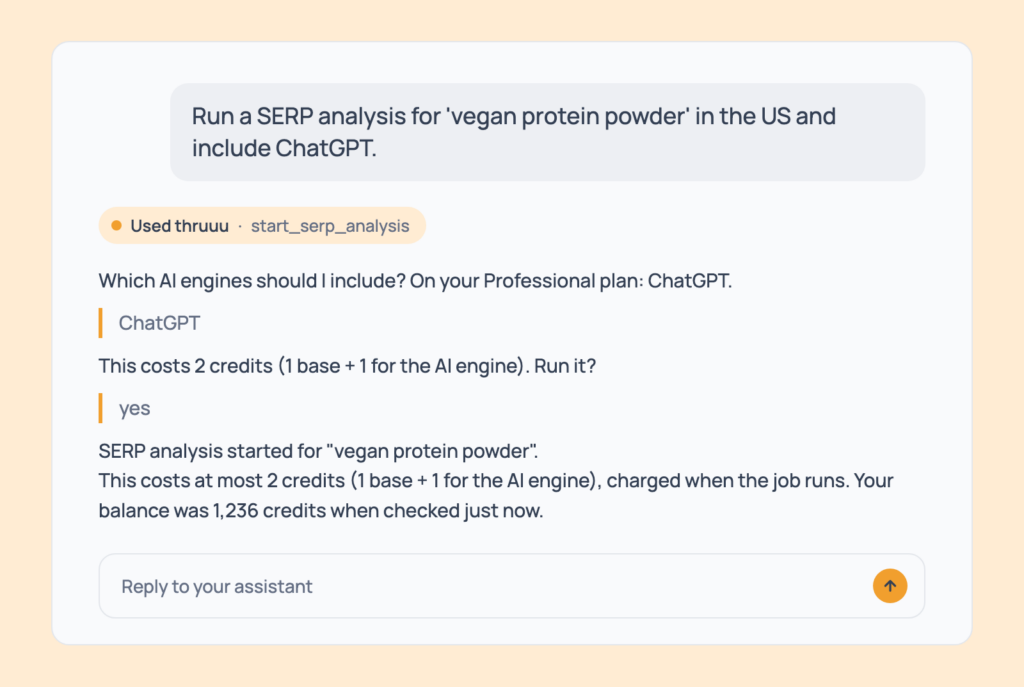
Run a SERP analysis for 'vegan protein powder' in the US and include ChatGPT.Google’s results plus ChatGPT’s answer to the same query, in one analysis.
- Cost: 1 credit, plus 1 per engine. Professional includes ChatGPT.
- Tip: the assistant always asks which engines to include before it spends anything.
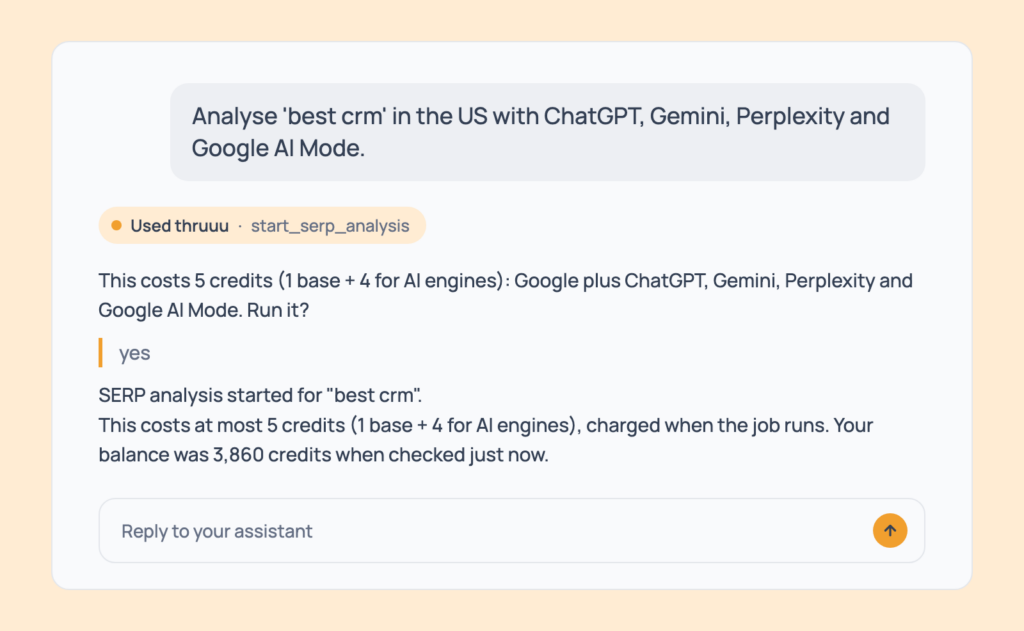
Prompt 31: Compare four AI engines with Google
Analyse 'best crm' in the US with ChatGPT, Gemini, Perplexity and Google AI Mode.One analysis holding Google plus the answers from ChatGPT, Gemini, Perplexity and Google AI Mode.
- Cost: 5 credits (1, plus 1 per engine), 6 with search volume. Agency.
- Tip: the quickest way to see where AI search and Google agree, and where they don’t.
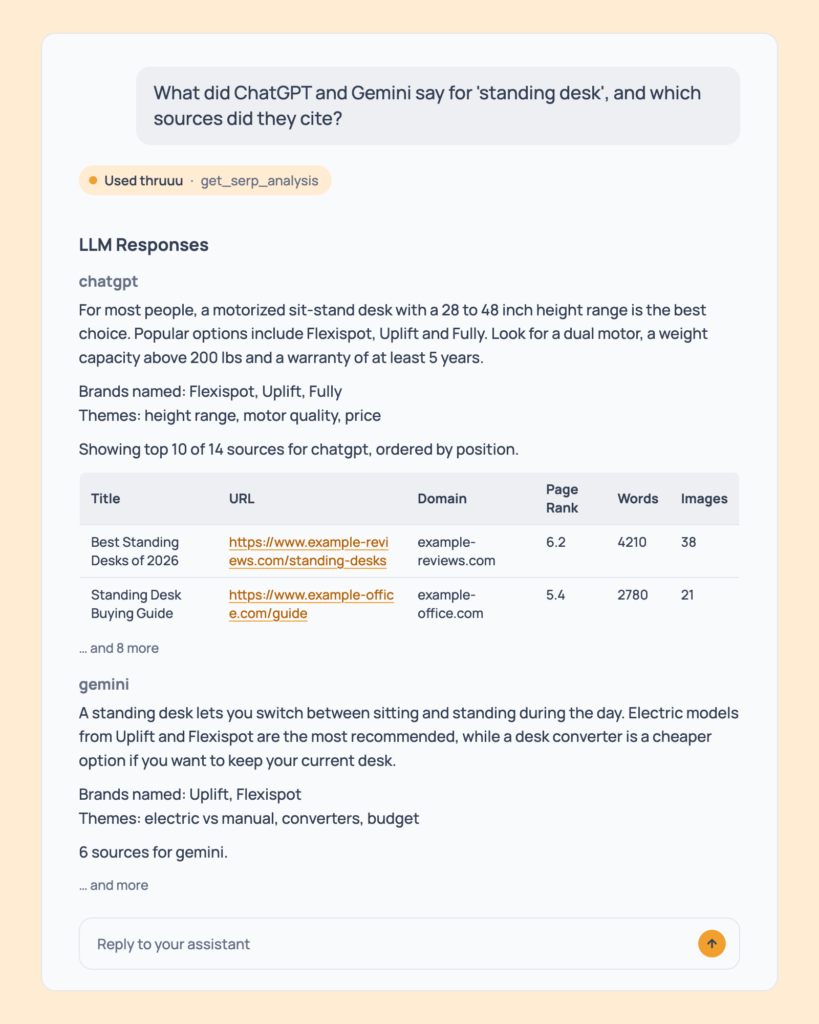
Prompt 32: Read what ChatGPT and Gemini answered
What did ChatGPT and Gemini say for 'standing desk', and which sources did they cite?Each engine’s answer, its cited sources (top 10 each), and the brands and themes it named.
- Cost: free. Professional and above, for the engines your plan can run.
- Tip: it works on any analysis that included engines.
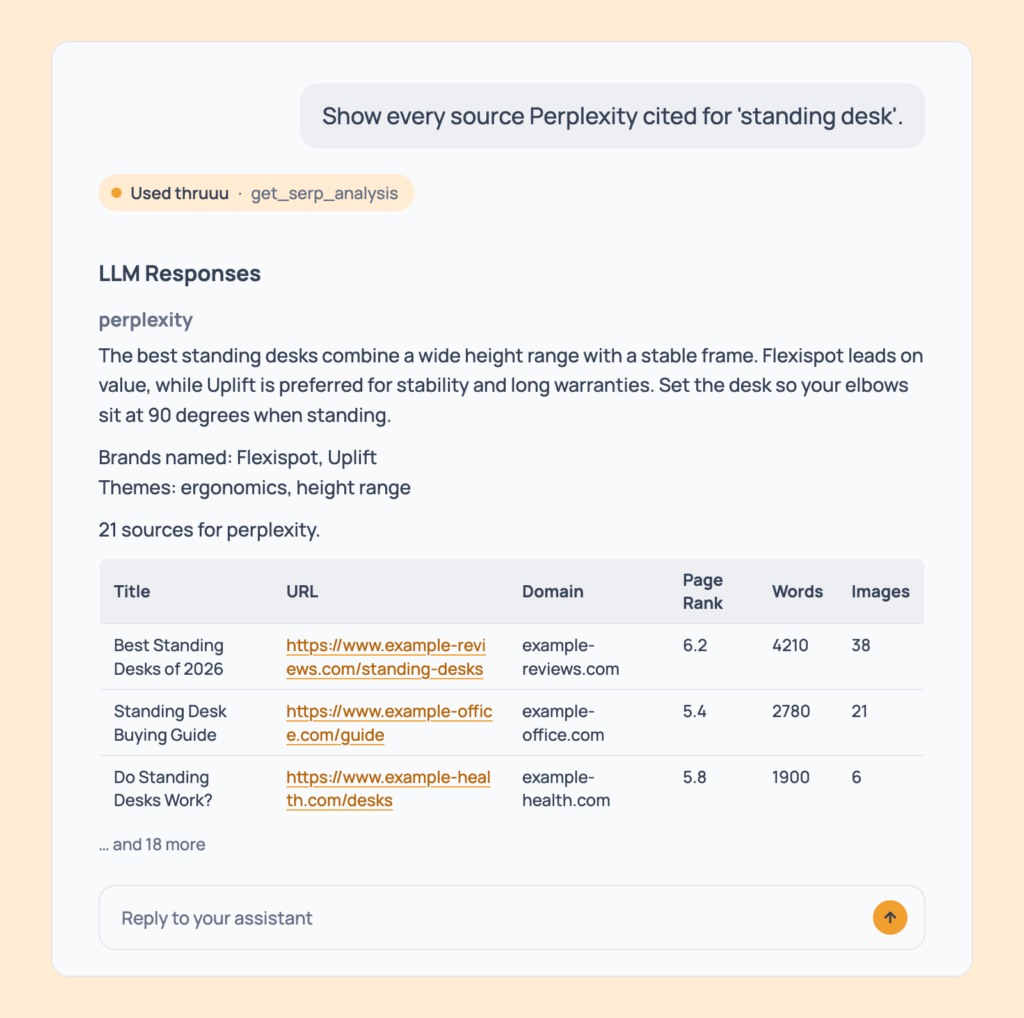
Prompt 33: List every source one engine cited
Show every source Perplexity cited for 'standing desk'.Perplexity’s full, uncapped source list.
- Cost: free.
- Tip: use it to build a link-building or digital PR target list.
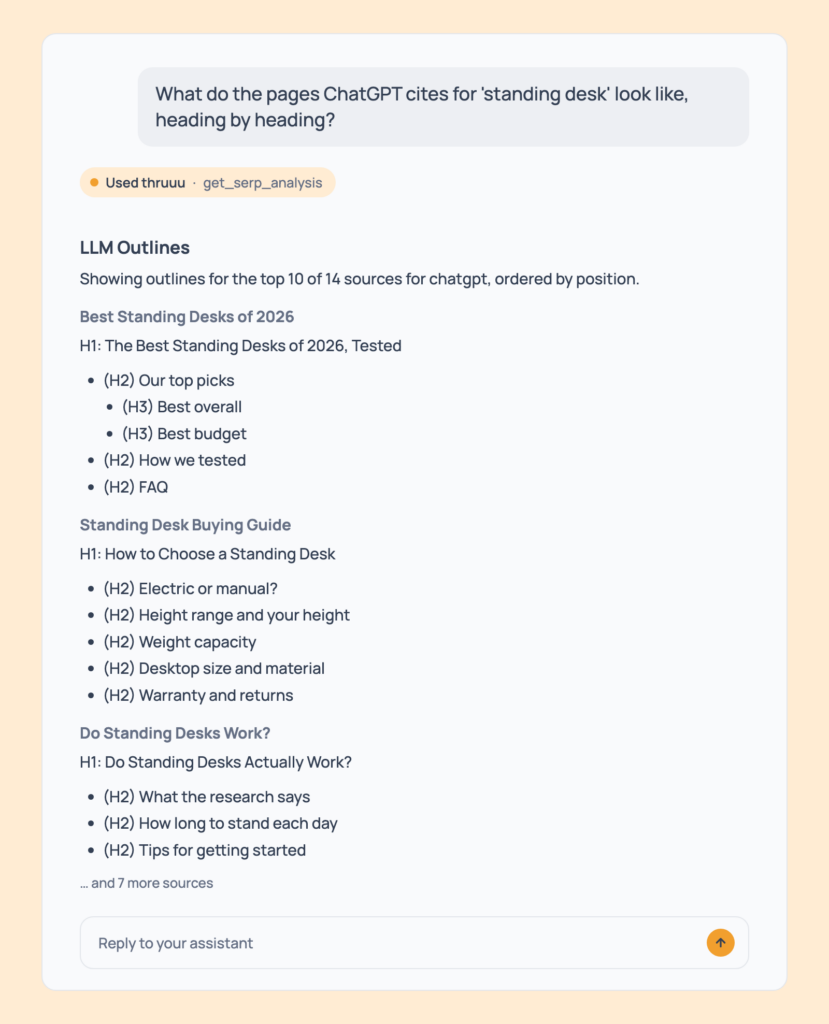
Prompt 34: See the outlines of the pages AI engines cite
What do the pages ChatGPT cites for 'standing desk' look like, heading by heading?The outlines of the top 10 pages one engine cited.
- Cost: free. Professional and above.
- Tip: it shows the structure AI engines trust.
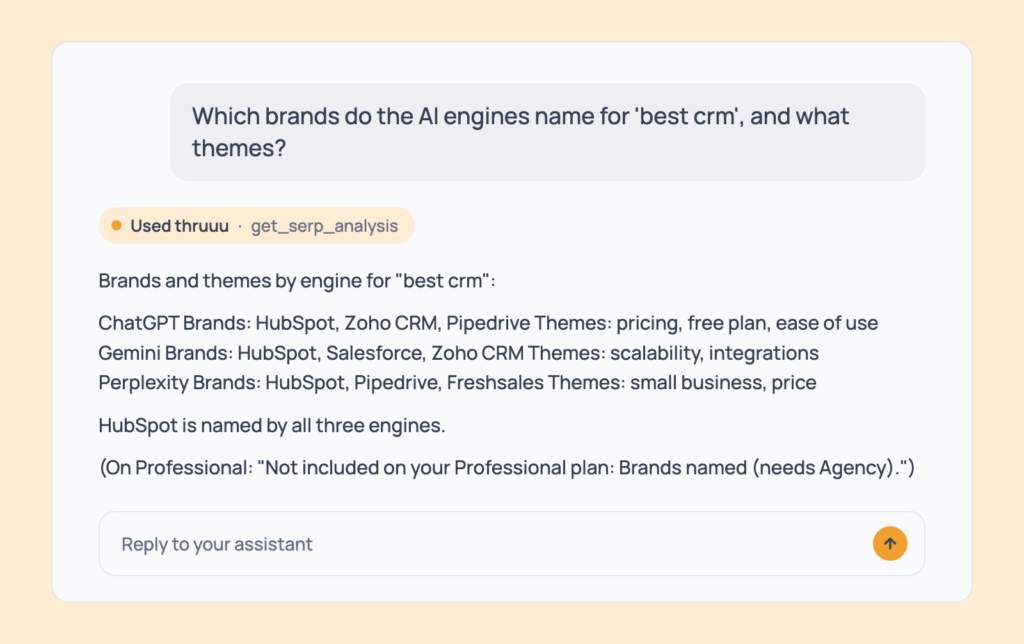
Prompt 35: Find the brands the AI engines name
Which brands do the AI engines name for 'best crm', and what themes?The brands each engine named and the themes tied to them.
- Cost: free. Brand names are shown on Agency.
- Tip: on other plans the assistant tells you what’s hidden and which plan shows it.
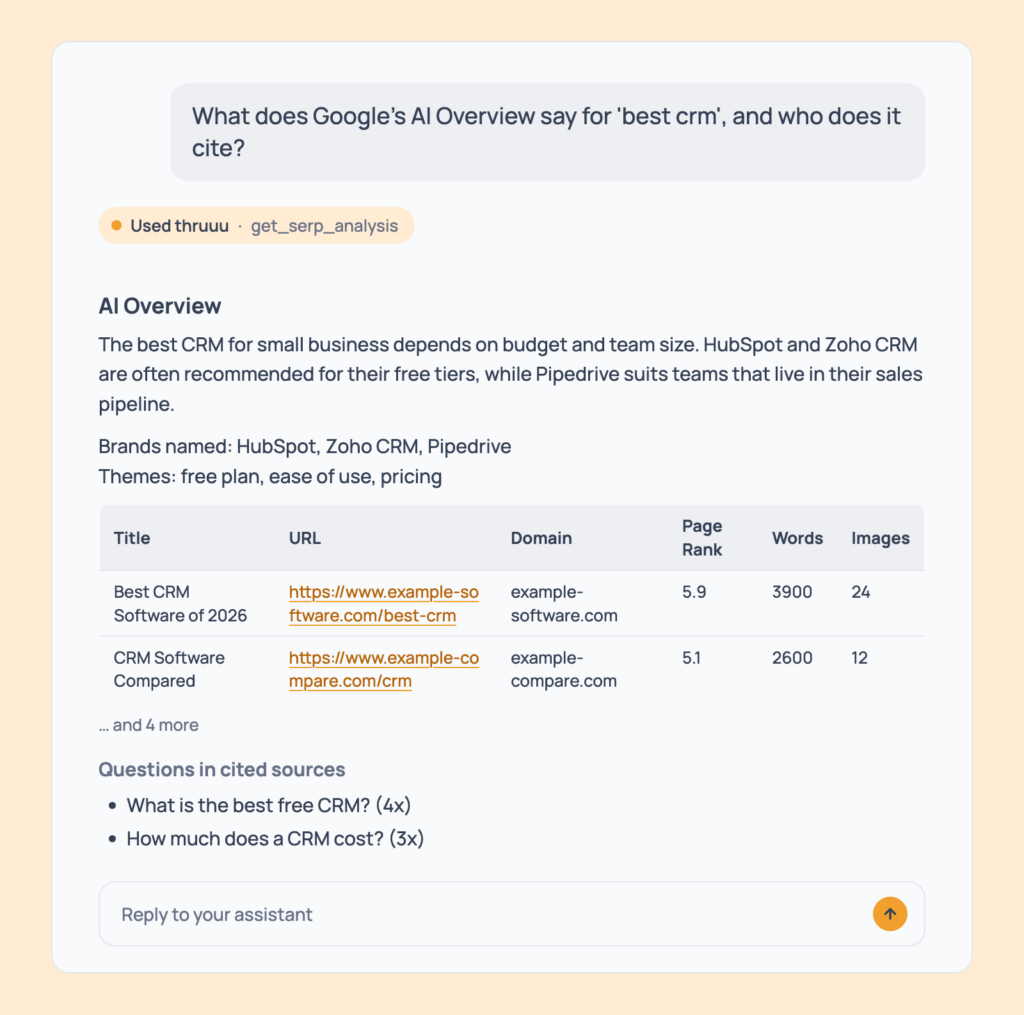
Prompt 36: Read Google’s AI Overview and its sources
What does Google's AI Overview say for 'best crm', and who does it cite?The AI Overview text, its cited sources, the brands and themes it names, and the questions found in those sources.
- Cost: free. Professional and above.
- Tip: ask “is my domain cited?” for a straight answer.
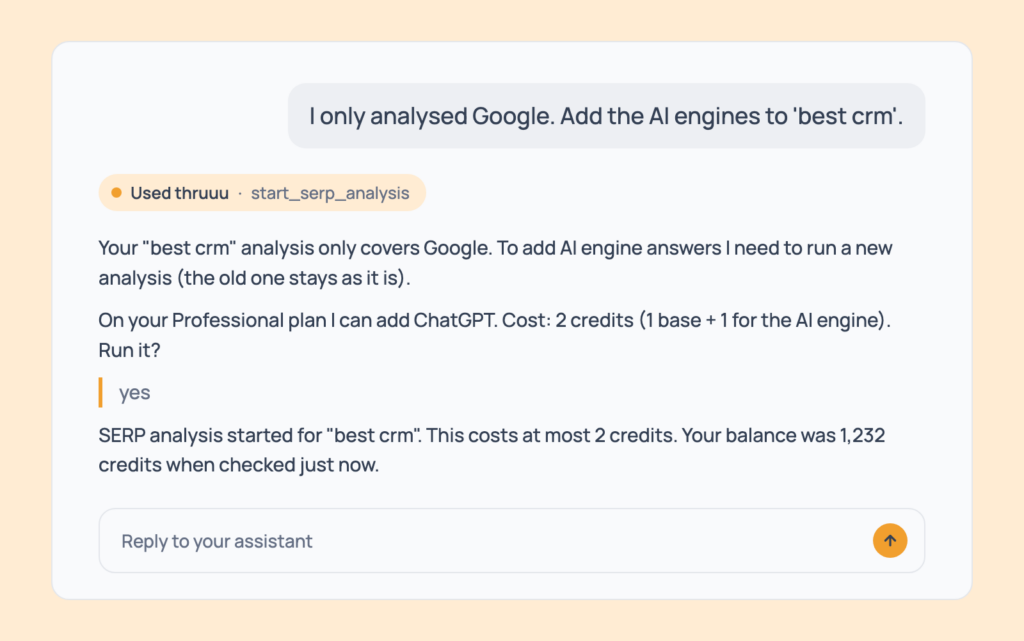
Prompt 37: Add AI engines to a keyword you analysed
I only analysed Google. Add the AI engines to 'best crm'.A fresh analysis with the engines you pick. The old one stays as it is.
- Cost: 1 credit, plus 1 per engine.
- Tip: the assistant suggests this on its own when it sees an analysis without engine data.
AI Overview Reports
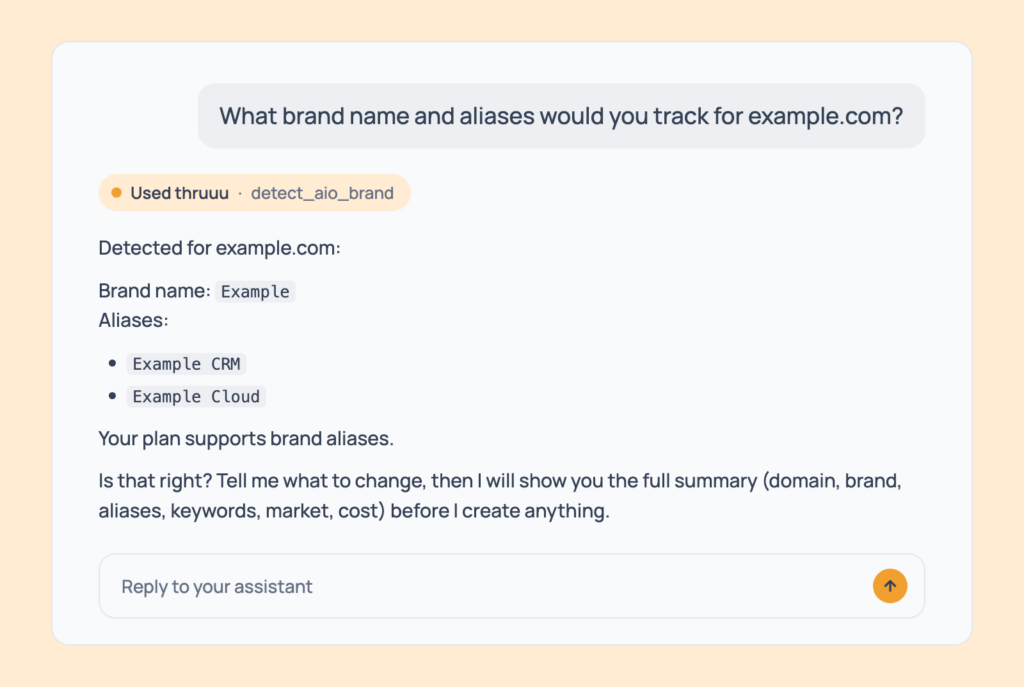
Prompt 38: Detect your brand name and aliases
What brand name and aliases would you track for example.com?The brand name and aliases read from your home page, for you to confirm or edit. Nothing is created.
- Cost: free. Professional and above.
- Tip: it takes up to about 20 seconds.
Prompt 39: Create an AI Overview report
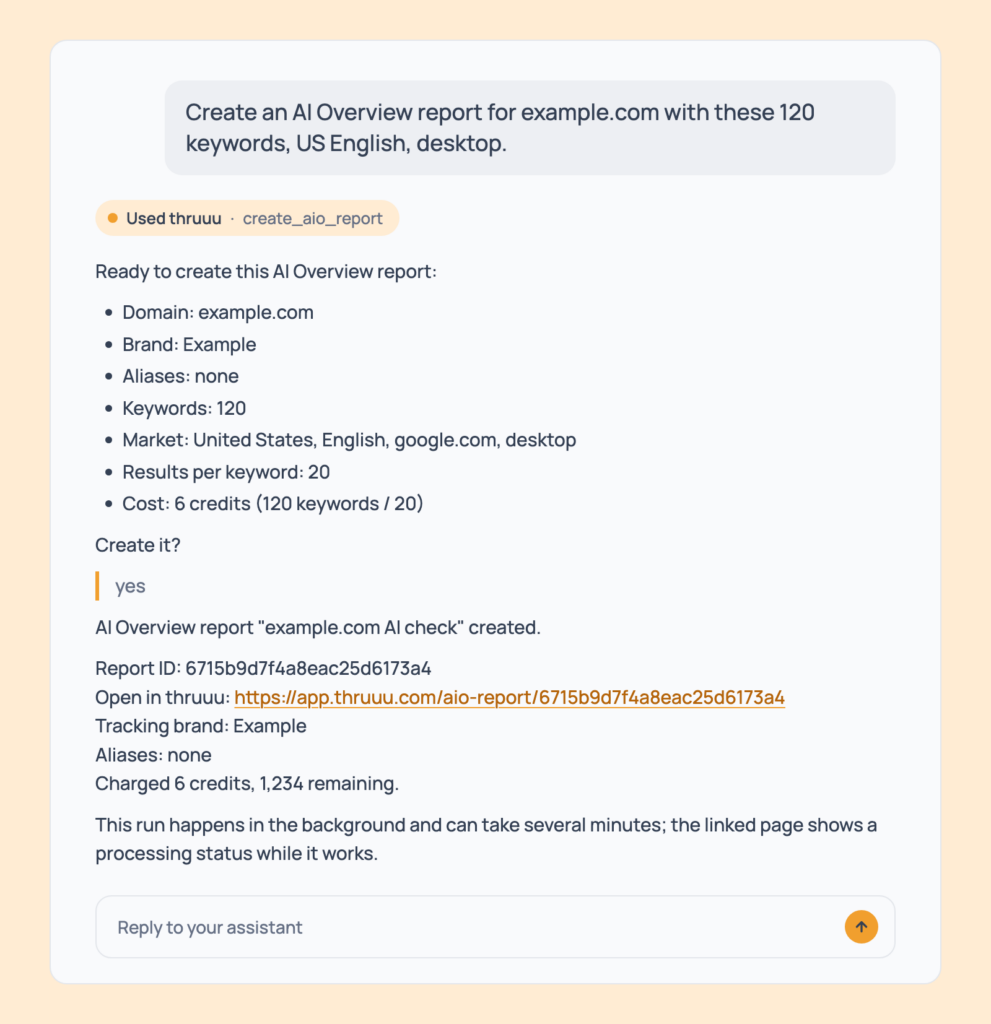
Create an AI Overview report for example.com with these 120 keywords, US English, desktop.The report started, with a link and the cost, once you confirm the domain, brand, aliases, keyword count and market. It never invents keywords or a market.
- Cost: keywords divided by 20 (top 20 results), 10 (top 50) or 5 (top 100), rounded up. Up to 500 keywords. Professional and above.
- Tip: ask for the cost first (Prompt 136).
Prompt 40: Track one part of a site and several brand names
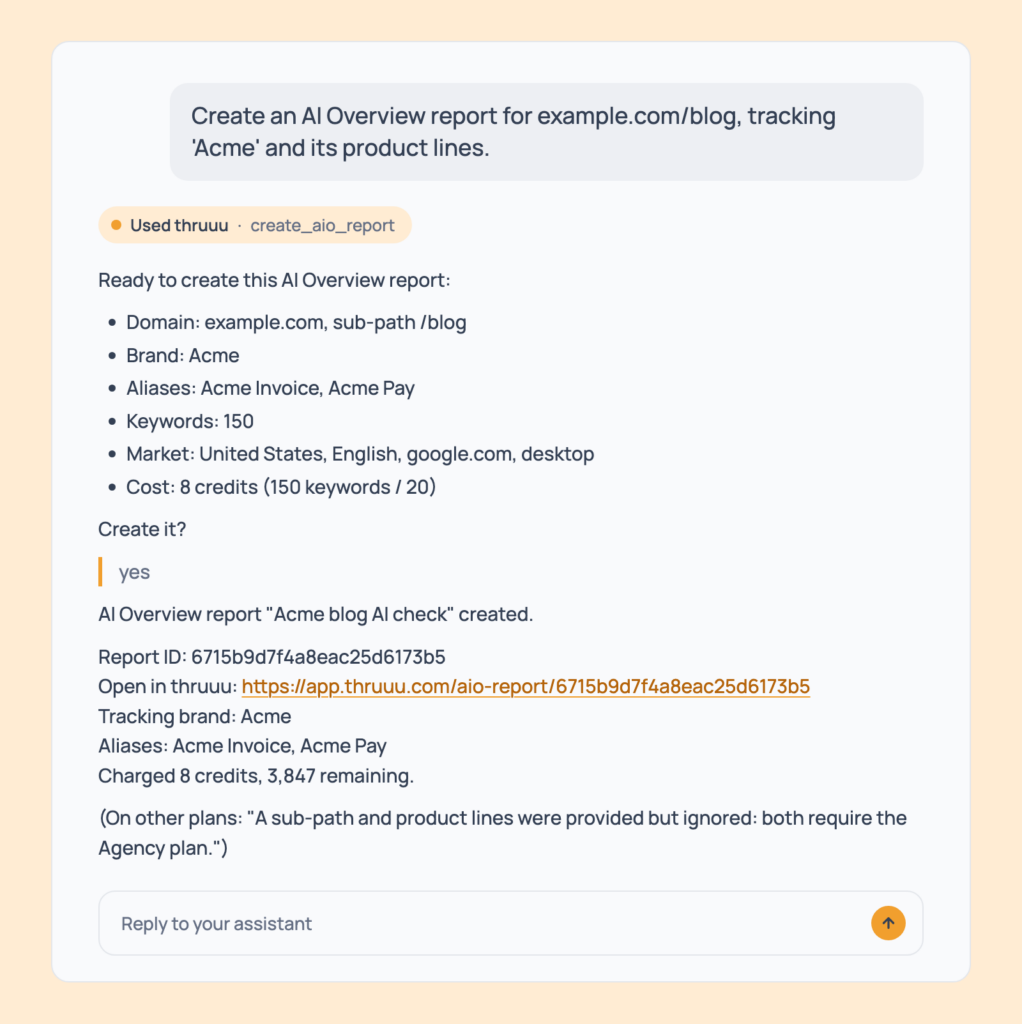
Create an AI Overview report for example.com/blog, tracking 'Acme' and its product lines.The same report, scoped to a sub-path and tracking extra aliases or product lines.
- Cost: same pricing. Sub-paths and aliases need Agency; other plans ignore them and say so.
- Tip: use the sub-path to isolate a blog, a docs site or a country folder.
Prompt 41: Build a report from your own keyword sheet
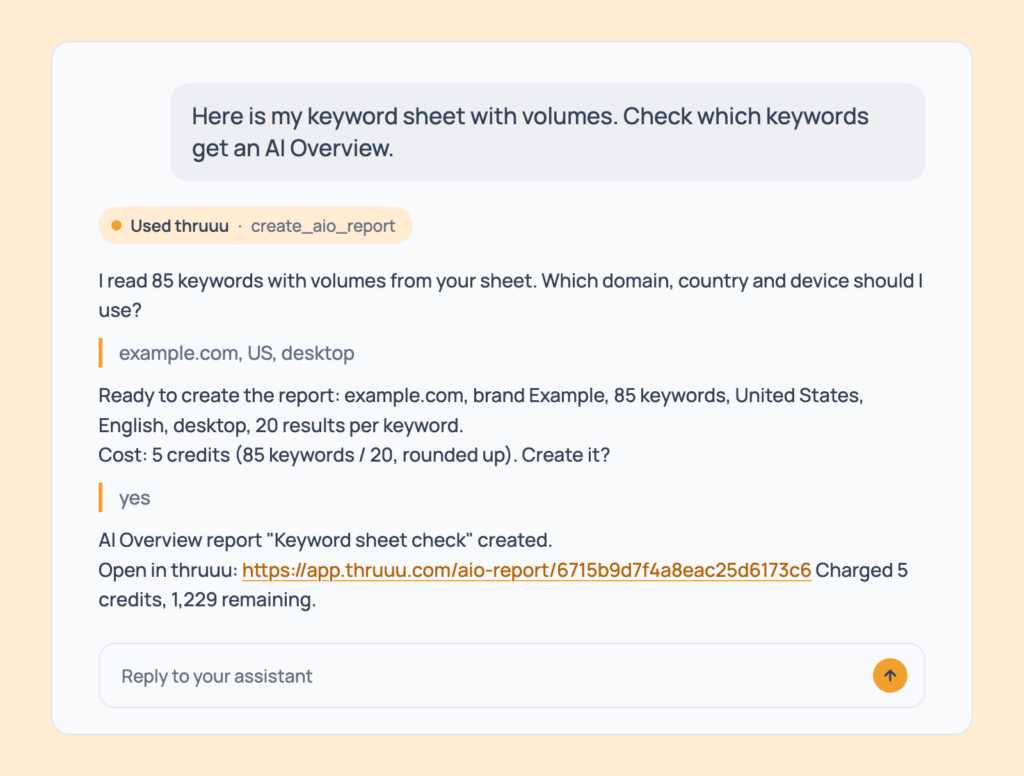
Here is my keyword sheet with volumes. Check which keywords get an AI Overview.The same report, built from the keywords you paste and using your volumes.
- Cost: same pricing. Up to 500 keywords; larger lists go through the app upload.
- Tip: the assistant asks for the market if you didn’t give one.
Prompt 42: List your AI Overview reports
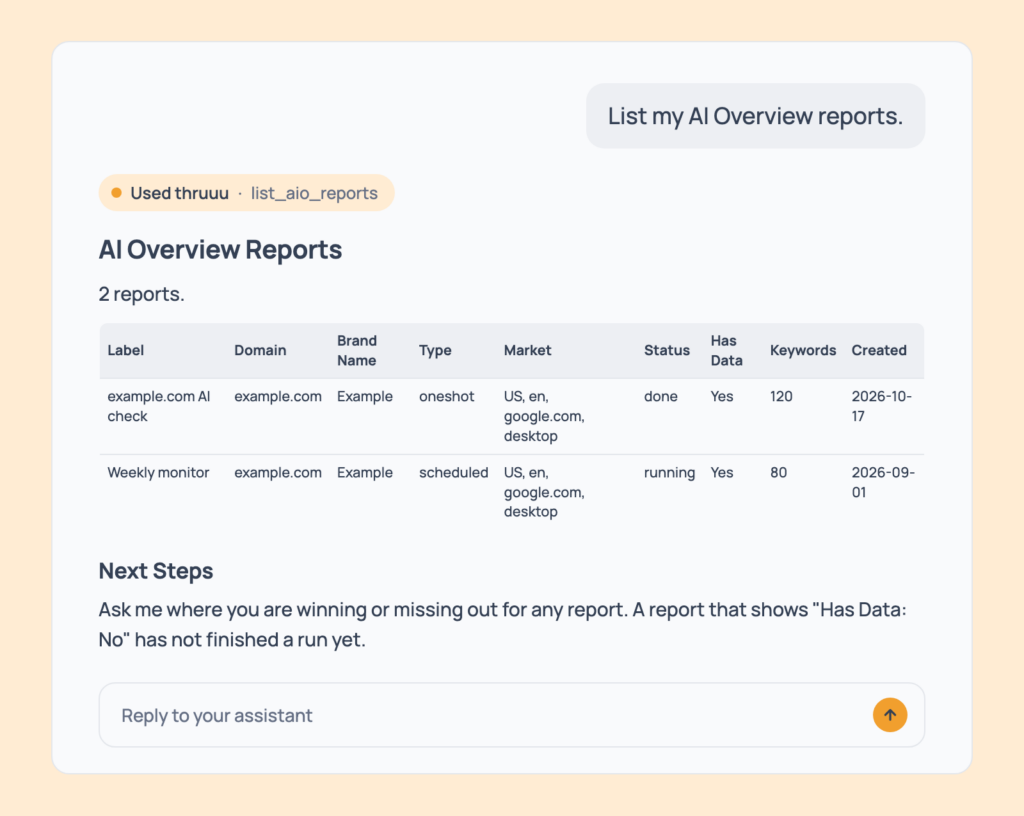
List my AI Overview reports.Your reports with label, domain, brand, type, status, whether it has data, keyword count, date and a link.
- Cost: free, every plan.
- Tip: filter by label or workspace.
Prompt 43: Check whether a report has finished
Is my AI Overview report for example.com finished?Whether at least one run has completed.
- Cost: free.
- Tip: reports run once from the assistant. Scheduled reports are set up in the app, and they show up in this list too.
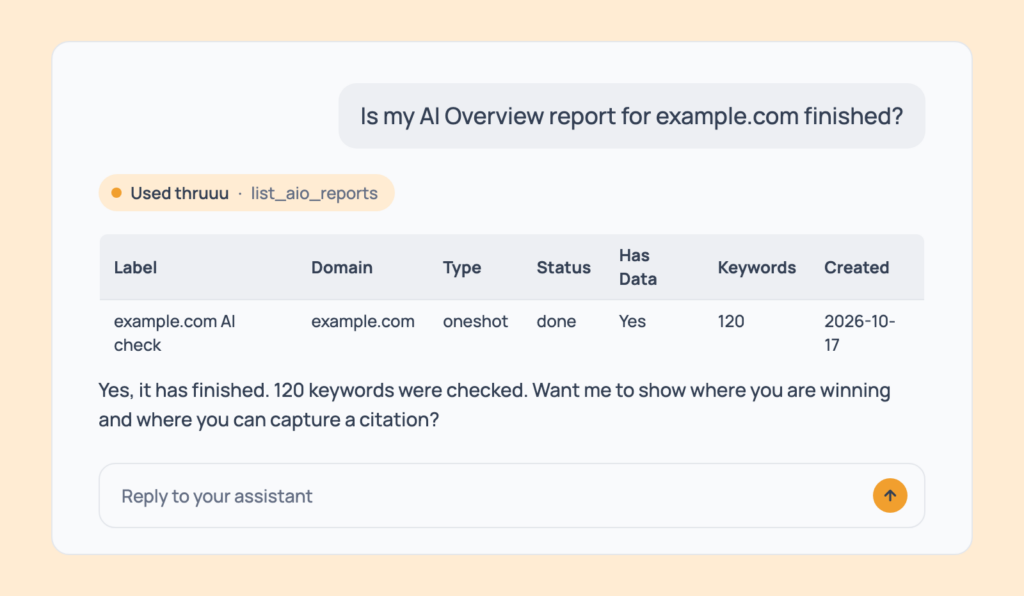
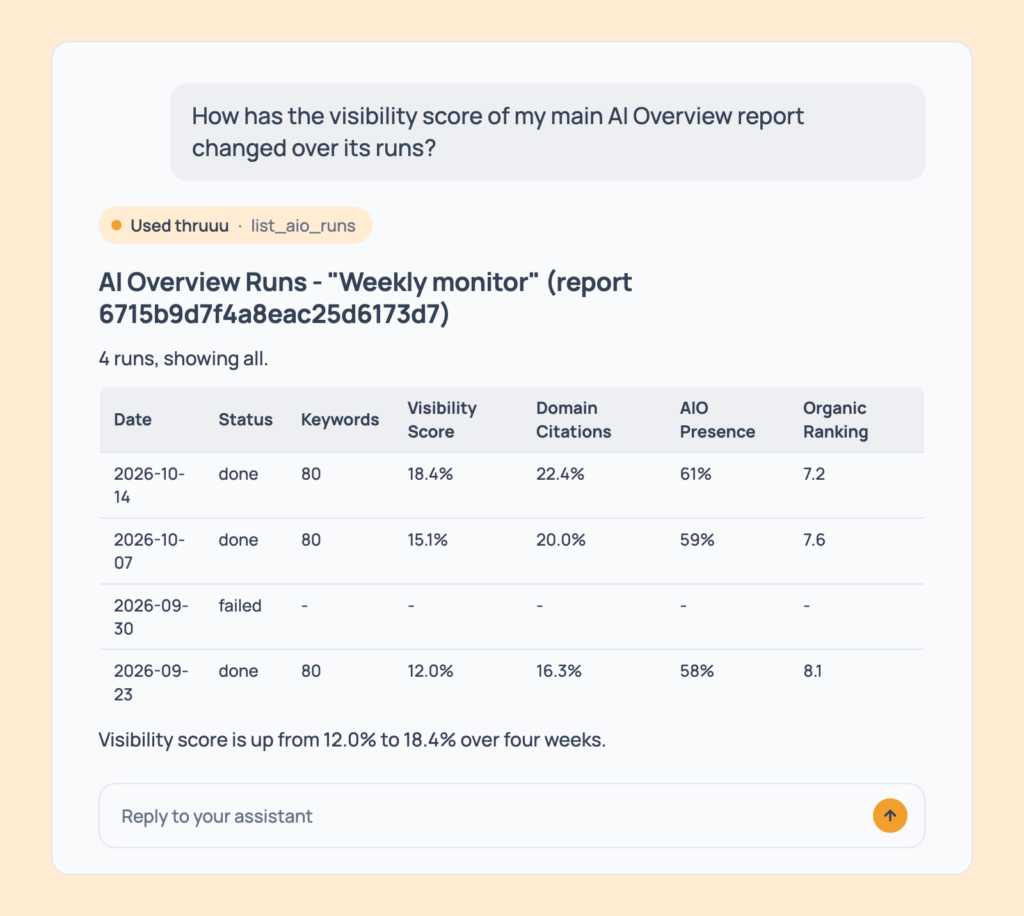
Prompt 44: Follow the visibility score over time
How has the visibility score of my main AI Overview report changed over its runs?Every run with its date, status, keyword count, visibility score, domain citations, AI Overview presence and organic ranking.
- Cost: free. Professional and above.
- Tip: failed runs are shown, not hidden.
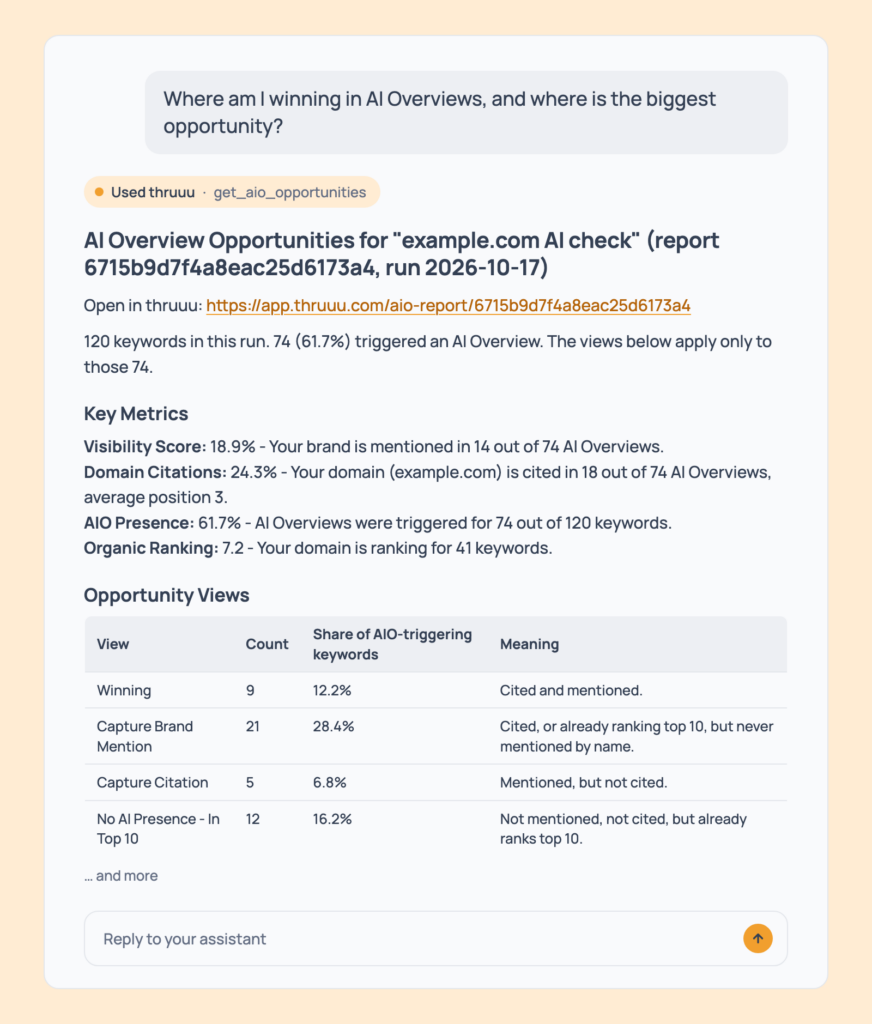
Prompt 45: Find where you win and where to act
Where am I winning in AI Overviews, and where is the biggest opportunity?The latest run’s key metrics, opportunity views, priority actions, and top cited domains, mentioned brands and organic domains, with yours marked “(you)”.
- Cost: free. Professional and above see the winning, capture-citation and “ranks top 10 but absent” views. Mention-based views and top mentioned brands need Agency.
- Tip: the view to act on first is “cited or ranking, but never named”.
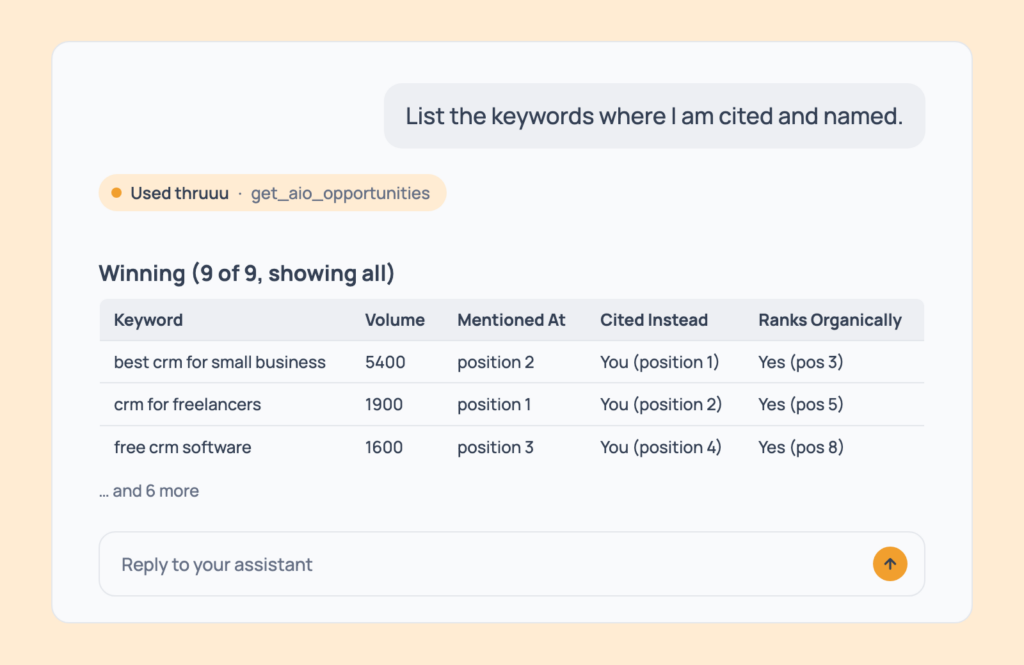
Prompt 46: List the keywords where you’re cited and named
List the keywords where I am cited and named.The winning view: keyword rows by search volume, up to 150.
- Cost: free. Professional and above.
- Tip: protect these pages, because they’re working.
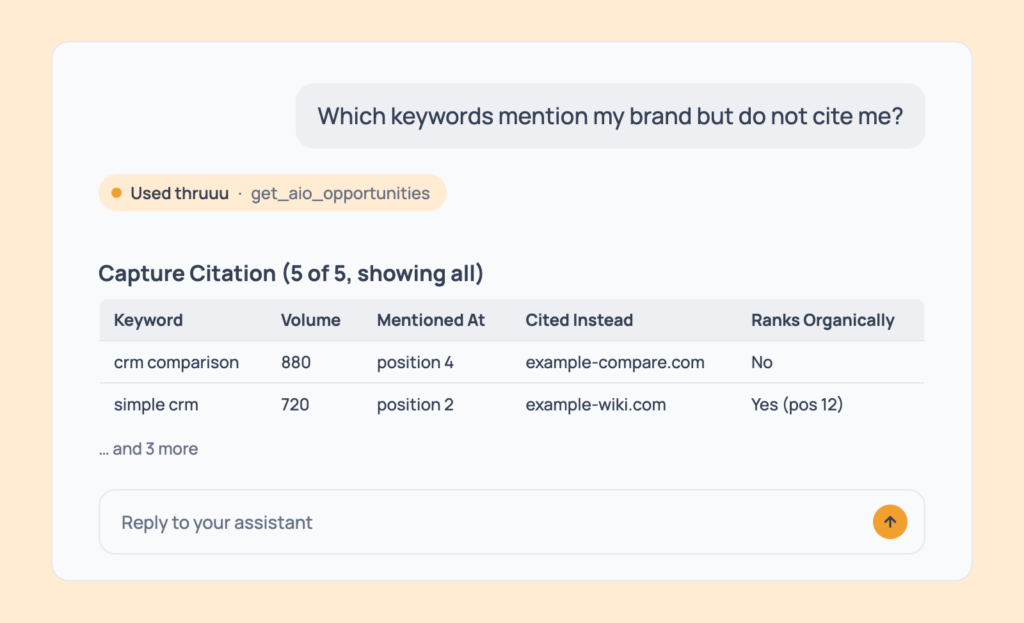
Prompt 47: Find mentions without a citation
Which keywords mention my brand but do not cite me?The “capture a citation” view: keywords where the AI names you without linking to you.
- Cost: free. Professional and above.
- Tip: usually a quick win: add a clear page the AI can cite.
Prompt 48: Find citations without a mention
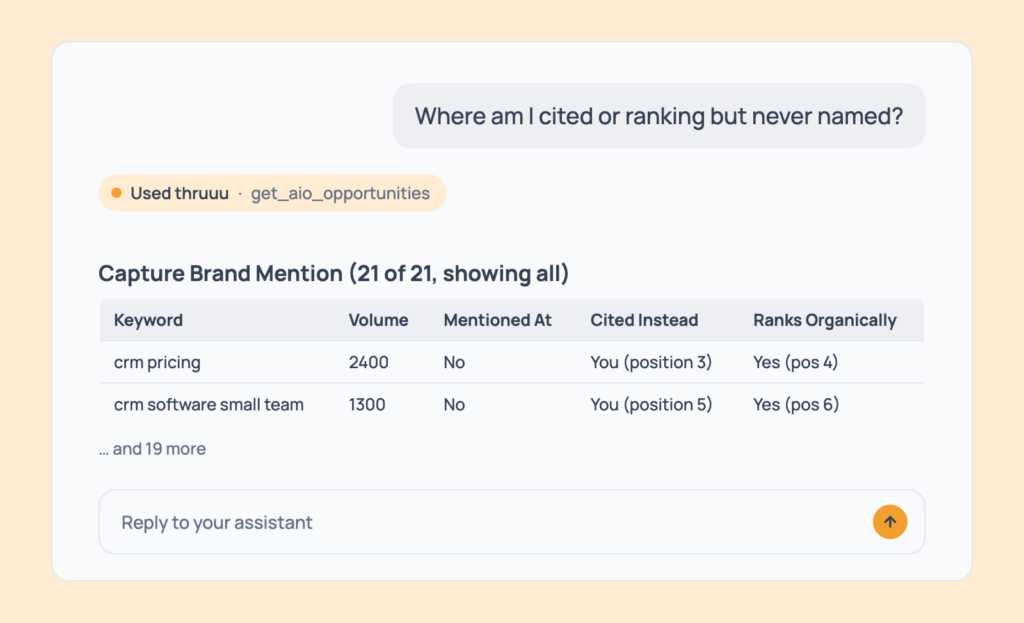
Where am I cited or ranking but never named?The “capture a brand mention” view: keywords where you’re a source but the answer never says your name.
- Cost: free. Agency (brand opportunity views).
- Tip: ask for the “ranks top 10 but absent from AI” list as well.
Prompt 49: See where one domain is cited
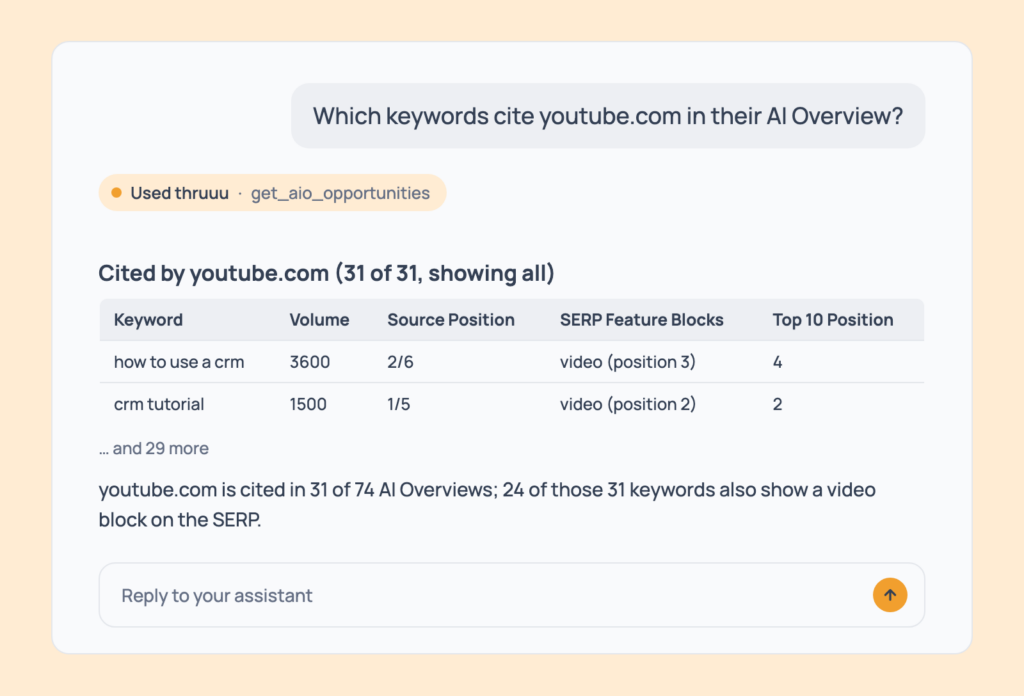
Which keywords cite youtube.com in their AI Overview?The keywords citing that domain, the matching result blocks on the page (video, questions, forums) and whether the domain ranks top 10.
- Cost: free.
- Tip: swap in any competitor’s domain.
Prompt 50: See what changed since the last run
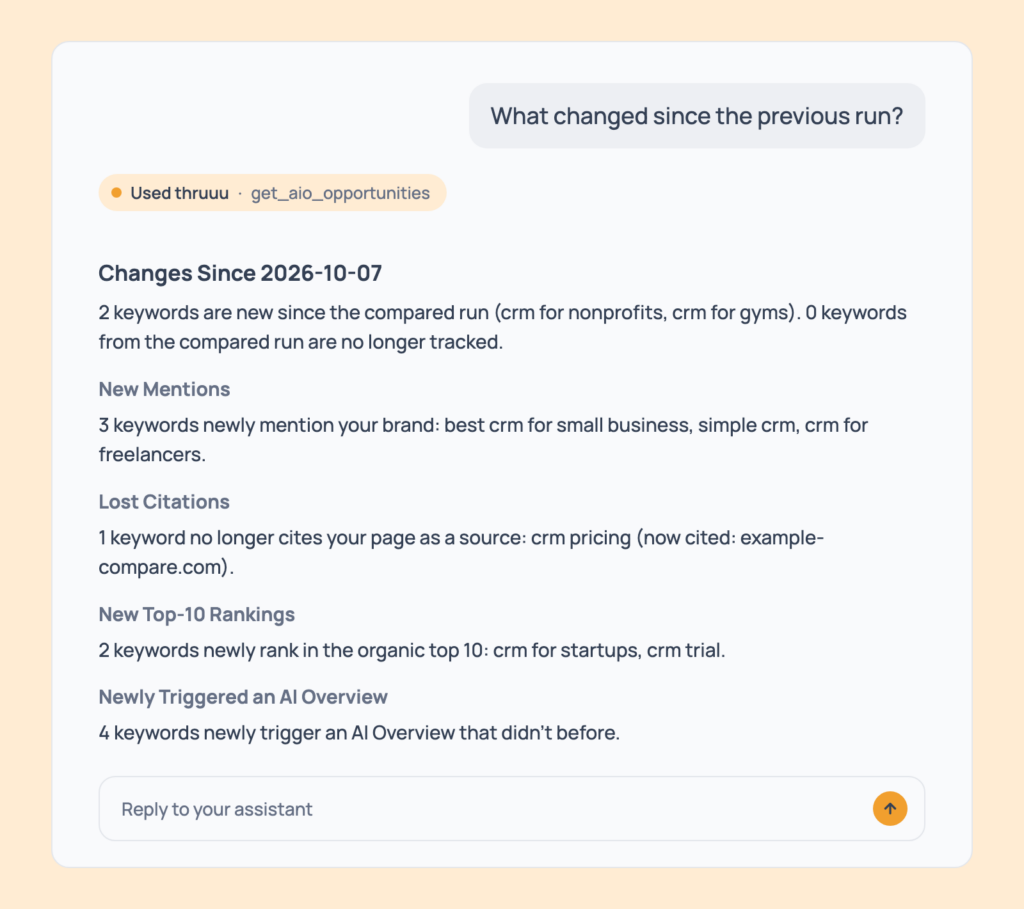
What changed since the previous run?New and lost mentions, new and lost citations (naming the competitor who took a lost one), new and lost top-10 rankings, AI Overviews that started or stopped appearing, and new branded keywords.
- Cost: free.
- Tip: run it weekly for a client update.
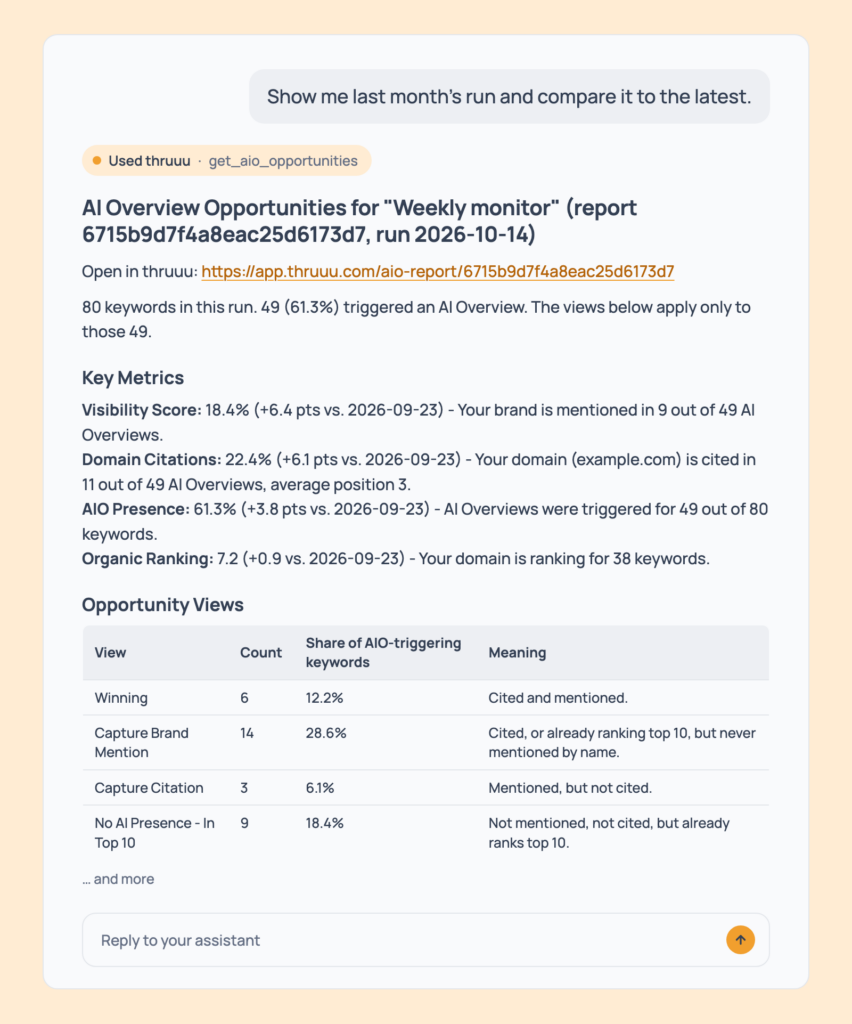
Prompt 51: Compare two runs
Show me last month's run and compare it to the latest.An earlier run’s numbers and what changed since.
- Cost: free. Choosing a specific run uses the run history, so Professional and above.
- Tip: ask for any two dates you care about.
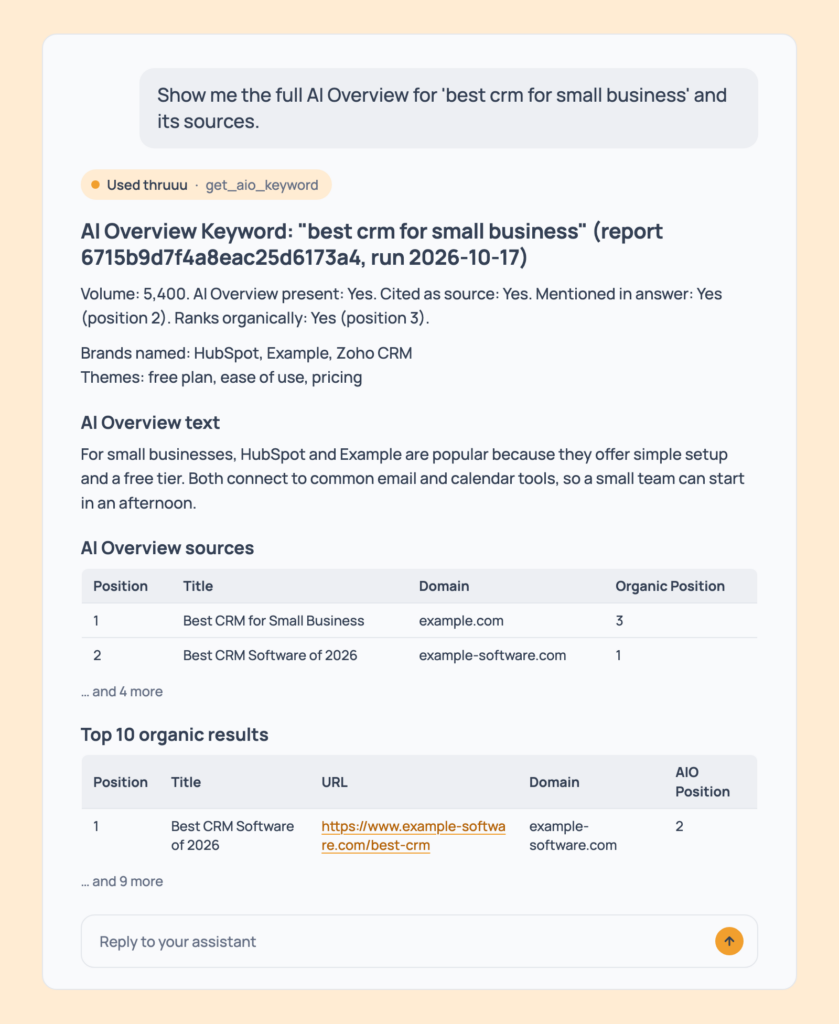
Prompt 52: Read one keyword’s full AI Overview
Show me the full AI Overview for 'best crm for small business' and its sources.The complete AI Overview text, its full source list and the top 10 organic results, for one keyword in one run.
- Cost: free, every plan.
- Tip: follow up with “what should my page add to get cited here?” for a suggestion.
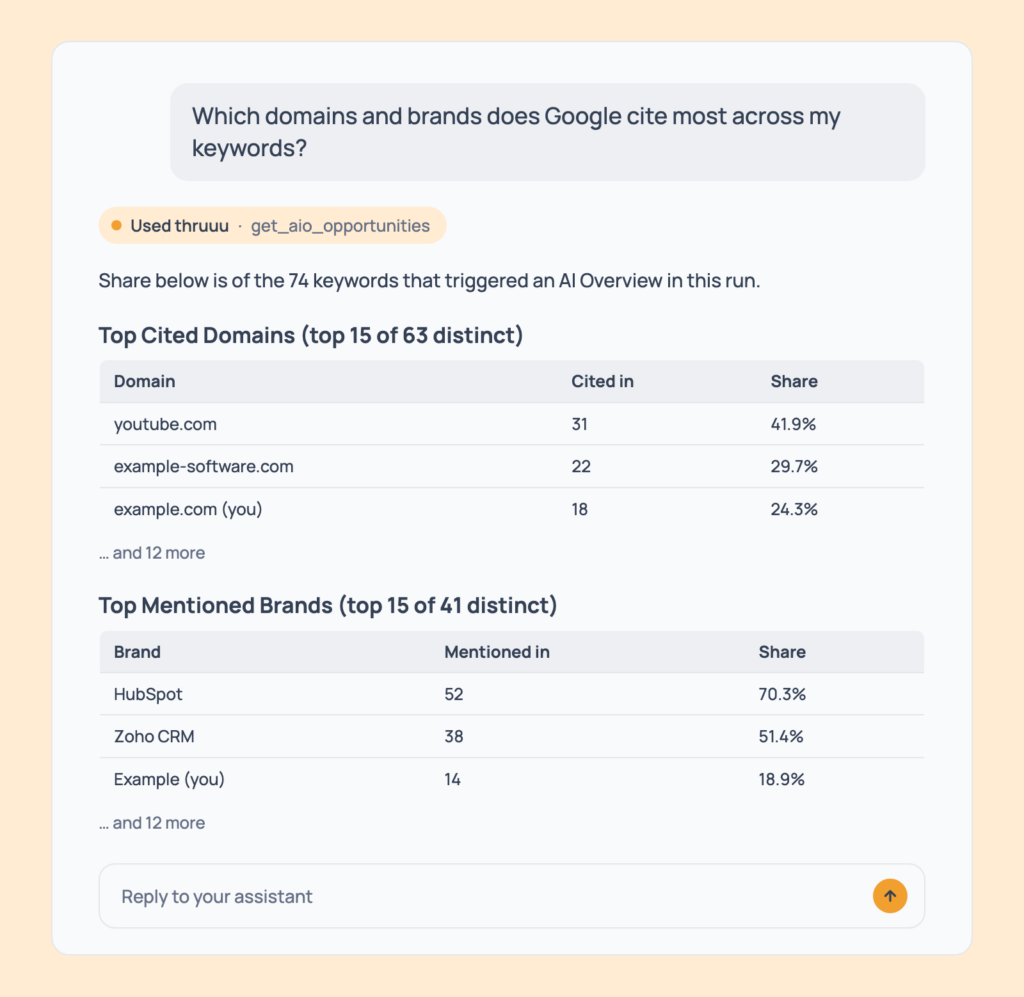
Prompt 53: Find the domains and brands Google cites most
Which domains and brands does Google cite most across my keywords?The top cited domains, top mentioned brands and top organic domains across a run.
- Cost: free. Top mentioned brands need Agency.
- Tip: it’s a ready-made competitor shortlist.
SEO Prompts for Keyword Clustering and Content Planning
How many articles does a 300-keyword list need? The list can’t tell you.
These prompts group keywords by the results they share, roughly one article per cluster. Then they show which clusters you already rank for, and which ones are gaps.
Create a Topic Cluster
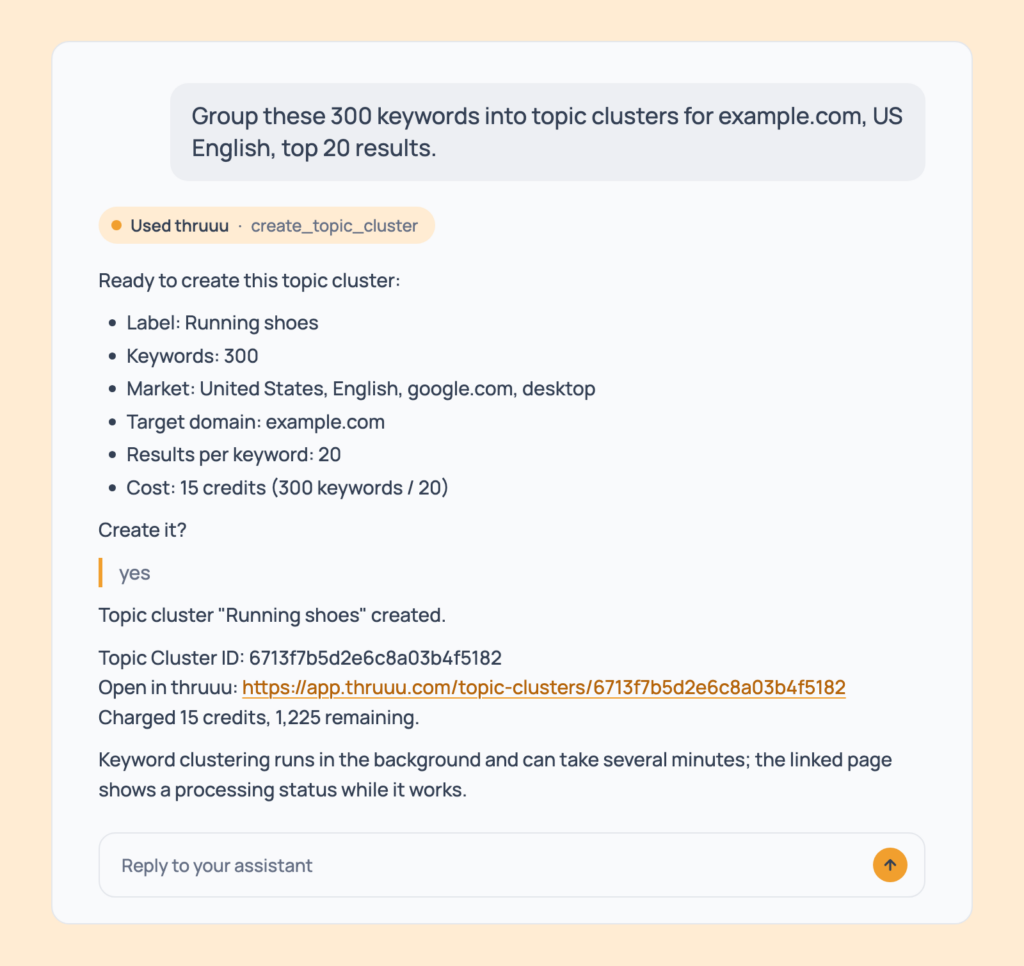
Prompt 54: Group keywords into topic clusters
Group these 300 keywords into topic clusters for example.com, US English, top 20 results.A link and a confirmation. Clustering runs in the background for several minutes, roughly one article per cluster.
- Cost: keywords divided by 20 (top 20 results), 10 (top 50) or 5 (top 100), rounded up. Up to 2,000 keywords (500 on a trial). Pay as you go and above.
- Tip: when it finishes, ask “how many articles do I need?”
Prompt 55: Compare clusters against your domain
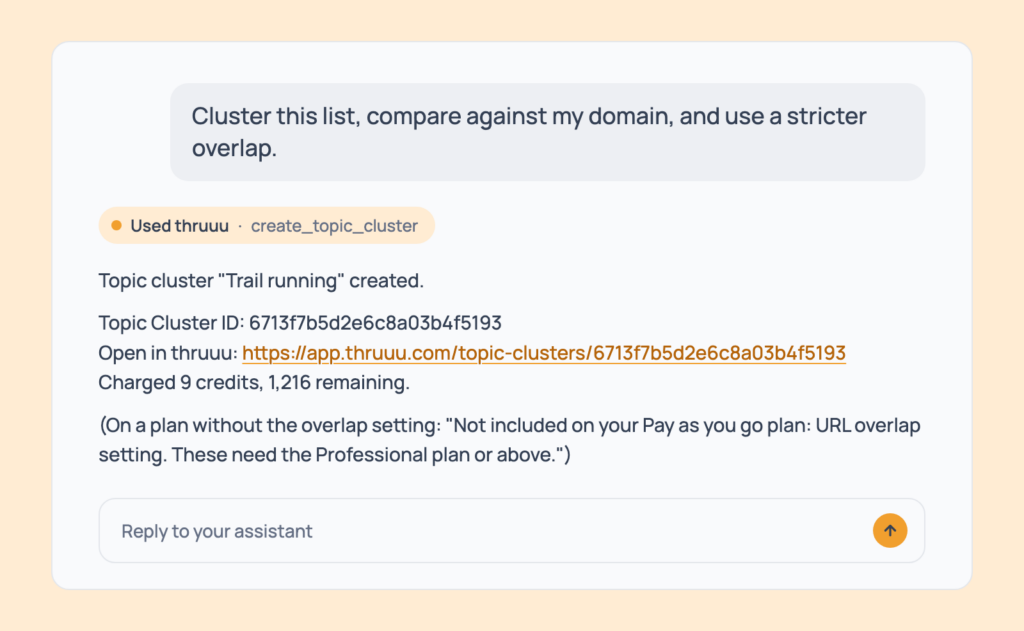
Cluster this list, compare against my domain, and use a stricter overlap.Clusters that show where you rank, with a stricter rule for how many shared results make two keywords belong together.
- Cost: same pricing. The overlap setting needs Professional; other plans ignore it and say so.
- Tip: a stricter overlap gives more, tighter clusters.
Prompt 56: Cluster keywords with your own volumes
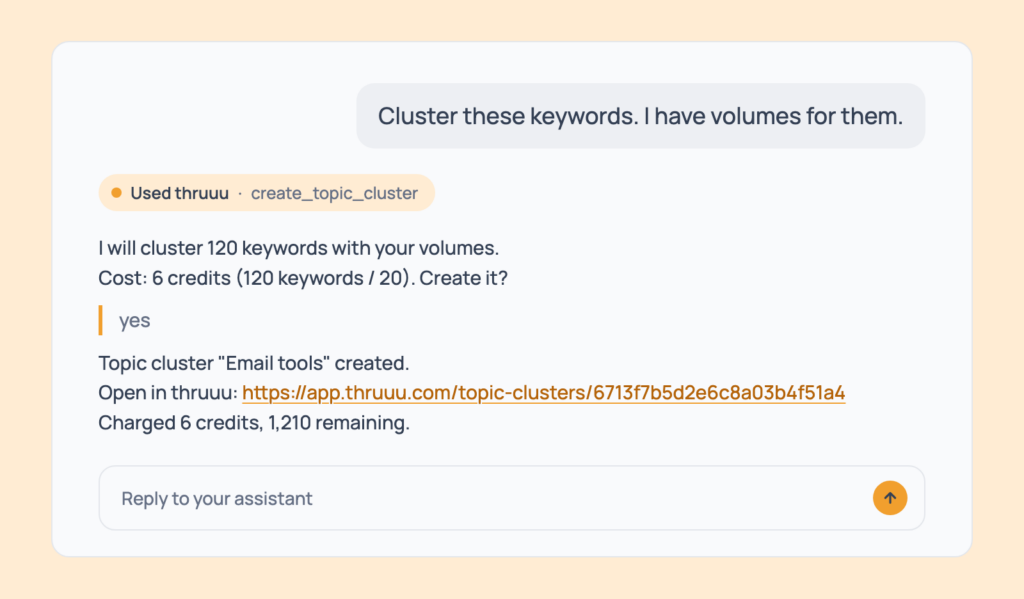
Cluster these keywords. I have volumes for them.Clusters that carry your volumes, so you can sort by demand.
- Cost: same pricing.
- Tip: paste straight from your keyword tool.
Prompt 57: Cluster a large keyword list
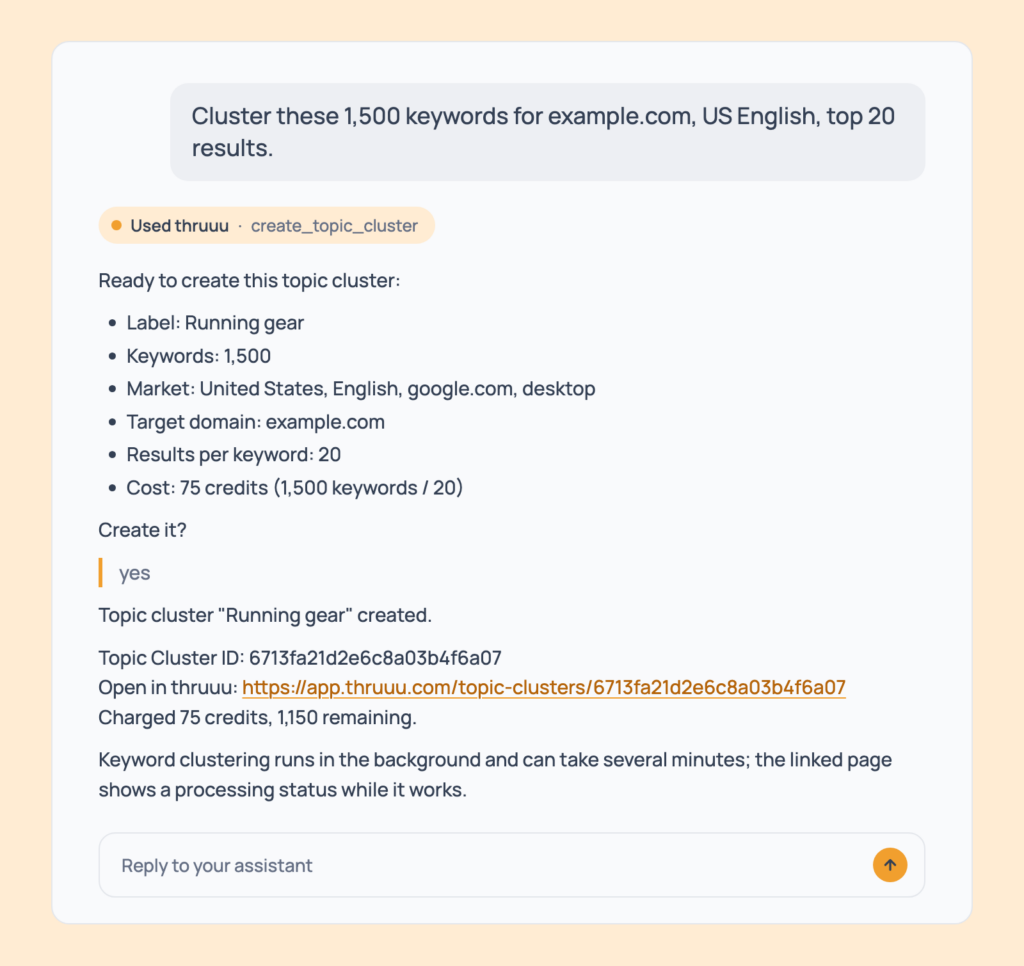
Cluster these 1,500 keywords for example.com, US English, top 20 results.A link and a confirmation, as in Prompt 54. The assistant takes up to 2,000 keywords. For a longer list, it links you to the upload screen for an XLSX or CSV file.
- Cost: 75 credits (1,500 keywords divided by 20). Pay as you go and above.
- Tip: with the top 100 results the limit is 1,500 keywords, and a trial account can send 500.
Read Your Topic Clusters
Prompt 58: List your topic clusters
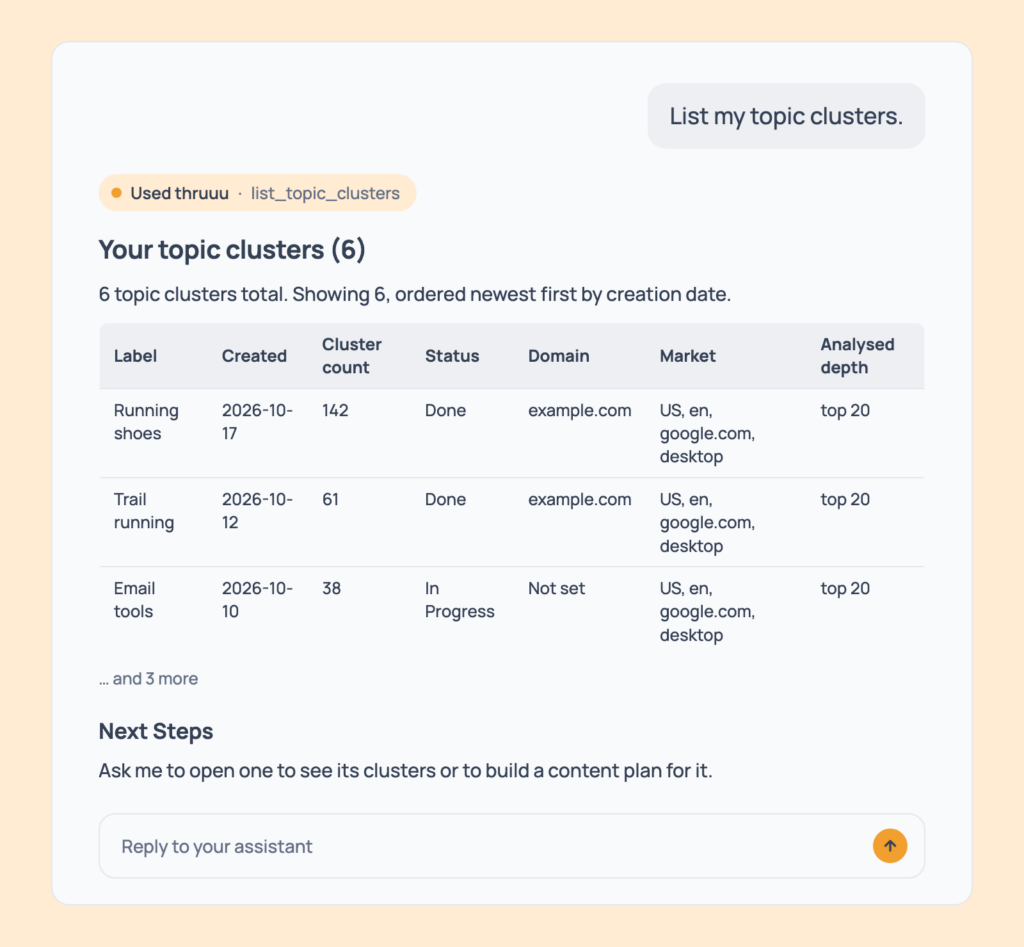
List my topic clusters.Your topic clusters, newest first, with label, date, number of clusters, status, target domain, results per keyword and a link.
- Cost: free, every plan.
- Tip: narrow by name or workspace.
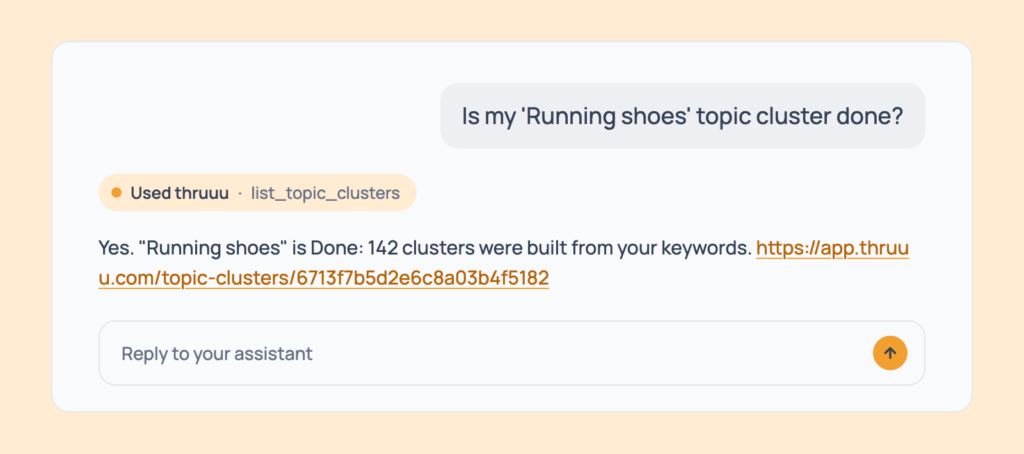
Prompt 59: Check a topic cluster’s status
Is my 'Running shoes' topic cluster done?Init, In Progress or Done.
- Cost: free.
- Tip: not done yet? Ask again in a few minutes.
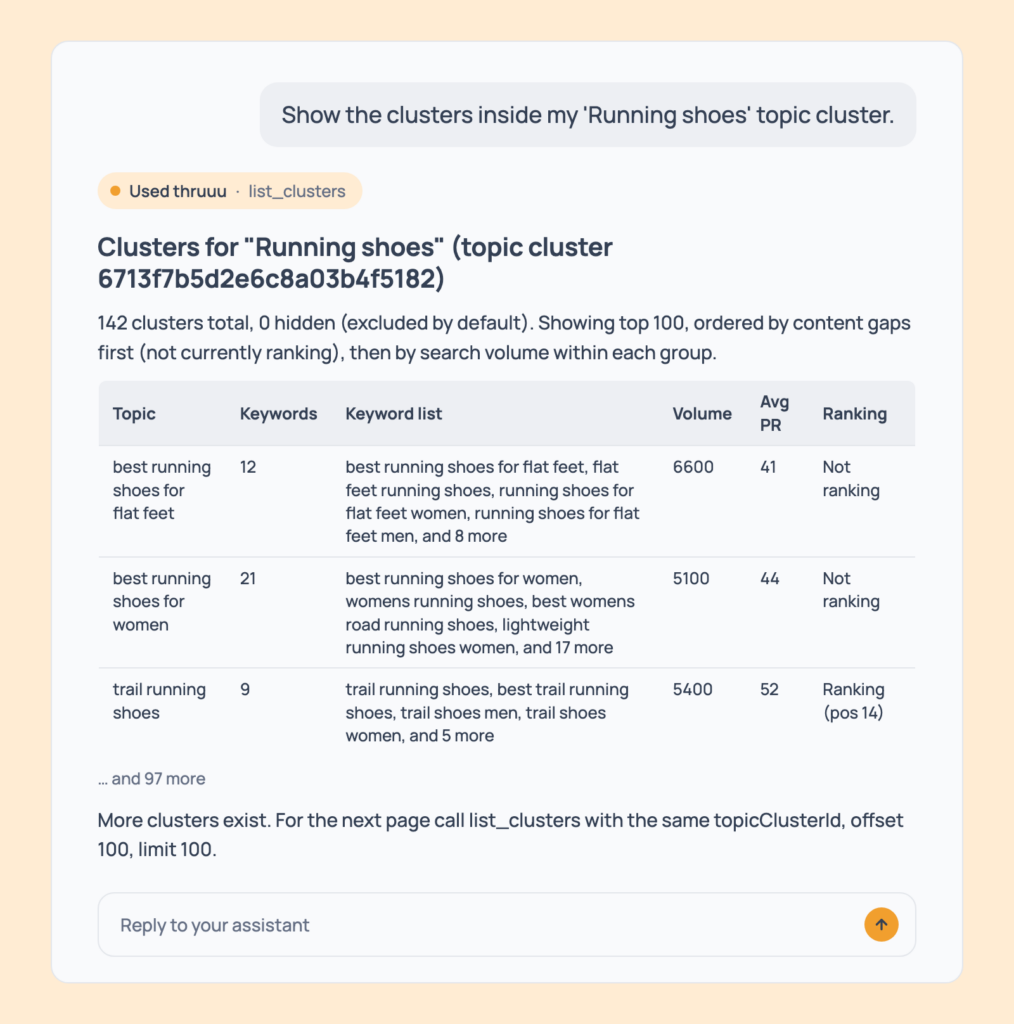
Prompt 60: See the clusters inside a topic cluster
Show the clusters inside my 'Running shoes' topic cluster.Each cluster’s topic, its keywords (the first 15, then how many more), search volume, Avg PR, SERP features and brief status, plus your ranking and best page when a target domain is set.
- Cost: free.
- Tip: plan exactly one article per cluster.
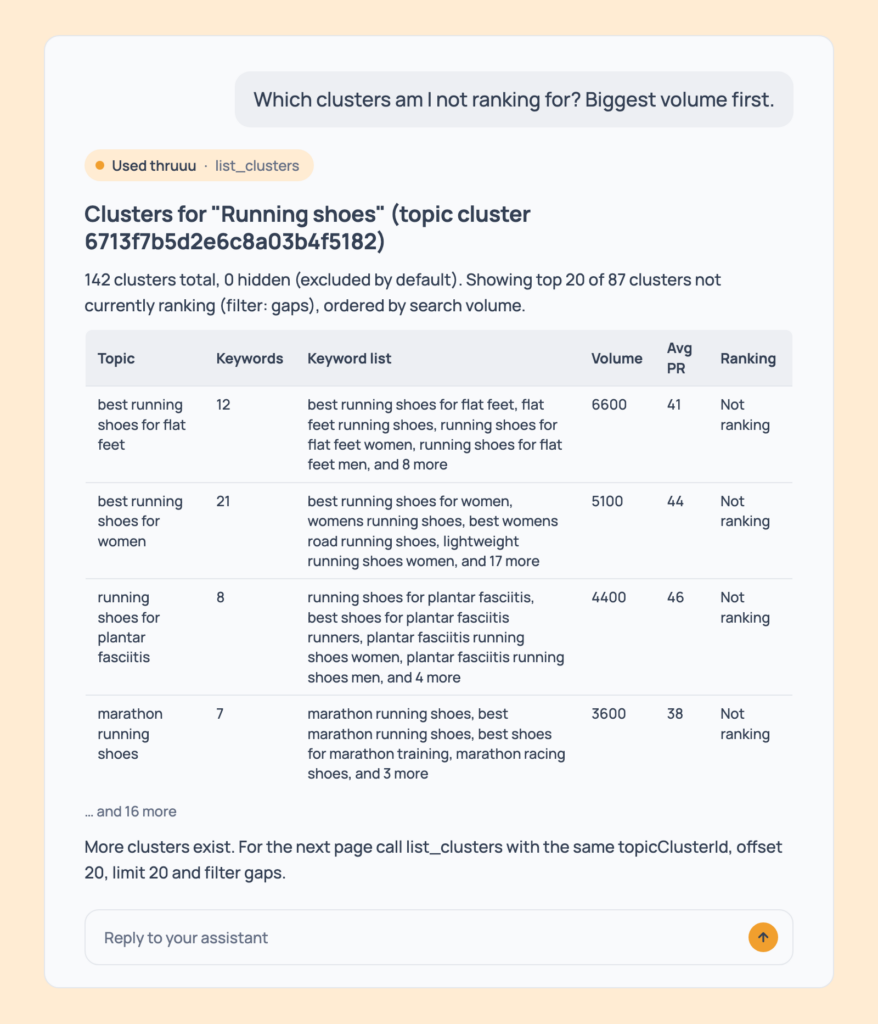
Prompt 61: Find your content gaps
Which clusters am I not ranking for? Biggest volume first.The clusters you don’t rank for, biggest volume first.
- Cost: free. Needs a target domain on the topic cluster.
- Tip: it’s your content gap list in one sentence.
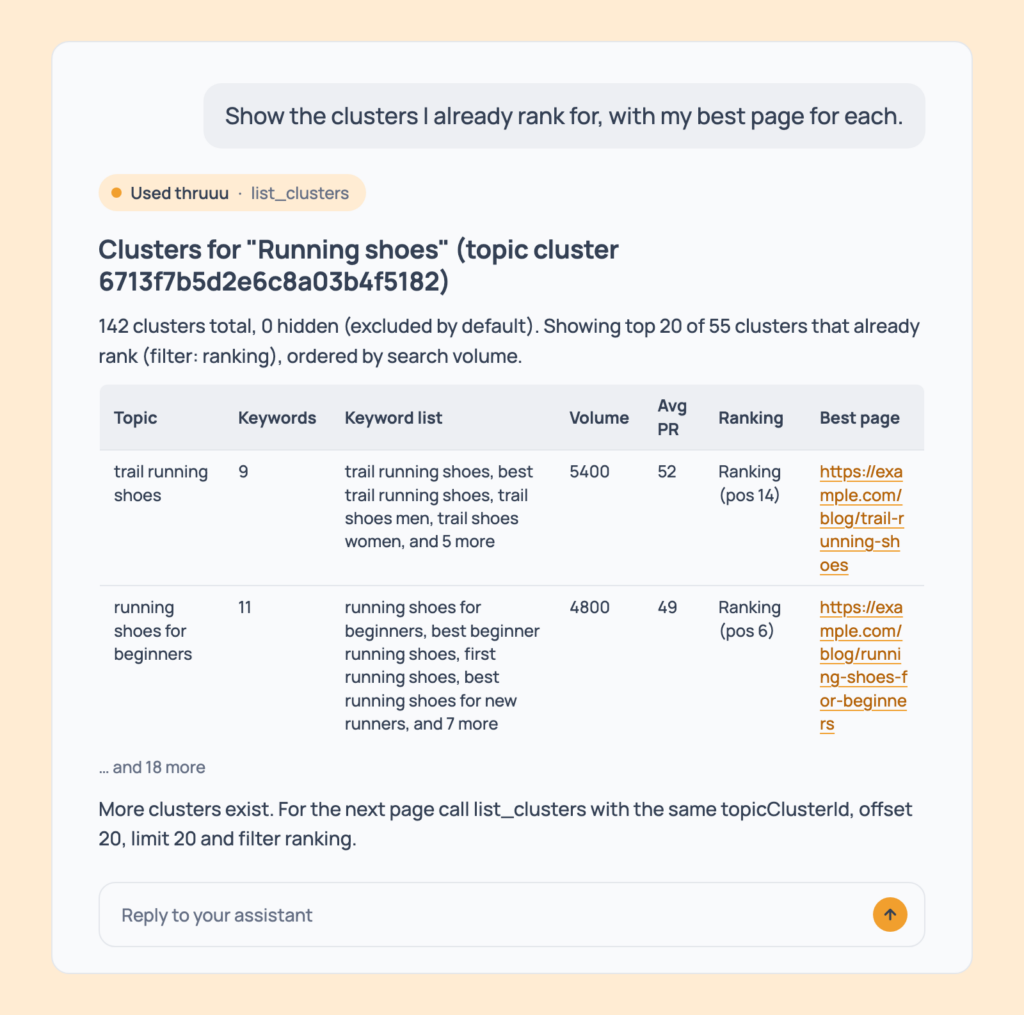
Prompt 62: Find the clusters you already rank for
Show the clusters I already rank for, with my best page for each.The ranking clusters, with your best-ranking page and its title.
- Cost: free. Needs a target domain.
- Tip: a good start for an “optimise existing content” list.
Prompt 63: See your favourite clusters
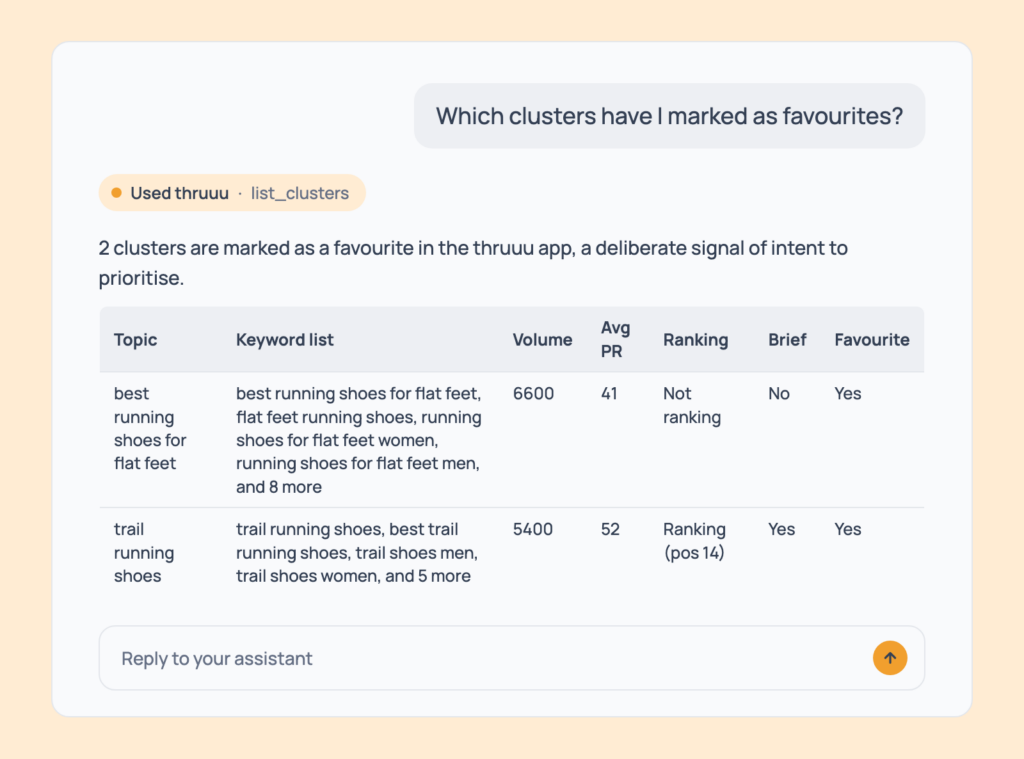
Which clusters have I marked as favourites?The clusters you starred in the app, in their own column, treated as the ones you want to pursue.
- Cost: free.
- Tip: star clusters in the app, then ask the assistant to plan around them.
Prompt 64: Find the easiest gaps
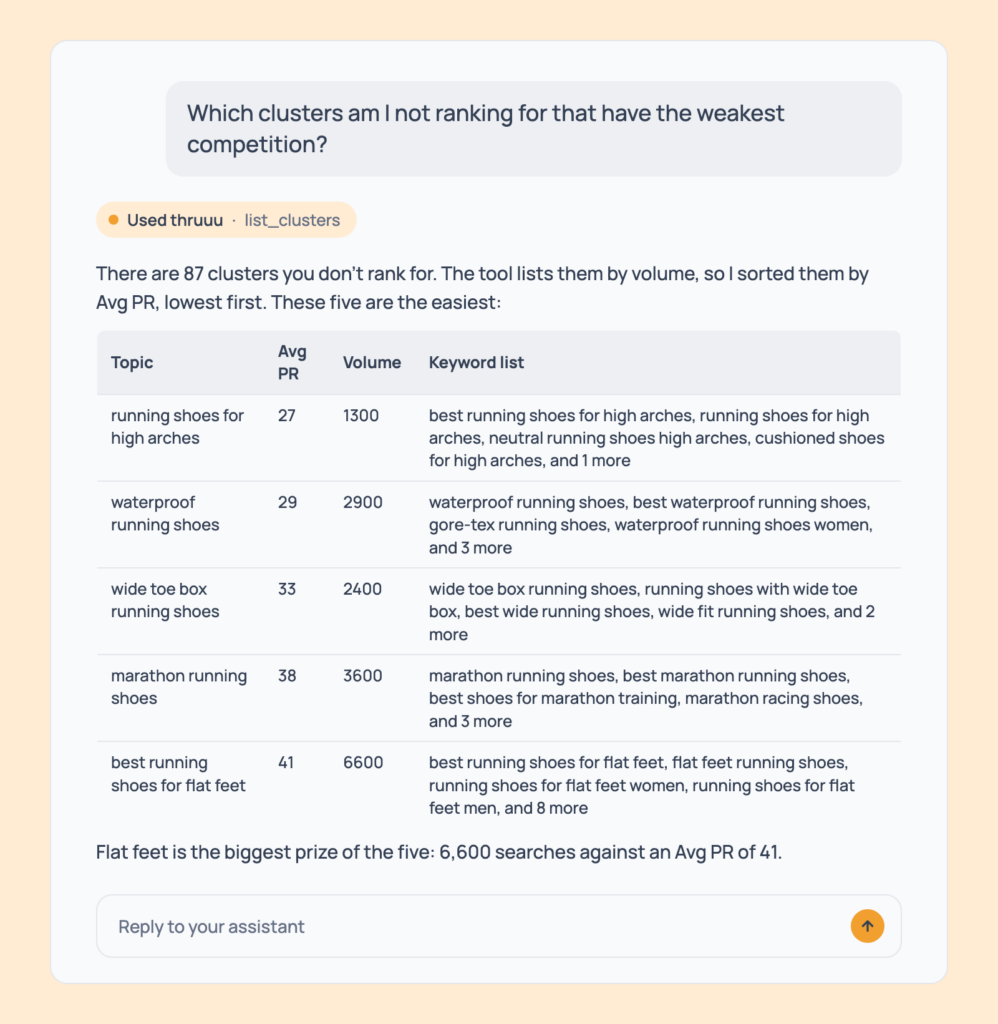
Which clusters am I not ranking for that have the weakest competition?The clusters you don’t rank for, with their Avg PR, lowest first. Avg PR is the average authority of the sites ranking for a cluster, the same number as on the cluster card in the app.
- Cost: free. Needs a target domain on the topic cluster.
- Tip: run Prompt 61 too. A gap that is both easy and high-volume is the one to write first.
Prompt 65: Read a large topic cluster in full
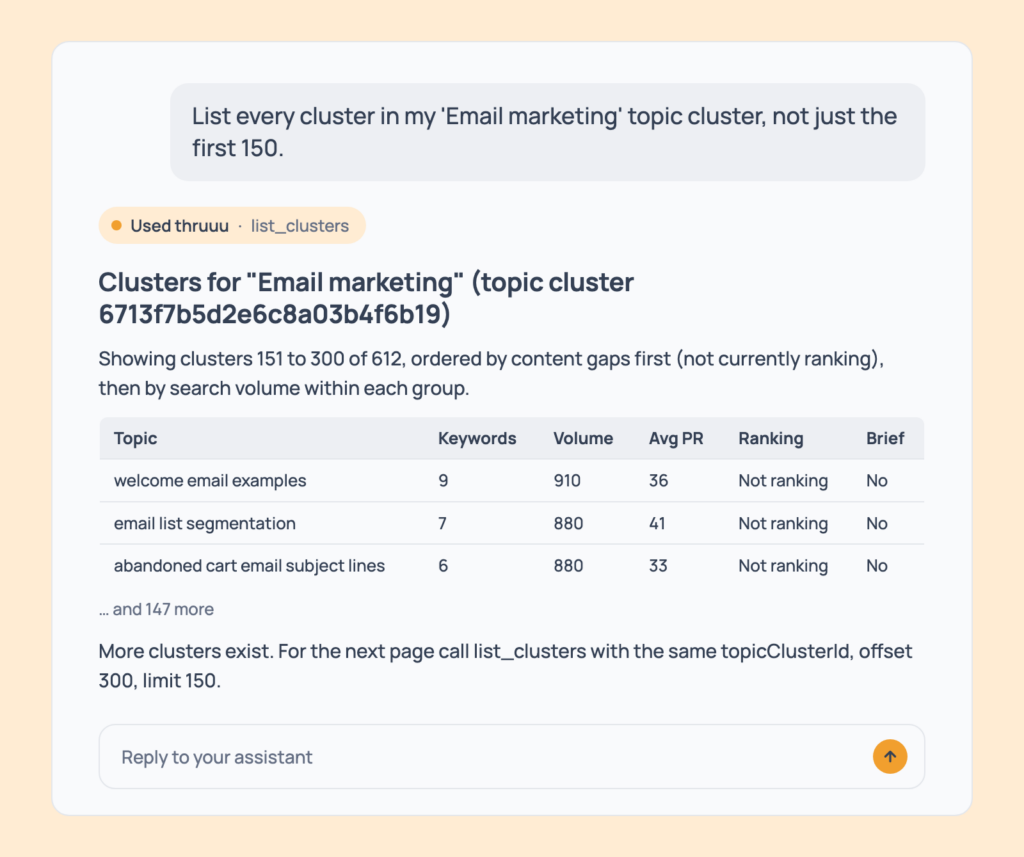
List every cluster in my 'Email marketing' topic cluster, not just the first 150.Every cluster, read page by page in the same order as Prompt 60, until the list ends.
- Cost: free.
- Tip: we tested it on a topic cluster of 3,789 clusters.
Content Plan
Prompt 66: Build a content plan
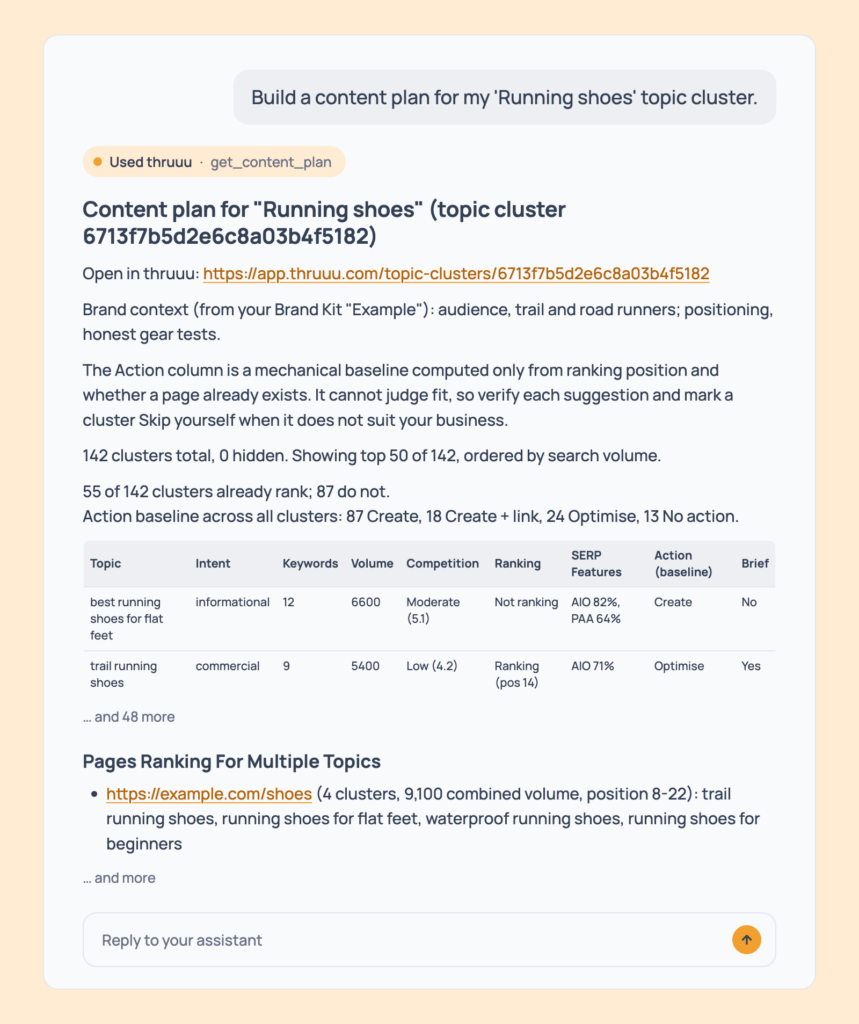
Build a content plan for my 'Running shoes' topic cluster.A create, optimise or skip table, with volume, SERP features, competition, competing domains, pages that rank for several clusters, totals and a link. When your domain matches a Brand Kit, its audience and positioning are used.
- Cost: free. Pay as you go and above for topic clusters; the Brand Kit context needs Professional.
- Tip: the suggested action is computed only from ranking position and whether a page already exists, so verify each one.
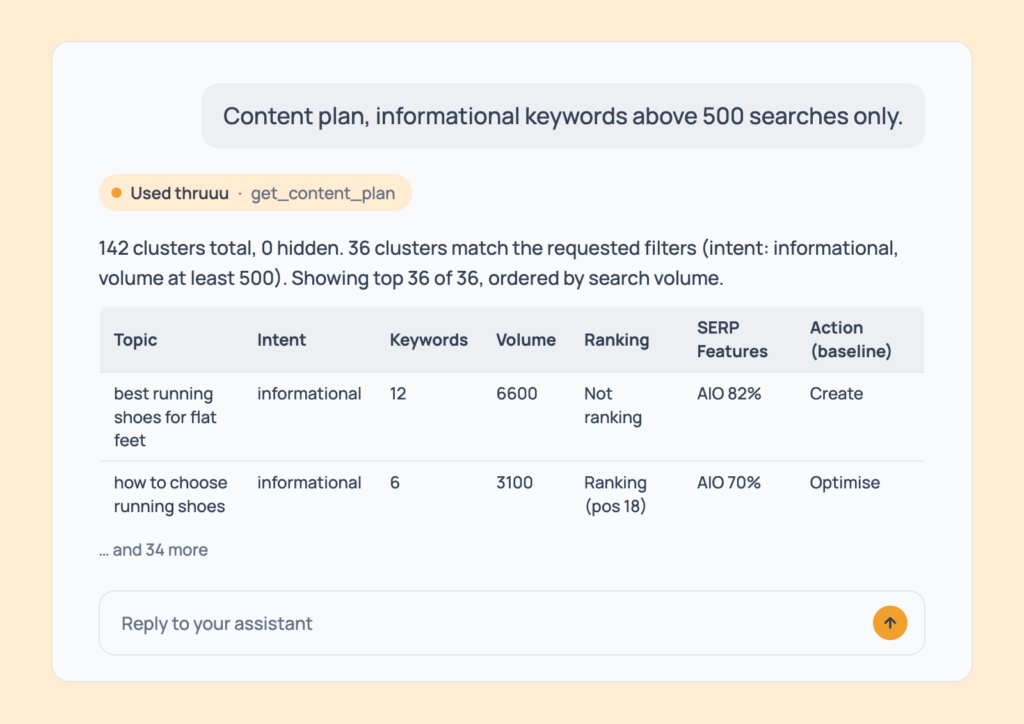
Prompt 67: Filter the plan by intent and volume
Content plan, informational keywords above 500 searches only.A follow-up to Prompt 66: only the matching clusters, with the full-topic totals unchanged.
- Cost: free.
- Tip: the intent options are informational, commercial, transactional and navigational.
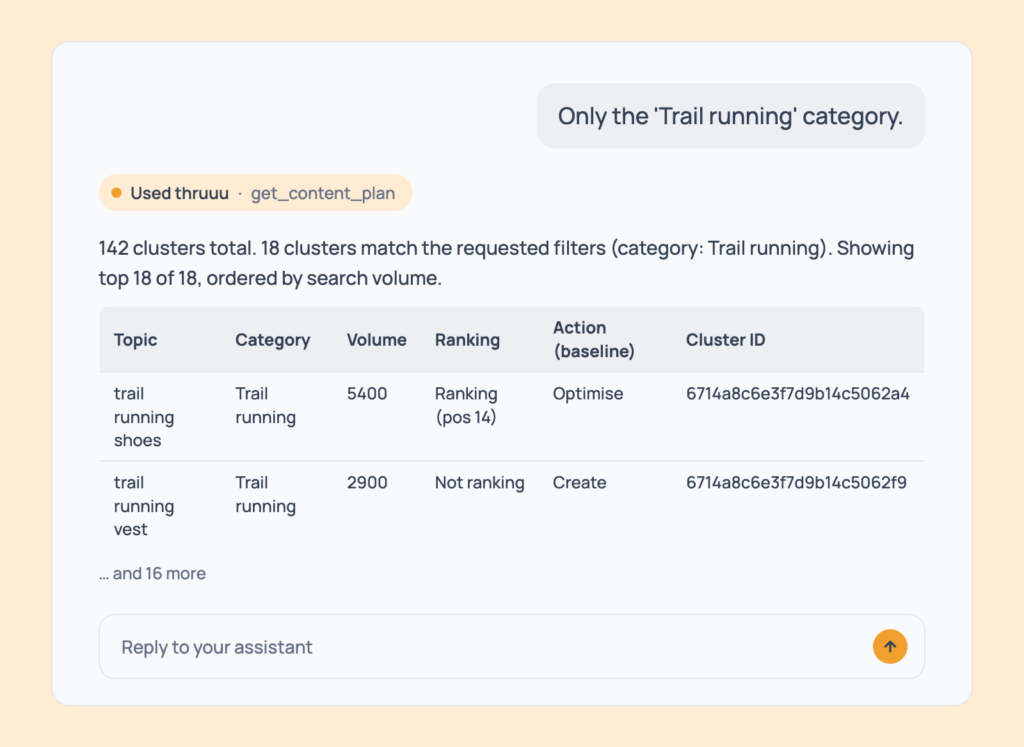
Prompt 68: Narrow the plan to one category
Only the 'Trail running' category.Another follow-up to Prompt 66: the plan for one category of your topic cluster.
- Cost: free.
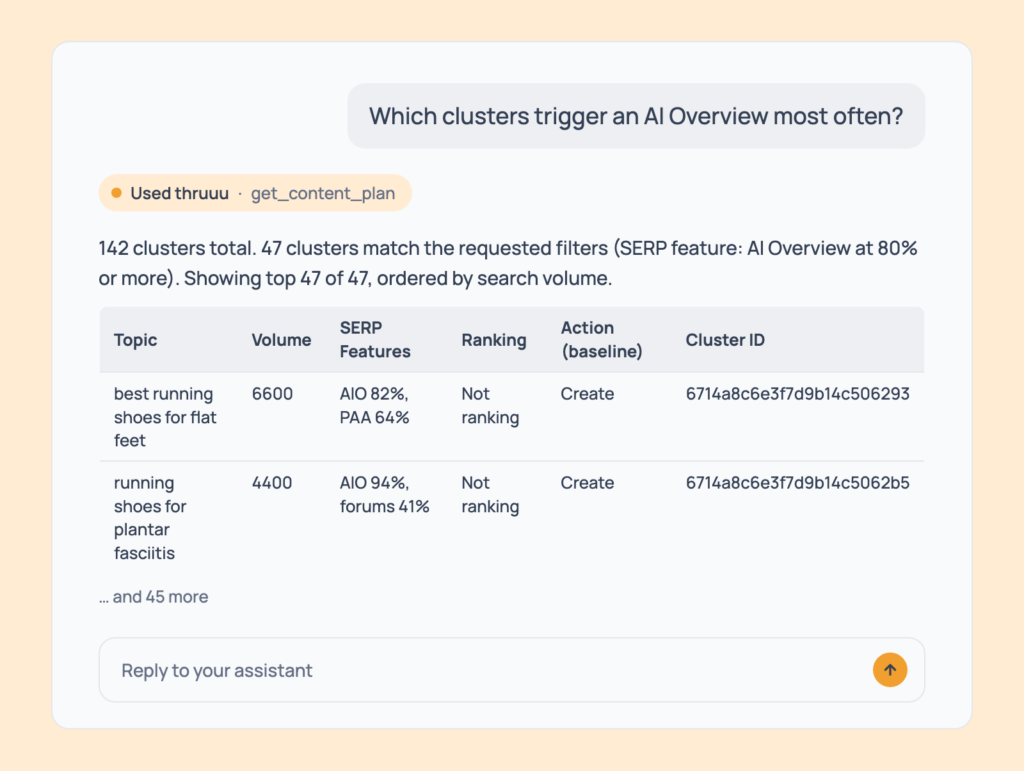
Prompt 69: Find clusters by SERP feature
Which clusters trigger an AI Overview most often?The clusters where a SERP feature (AI Overview, video, forums, featured snippet and others) shows at or above the level you set.
- Cost: free.
- Tip: try “forums above 50 percent” to find community-driven topics.
One Cluster
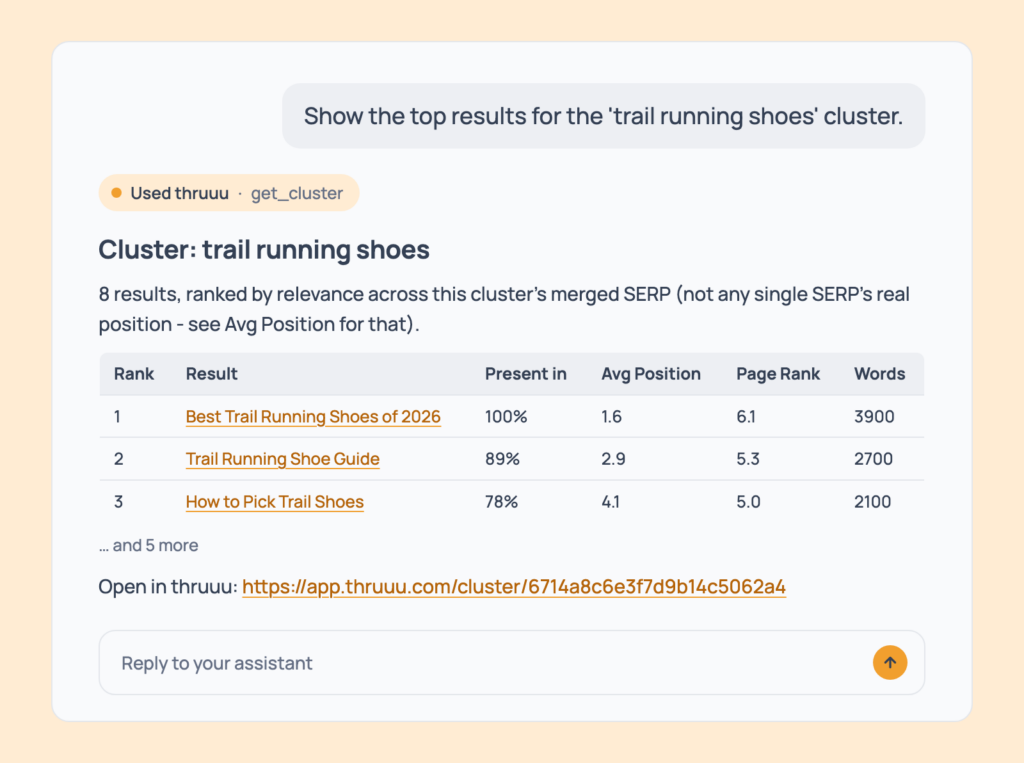
Prompt 70: See one cluster’s top results
Show the top results for the 'trail running shoes' cluster.The top-ranking results merged across every search in the cluster.
- Cost: free.
- Tip: the cluster must be analysed first (Prompt 72).
Prompt 71: Get a cluster’s outlines, questions and keywords
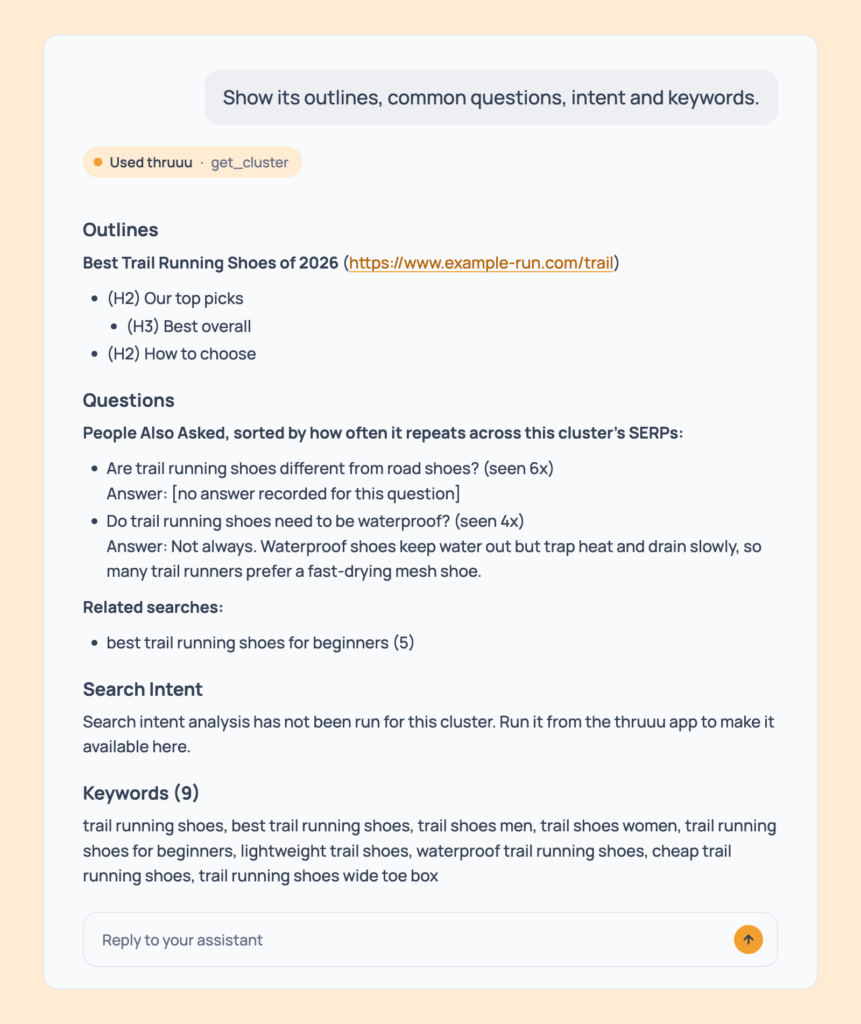
Show its outlines, common questions, intent and keywords.A follow-up to Prompt 70: page outlines, People Also Asked and related searches, search intent, heading and content patterns (once run in the app), and up to 100 keywords.
- Cost: free.
- Tip: ask for only the part you need. For the questions across the whole topic cluster, use Prompt 73.
Prompt 72: Analyse a cluster
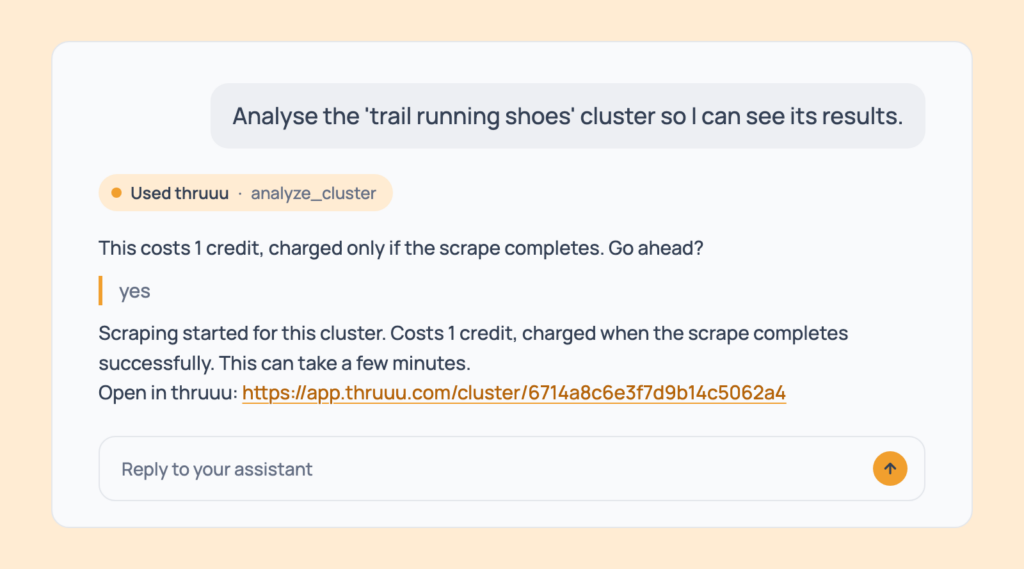
Analyse the 'trail running shoes' cluster so I can see its results.The ranking pages collected for a cluster that hasn’t been analysed, readable shortly after. It won’t run twice.
- Cost: 1 credit, charged only if it completes. Pay as you go and above. Free if already analysed.
Questions Across a Whole Topic
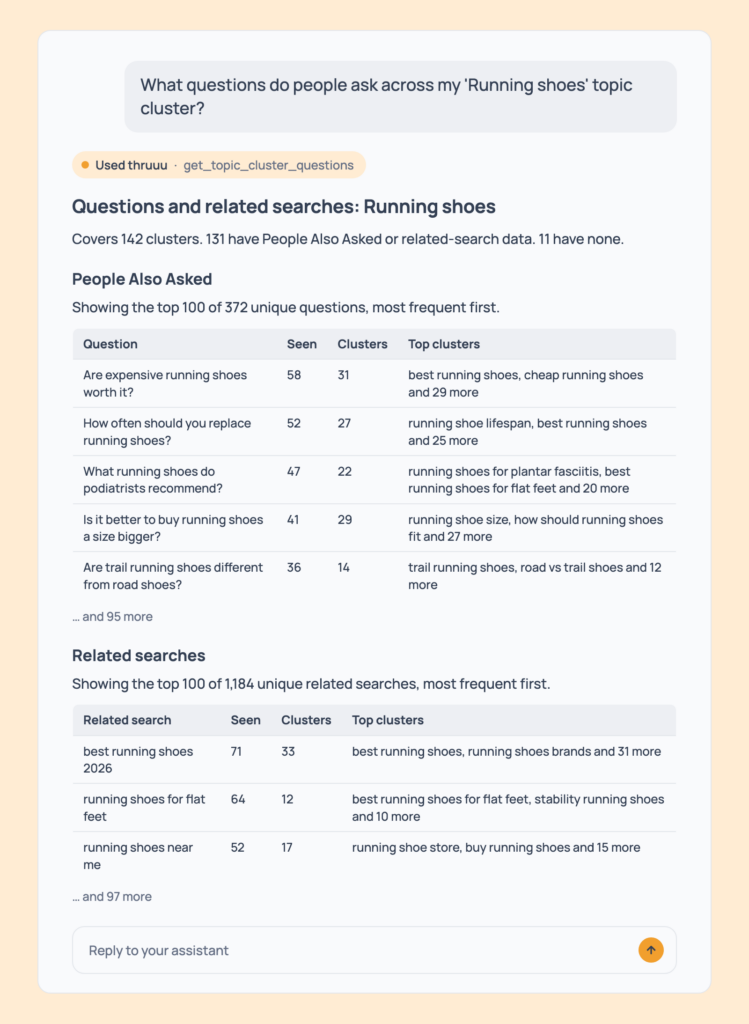
One call reads the People Also Ask questions and related searches of every cluster in a topic cluster, merges the duplicates and counts how often each one appears.
Prompt 73: Find the questions people ask across a topic
What questions do people ask across my 'Running shoes' topic cluster?The 100 most frequent People Also Ask questions and related searches across every cluster, with how often each one appears and the clusters it comes from.
- Cost: free.
- Tip: it’s the same list as the Questions and Related Search tabs of the Excel export, sorted most frequent first.
Prompt 74: Get every question and related search
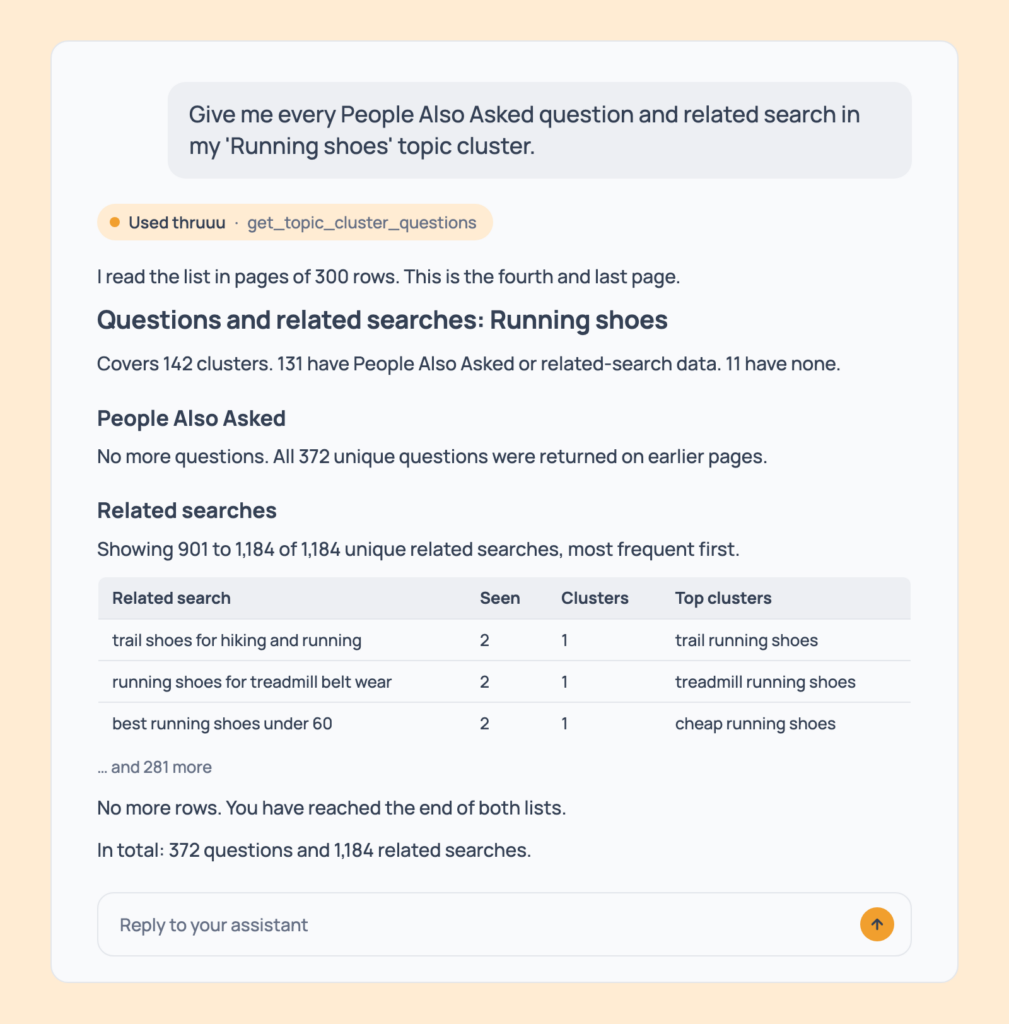
Give me every People Also Ask question and related search in my 'Running shoes' topic cluster.The full list, collected 300 at a time until nothing is left. A large topic cluster can hold 800 questions and 1,400 related searches.
- Cost: free.
Prompt 75: Find the questions that span the most clusters
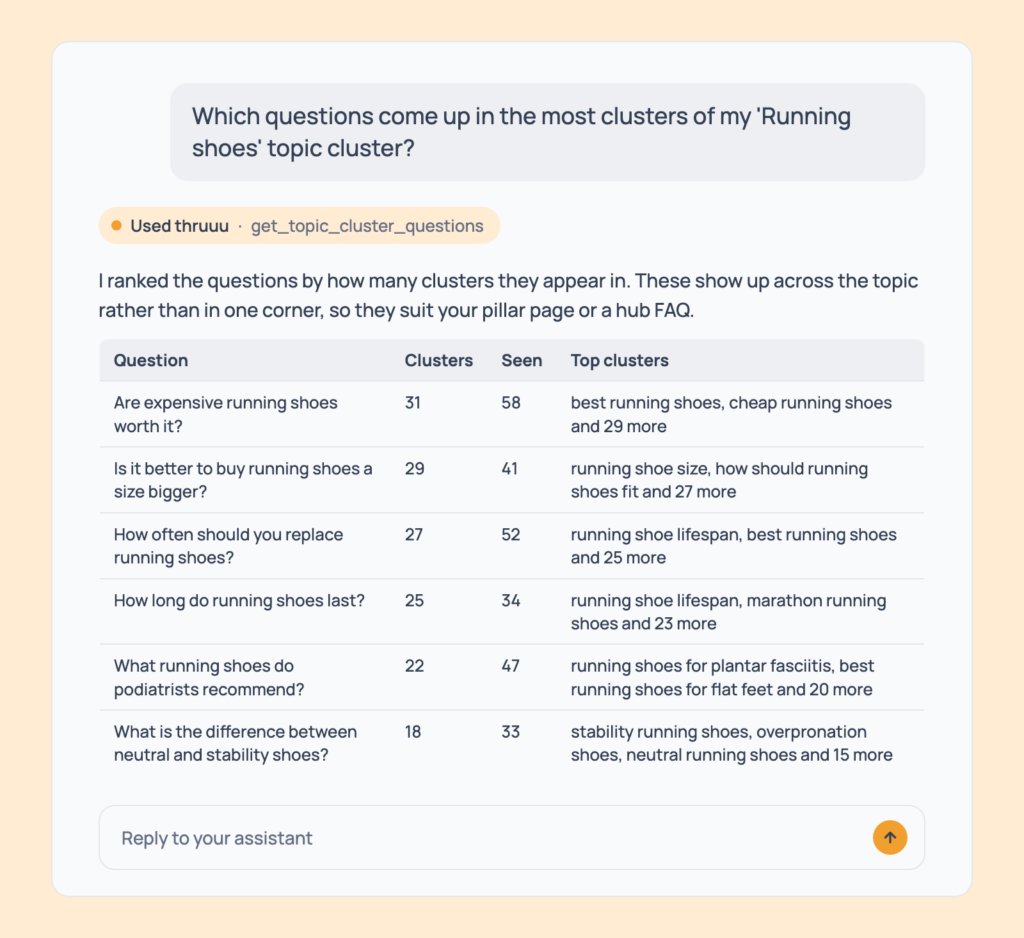
Which questions come up in the most clusters of my 'Running shoes' topic cluster?The questions shared by several clusters. They suit a pillar page or a hub FAQ rather than a single article.
- Cost: free.
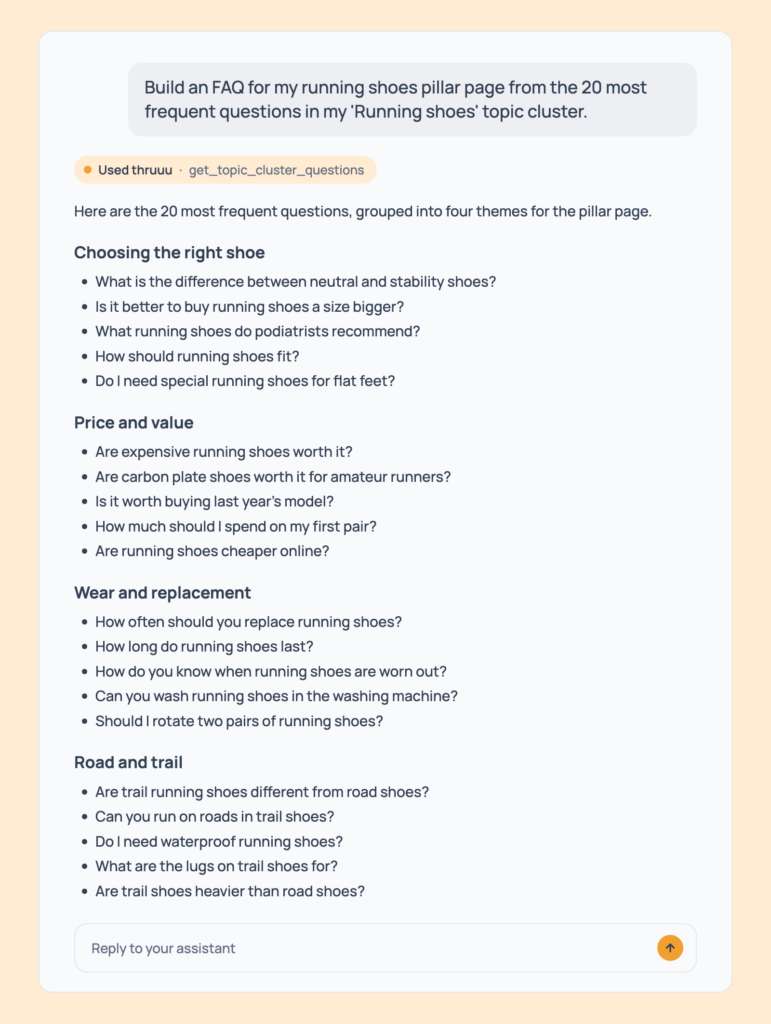
Prompt 76: Build an FAQ from the topic
Build an FAQ for my running shoes pillar page from the 20 most frequent questions in my 'Running shoes' topic cluster.The 20 questions, grouped by theme, ready to add to a brief’s frequent questions (Prompt 95).
- Cost: free.
Prompt 77: Find related searches you have not covered
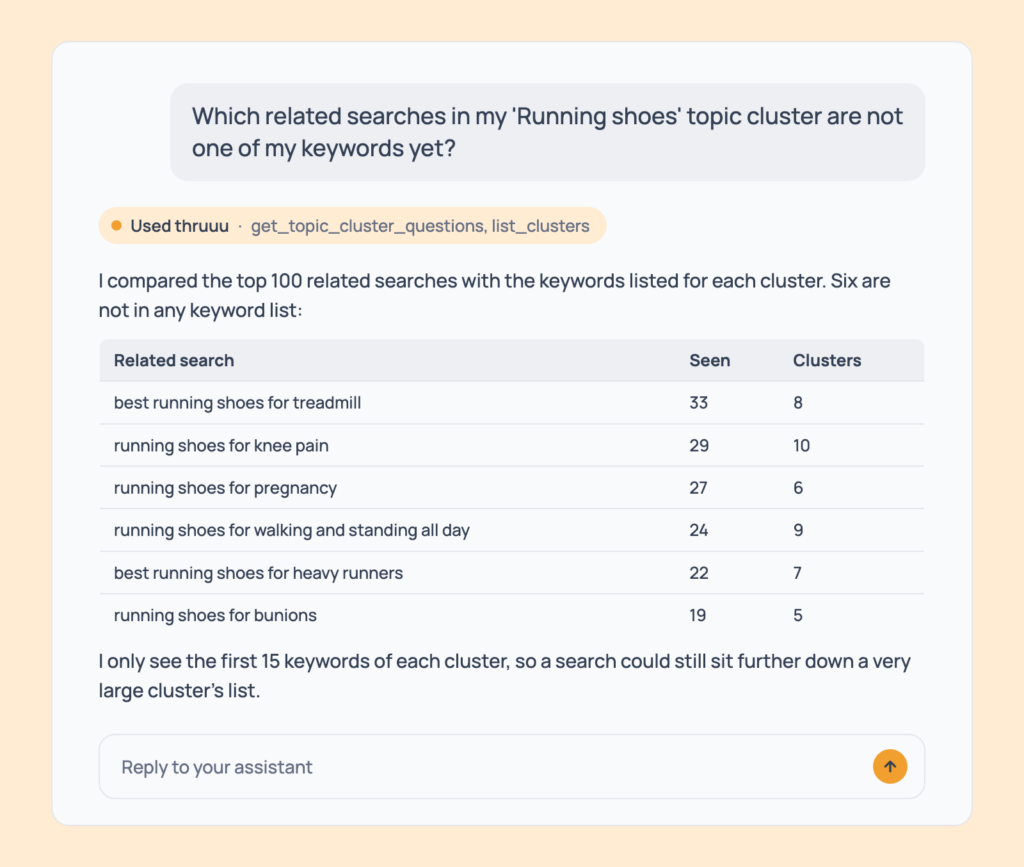
Which related searches in my 'Running shoes' topic cluster are not one of my keywords yet?The related searches Google suggests that are missing from your keyword list.
- Cost: free.
- Tip: feed them back into a topic cluster (Prompt 54).
Prompts for Content Briefs and Outlines
A content brief is where research turns into instructions for a writer.
These prompts build one from a keyword, an analysis or a cluster. Then they read it back, edit any part of it, and rewrite the outline in a built-in style or one of your own.
Create a Brief
Prompt 78: Create a content brief
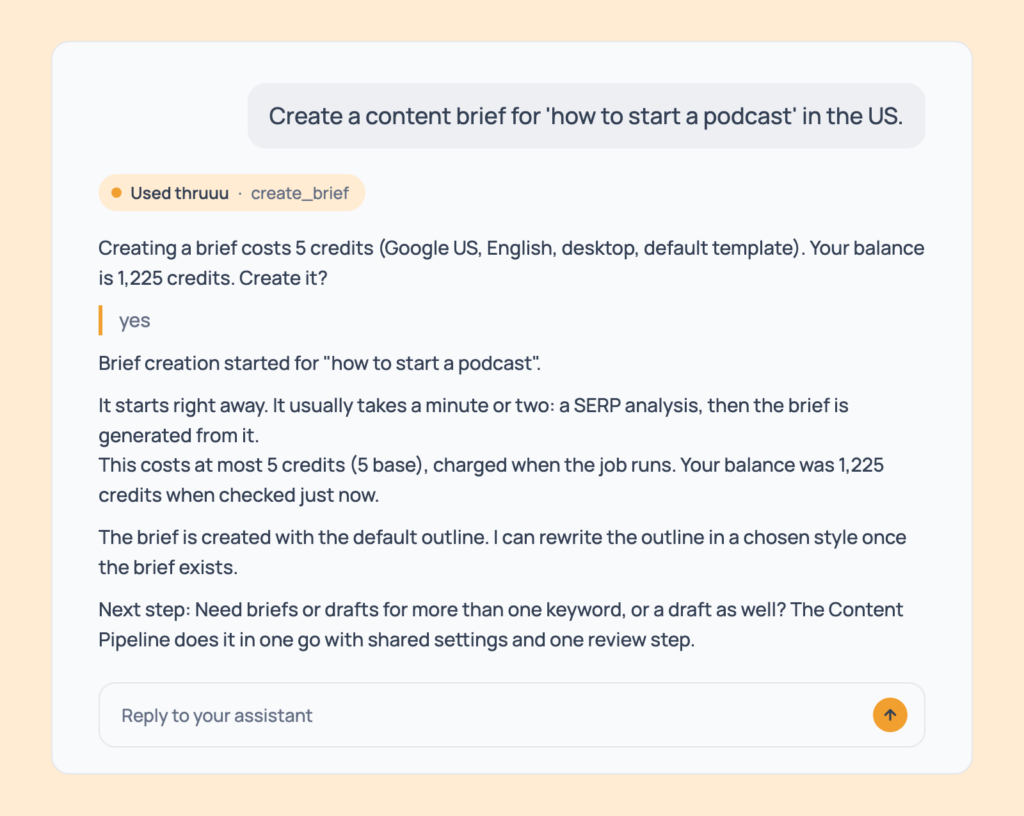
Create a content brief for 'how to start a podcast' in the US.A brief with title, description and outline, built from a fresh SERP analysis in a minute or two. Find it afterwards with Prompt 83.
- Cost: 5 credits, 6 with search volume. Every plan. Free plan accounts are fixed to the default settings.
- Tip: for several keywords, use the pipeline (Prompt 111).
Prompt 79: Use your own brief template
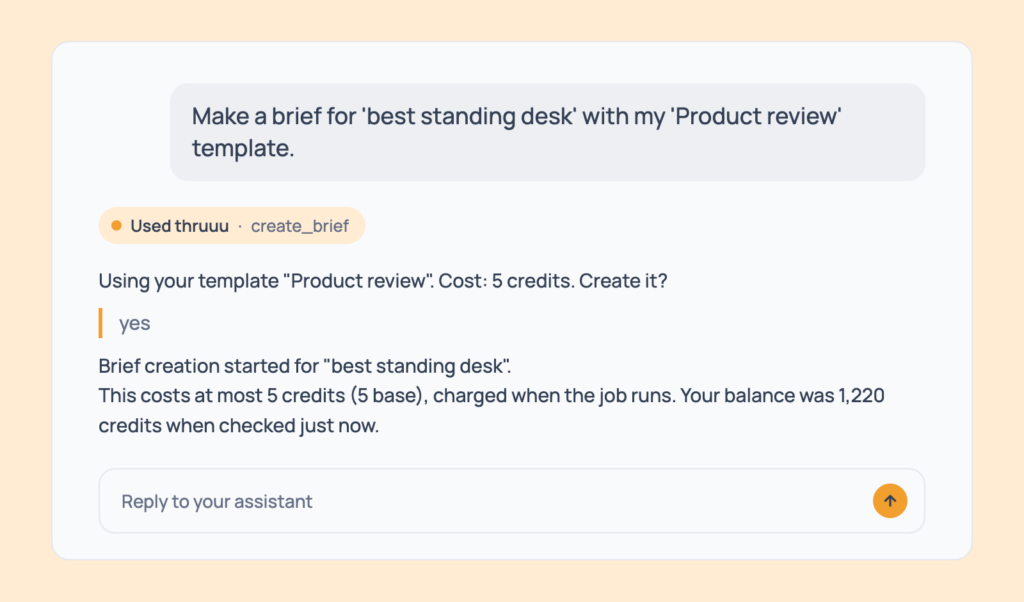
Make a brief for 'best standing desk' with my 'Product review' template.A brief built on your saved template.
- Cost: 5 credits. Choosing a template needs Pay as you go or above.
- Tip: ask “which templates do I have?” first (Prompt 102).
Prompt 80: Brief another market
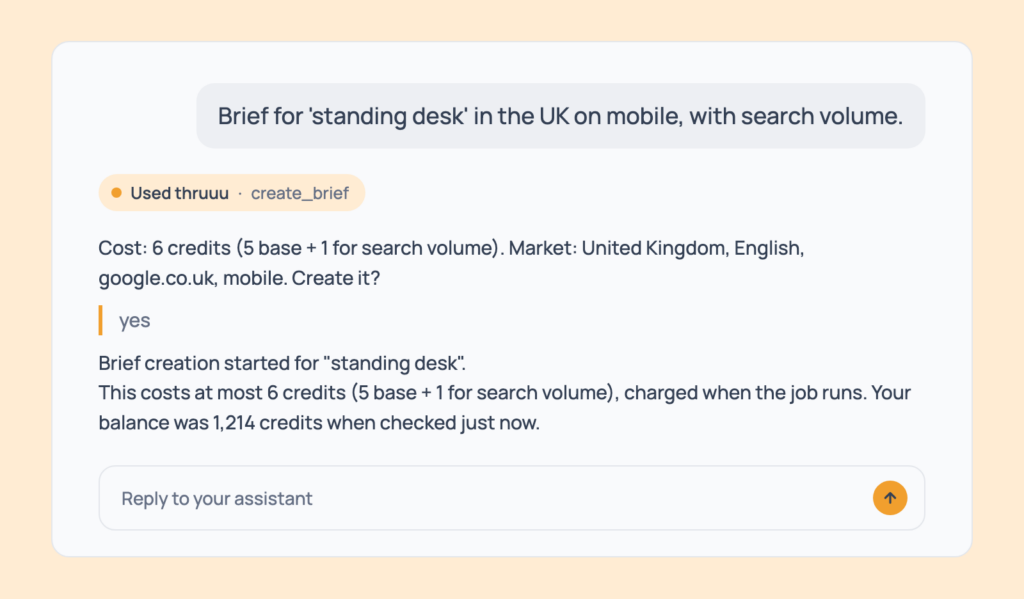
Brief for 'standing desk' in the UK on mobile, with search volume.The same brief, built on another market’s and device’s results.
- Cost: 6 credits (5, plus 1 for volume). Market choice needs Pay as you go or above.
- Tip: use it for localised versions of the same article.
Prompt 81: Turn an analysis into a brief
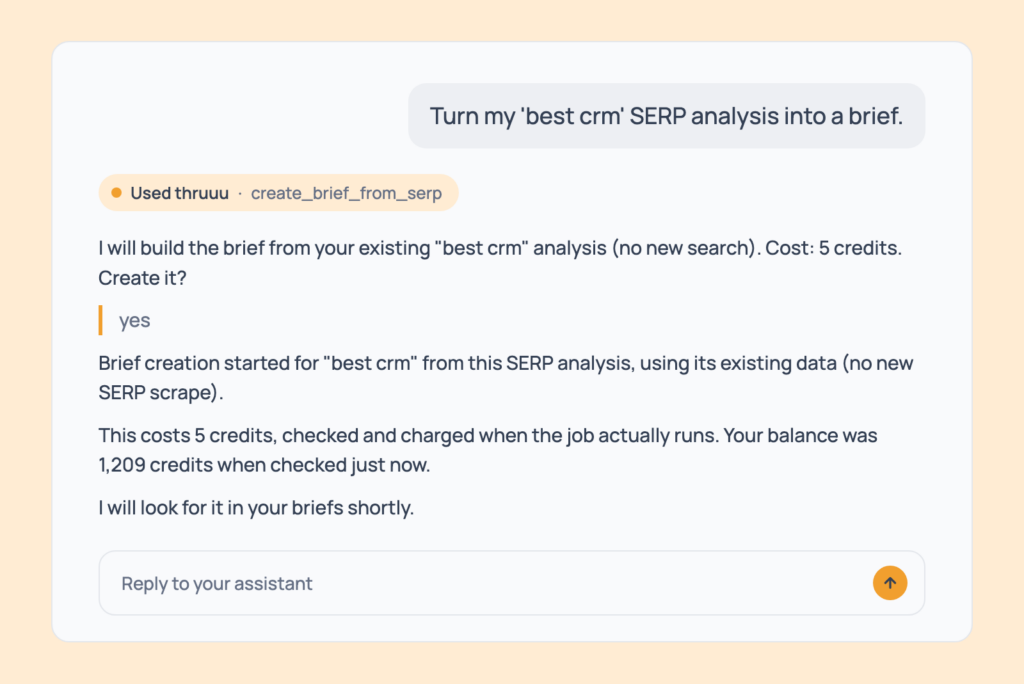
Turn my 'best crm' SERP analysis into a brief.A brief built from the analysis you already have, with no new search. If one already exists for it, the assistant tells you which.
- Cost: 5 credits.
- Tip: the best path after researching a keyword (Prompt 131).
Prompt 82: Brief a cluster
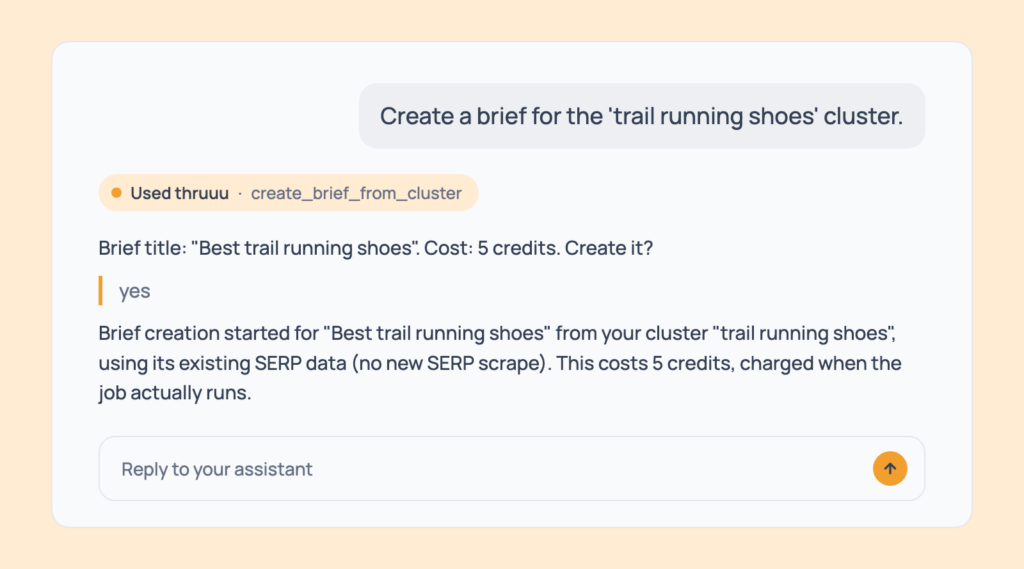
Create a brief for the 'trail running shoes' cluster.A brief built from the cluster’s existing data, with no new search. You give it a title.
- Cost: 5 credits.
- Tip: use it after picking a gap from the content plan (Prompt 66).
Find and Read Your Briefs
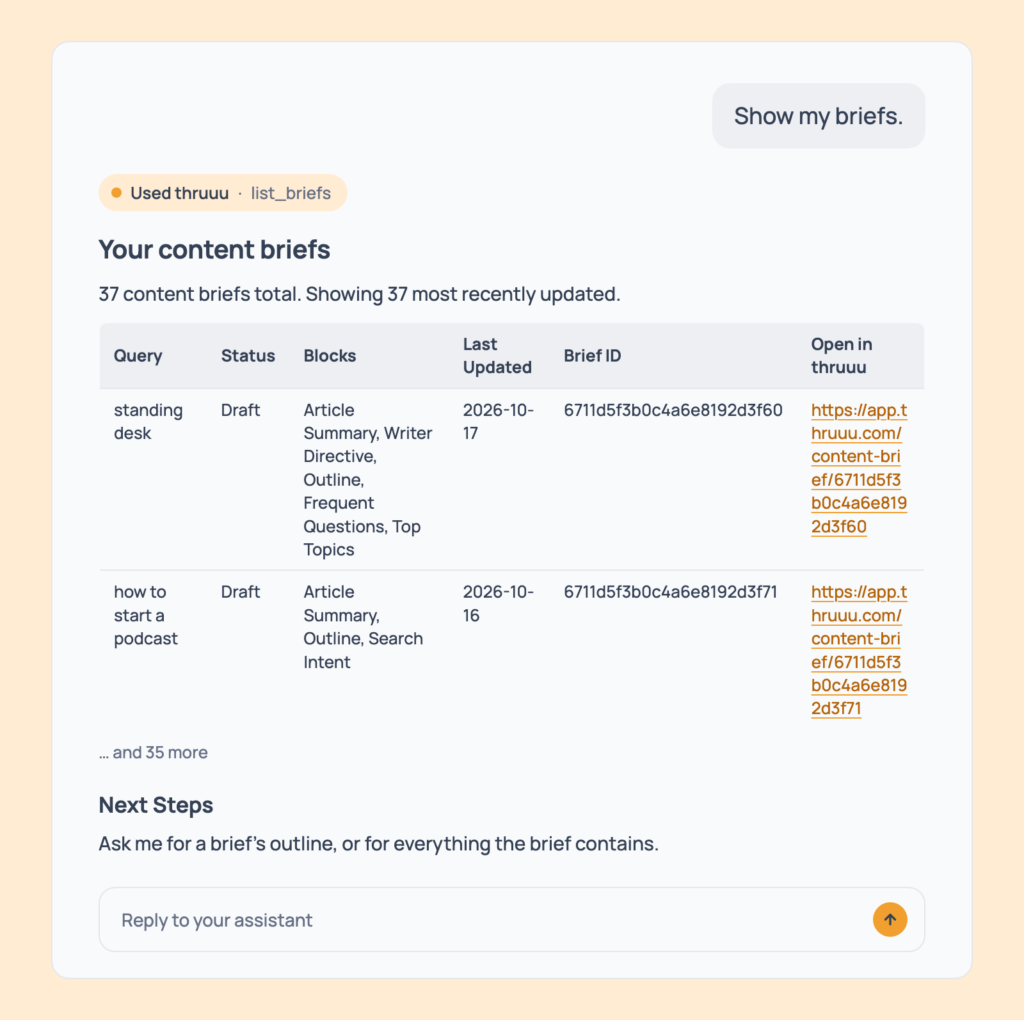
Prompt 83: List your briefs
Show my briefs.Your briefs, most recently updated first, with keyword, status, sections, last update and a link.
- Cost: free.
- Tip: ask for the 150 most recent.
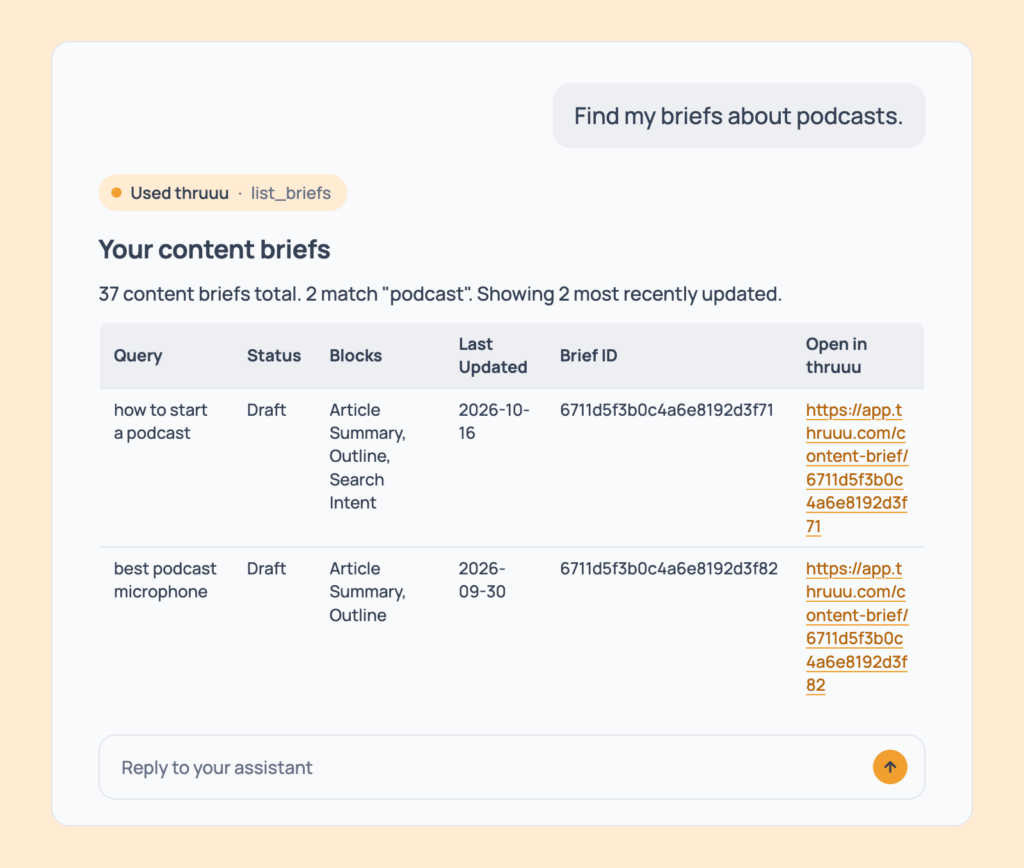
Prompt 84: Find a brief by topic
Find my briefs about podcasts.The briefs matching a keyword or title.
- Cost: free.
- Tip: use it to avoid writing the same brief twice.
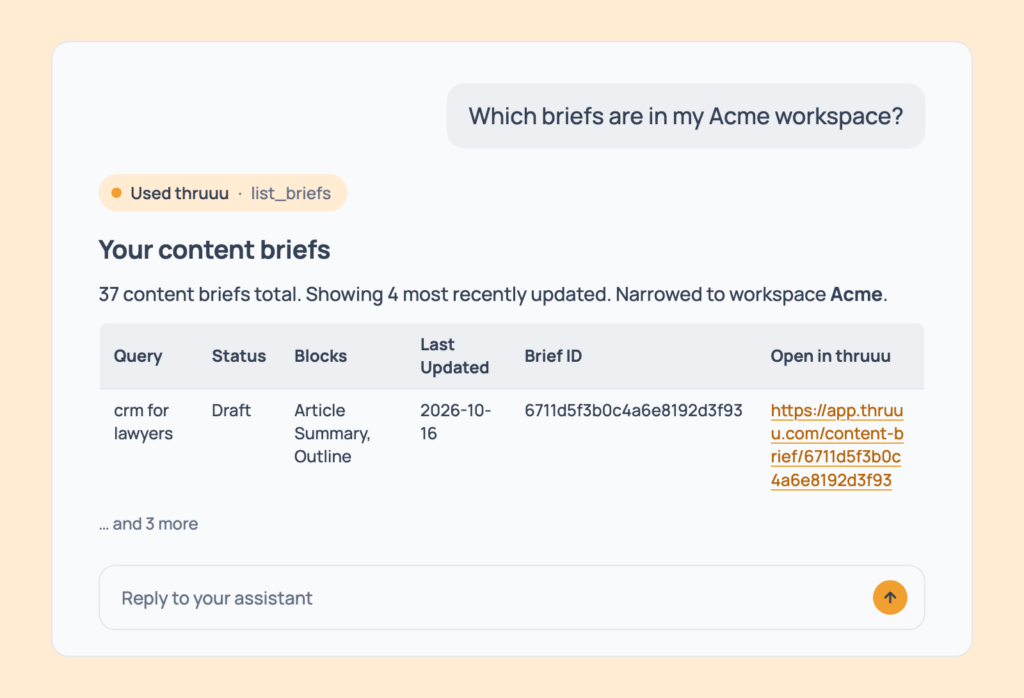
Prompt 85: List one client’s briefs
Which briefs are in my Acme workspace?The briefs in one workspace.
- Cost: free.
- Tip: pair it with Prompt 104 to see briefs next to drafts.
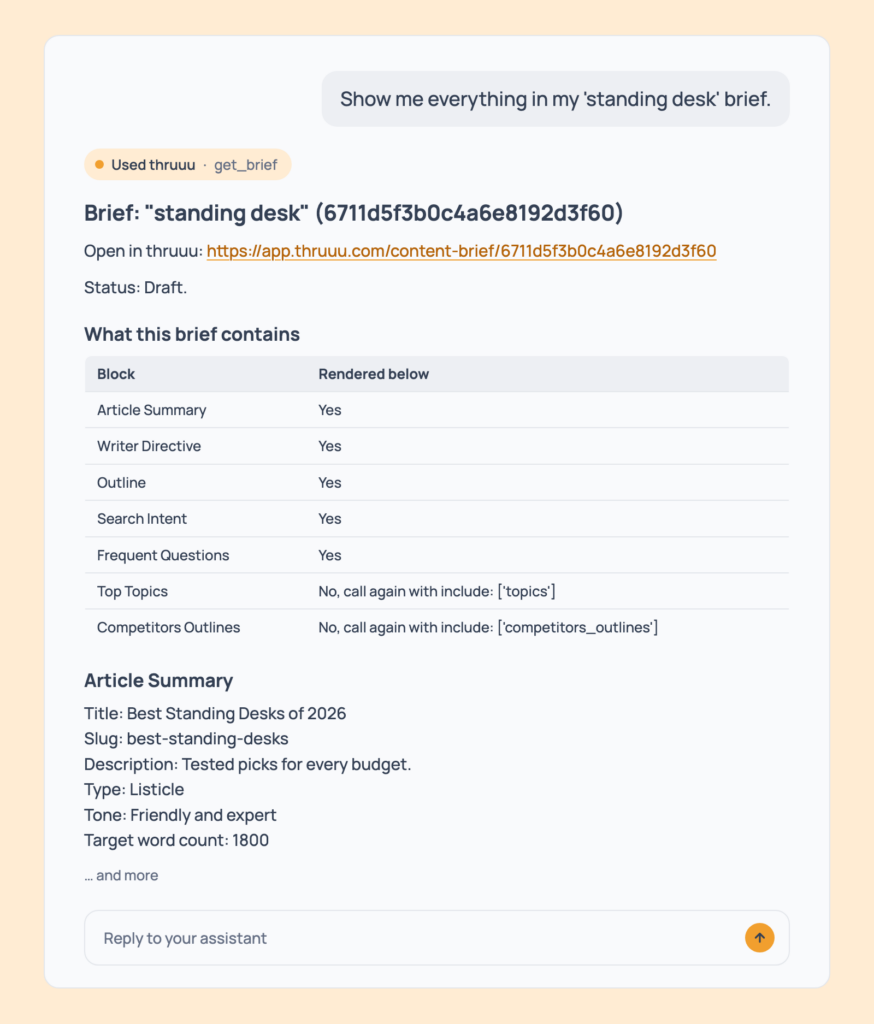
Prompt 86: Read a whole brief
Show me everything in my 'standing desk' brief.Every section: article summary, writer guidance, outline, search intent, competitor reference points, questions and the rest, with a link.
- Cost: free.
- Tip: the assistant first lists which sections exist, so nothing is missed.
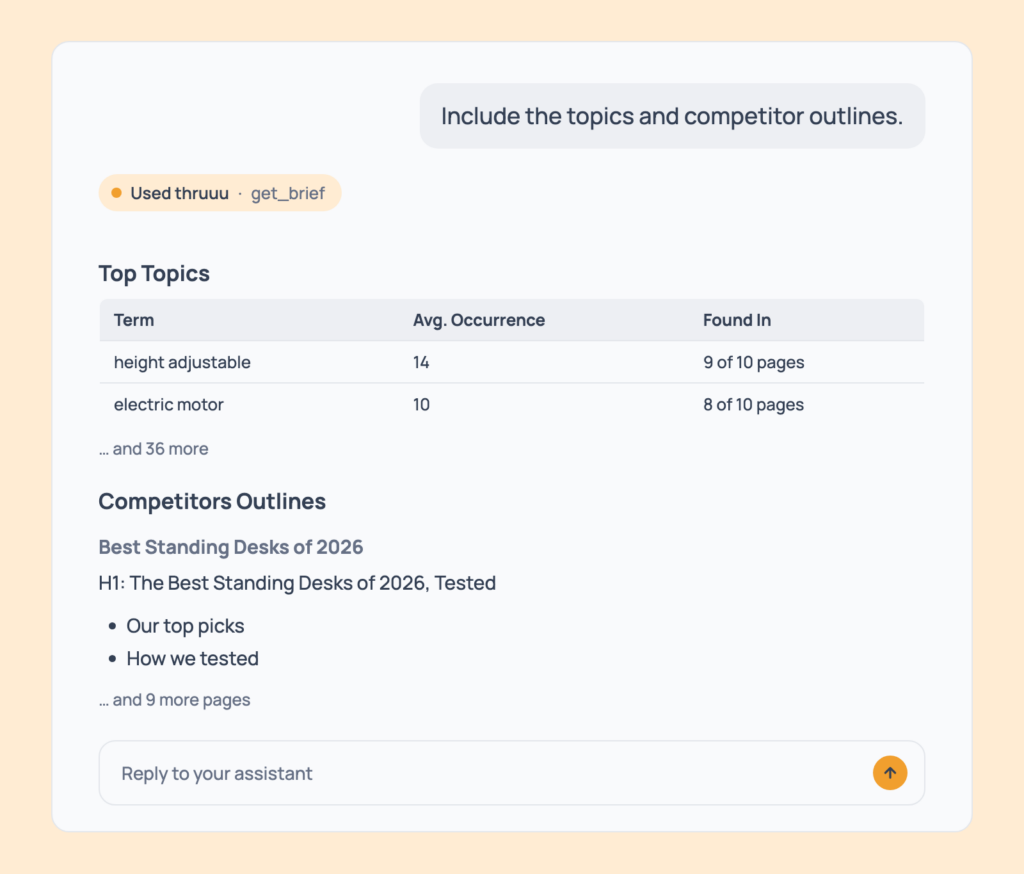
Prompt 87: Add the topics and competitor outlines
Include the topics and competitor outlines.A follow-up to Prompt 86 that adds the two large sections normally left out: the top topics and the competing pages’ outlines.
- Cost: free.
- Tip: use it when you’re briefing a writer.
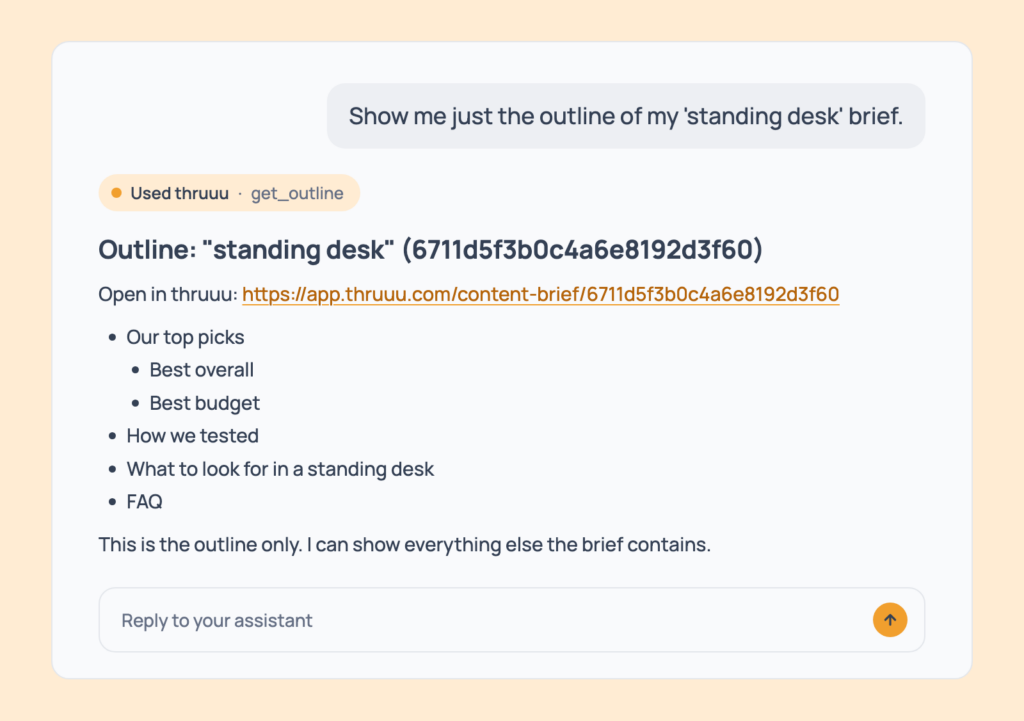
Prompt 88: Read just the outline
Show me just the outline of my 'standing desk' brief.The heading structure only, with a link to the brief.
- Cost: free.
- Tip: lighter than Prompt 86 when the structure is all you need.
Edit a Brief
Edits are free, but there’s no undo. The assistant reads the current value first and checks with you before saving. Editing needs Pay as you go or above.
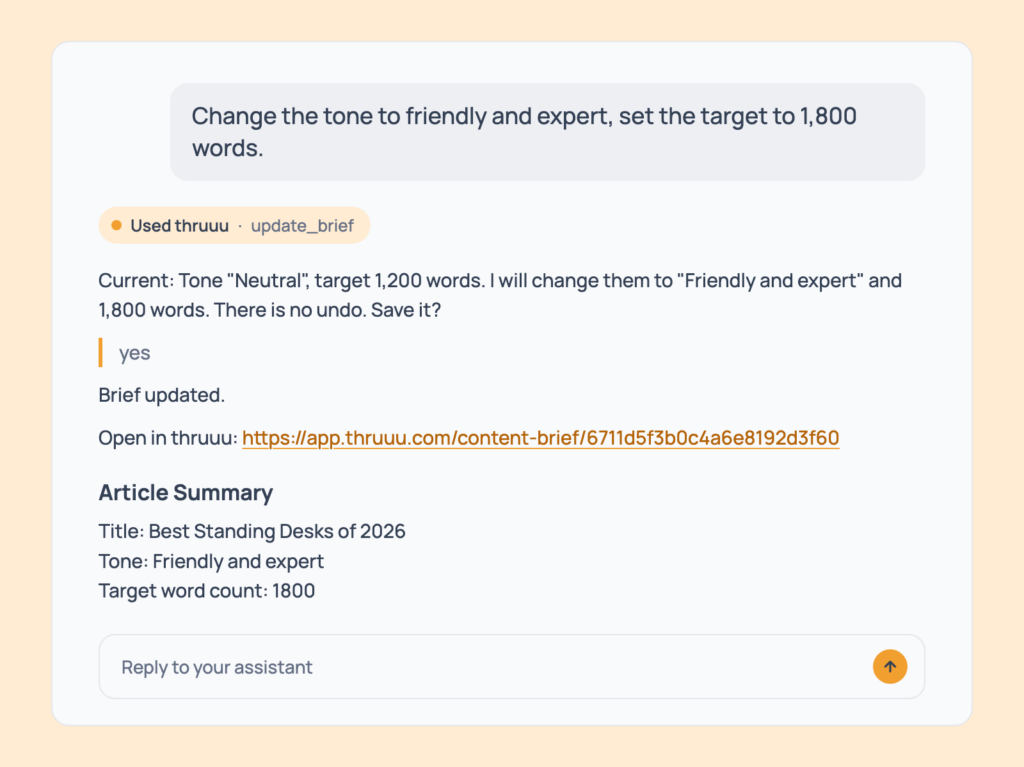
Prompt 89: Change the tone and word count
Change the tone to friendly and expert, set the target to 1,800 words.The article summary updated.
- Cost: free.
- Tip: you can change the title, description, slug and article type in the same message. Several changes at once are all-or-nothing, so nothing is half-saved.
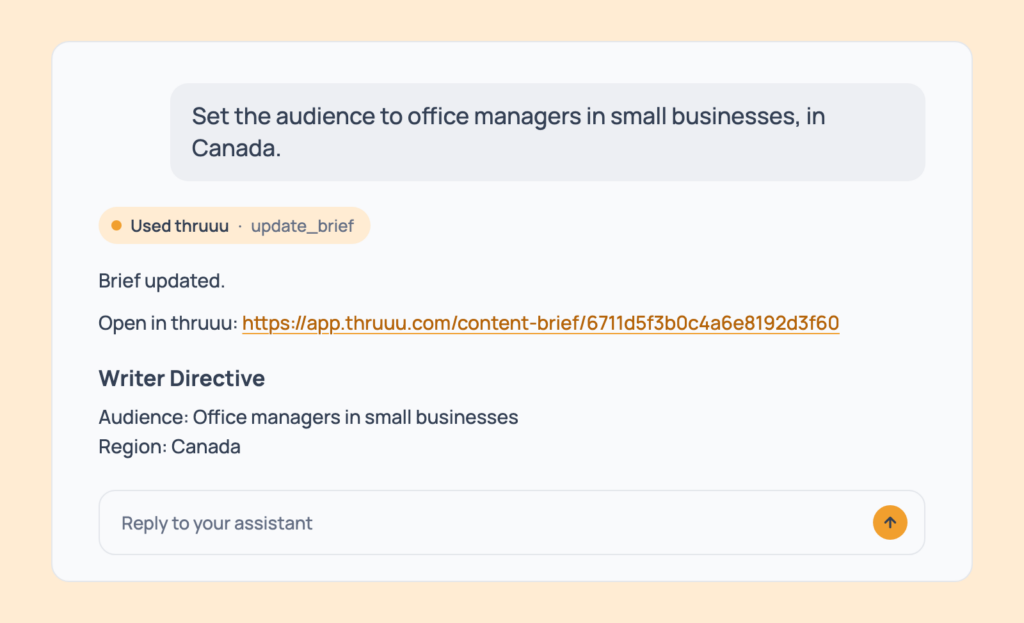
Prompt 90: Set the audience and region
Set the audience to office managers in small businesses, in Canada.The writer guidance updated: audience, region and notes.
- Cost: free.
- Tip: you can also paste notes as bullet points.
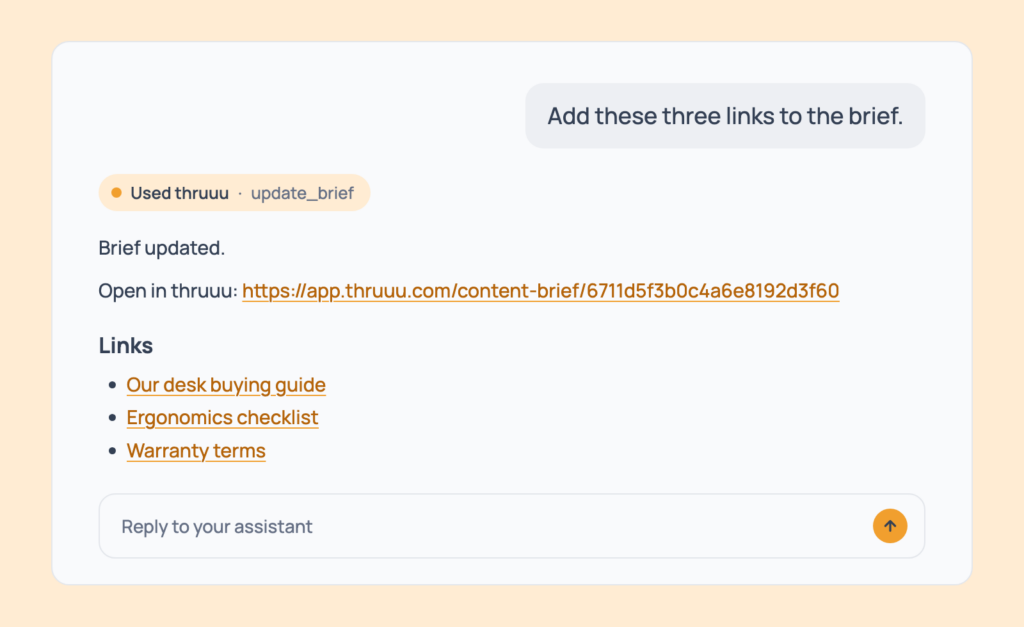
Prompt 91: Add links to the brief
Add these three links to the brief.The brief’s links list replaced, keeping the ones you want.
- Cost: free.
- Tip: the assistant reads the current links first, so none are lost.
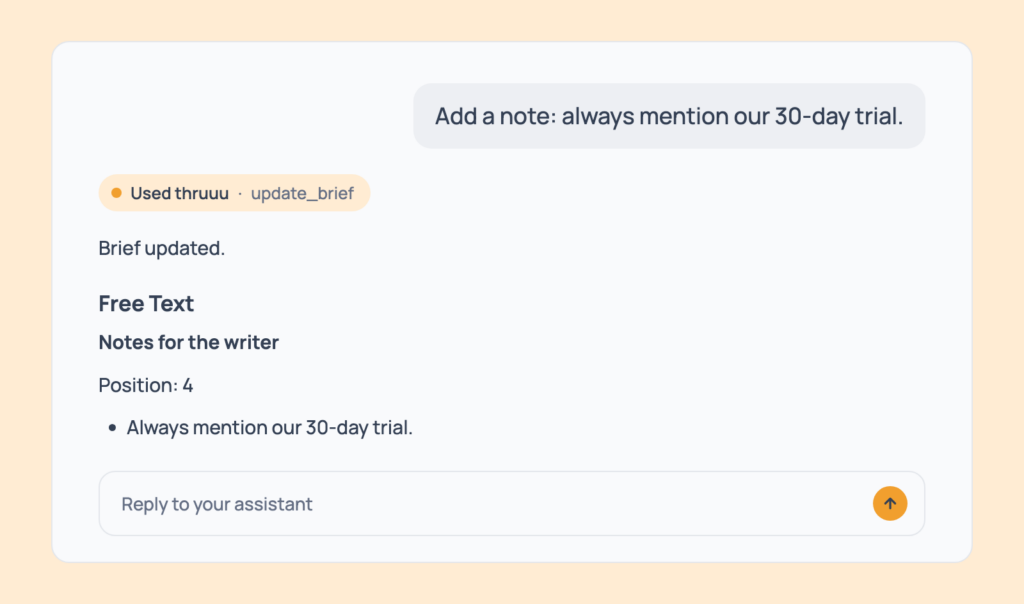
Prompt 92: Add a note for the writer
Add a note: always mention our 30-day trial.The text of a free text block replaced.
- Cost: free.
- Tip: it only changes an existing block and doesn’t add a new one.
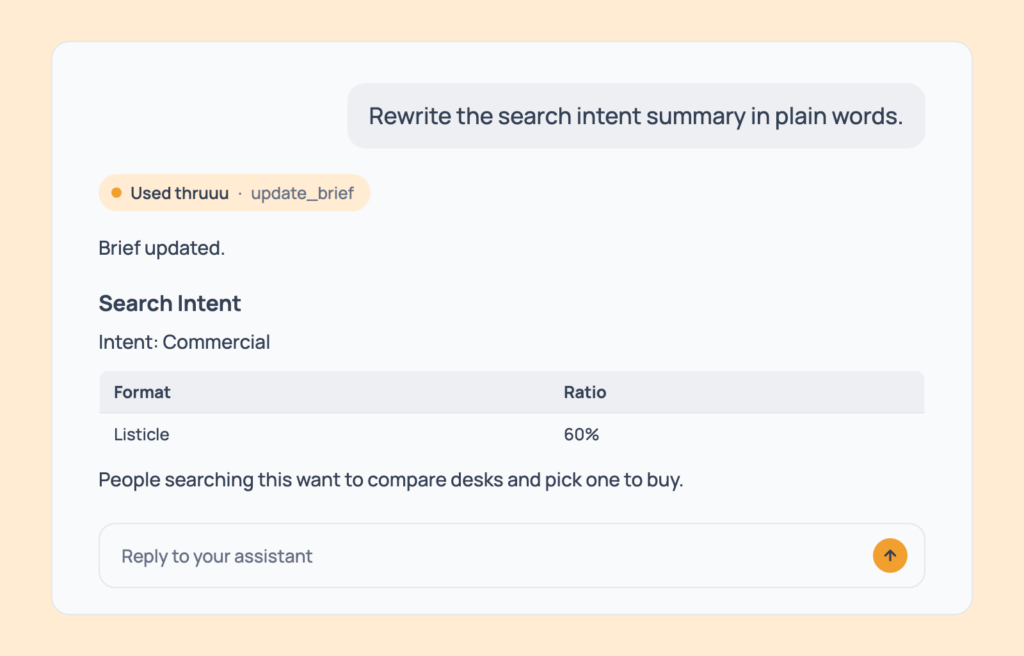
Prompt 93: Rewrite the search intent summary
Rewrite the search intent summary in plain words.The written summary in the search intent block replaced.
- Cost: free. The brief’s search intent must already exist.
- Tip: it also works for the “food for thought” block.
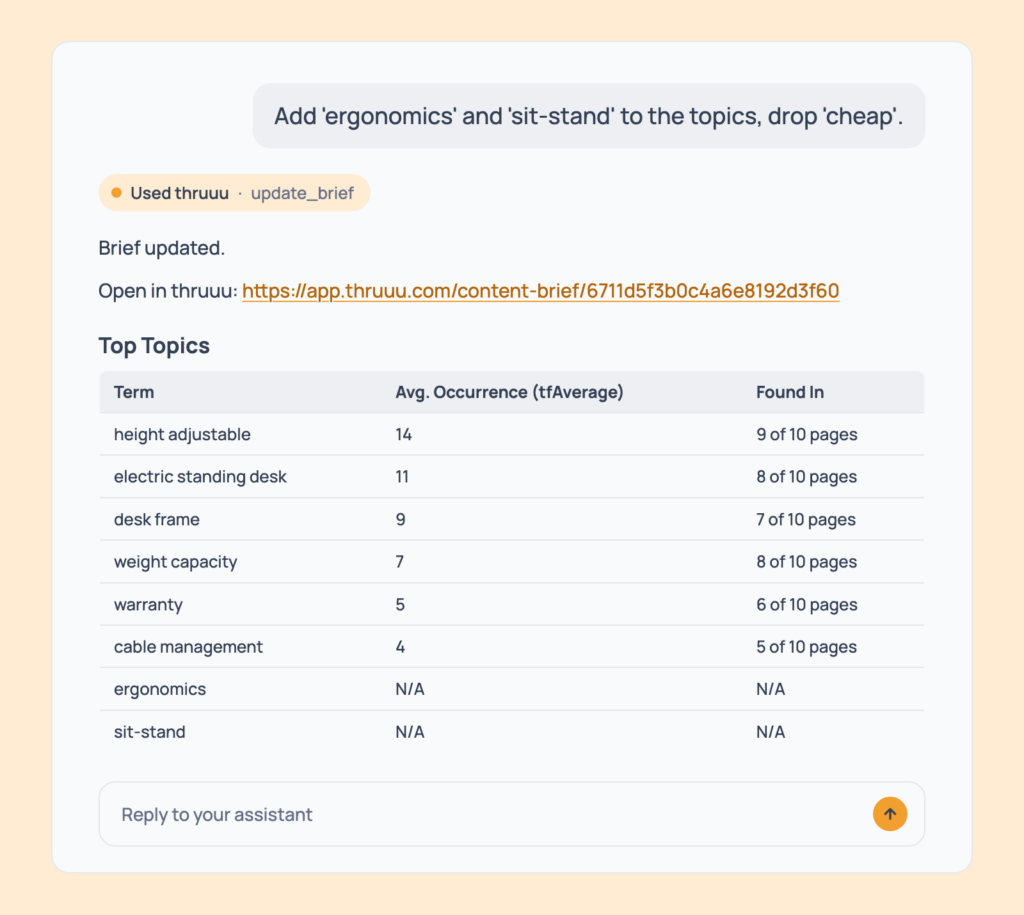
Prompt 94: Edit the topics
Add 'ergonomics' and 'sit-stand' to the topics, drop 'cheap'.Topic terms added and removed.
- Cost: free.
- Tip: removals need the exact term.
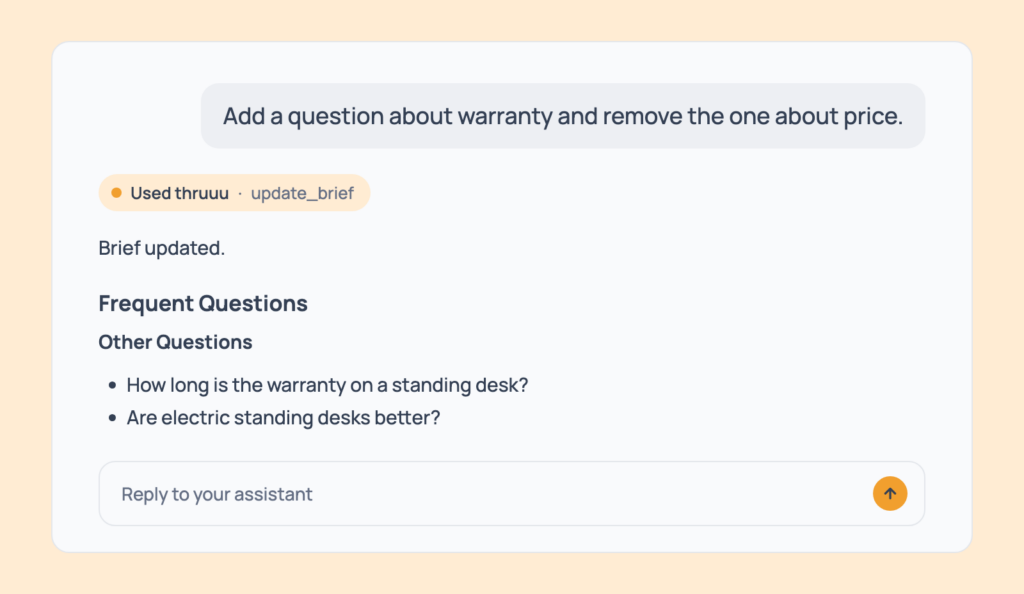
Prompt 95: Edit the frequent questions
Add a question about warranty and remove the one about price.Frequent questions added and removed.
- Cost: free.
- Tip: People Also Asked stays as thruuu found it.
Edit the Outline
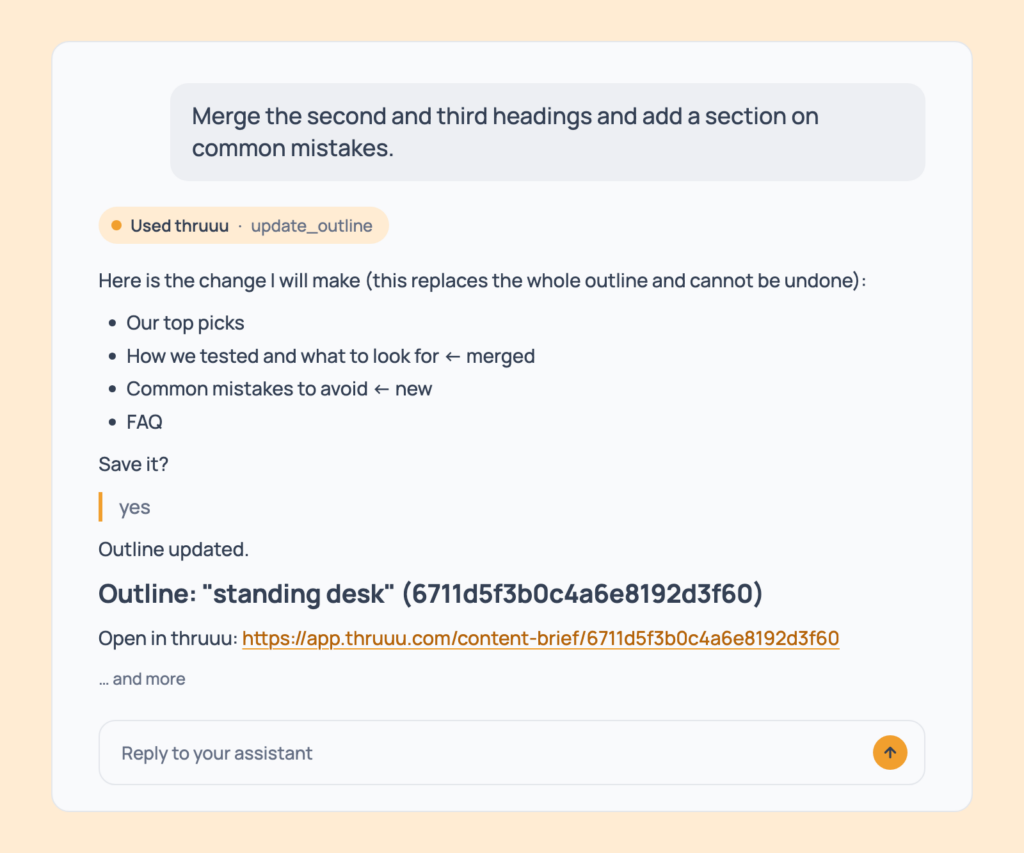
Prompt 96: Restructure the outline
Merge the second and third headings and add a section on common mistakes.Your new outline, saved after your yes.
- Cost: free. Pay as you go and above. It replaces the whole outline, with no undo.
- Tip: ask to see the old outline first, as a backup.
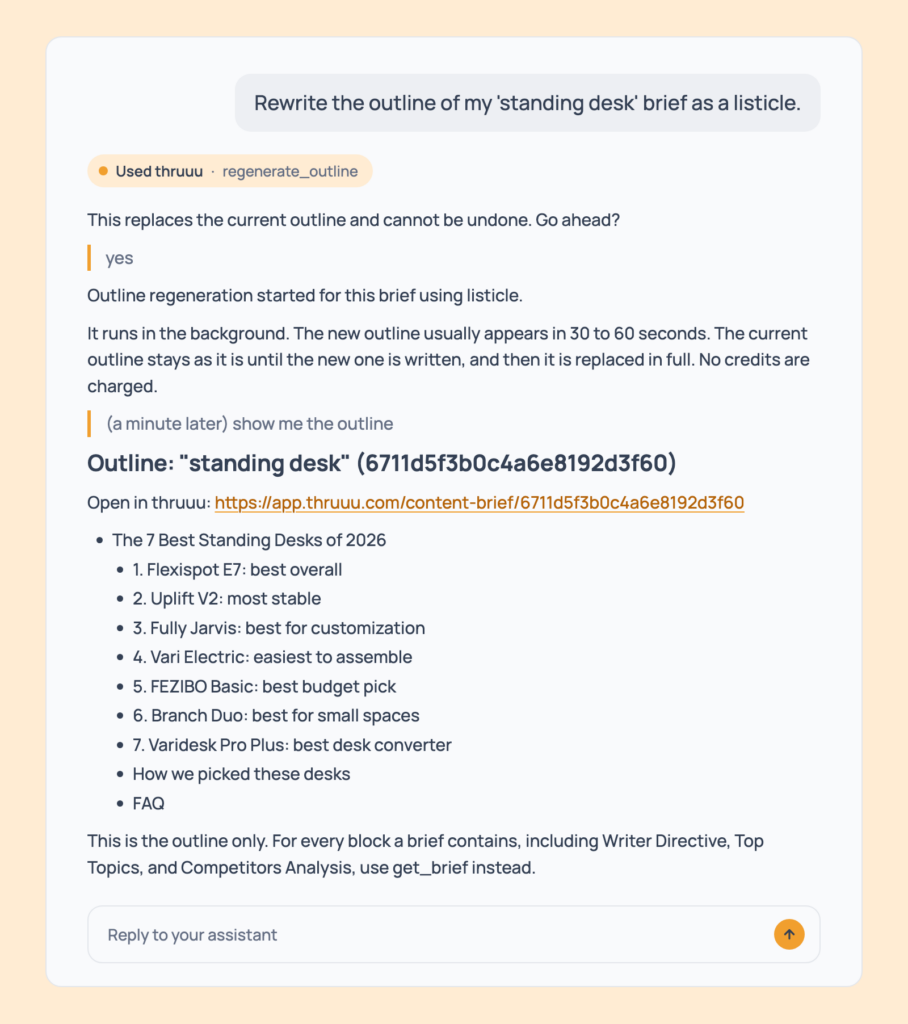
Prompt 97: Rewrite the outline in a style
Rewrite the outline of my 'standing desk' brief as a listicle.A new outline in the chosen style, regenerated from the competitor pages in 30 to 60 seconds. The old one stays until the new one is ready.
- Cost: free. Professional and above.
- Tip: it works with your own styles too: “Use my Buyer’s guide style”.
Styles and Templates
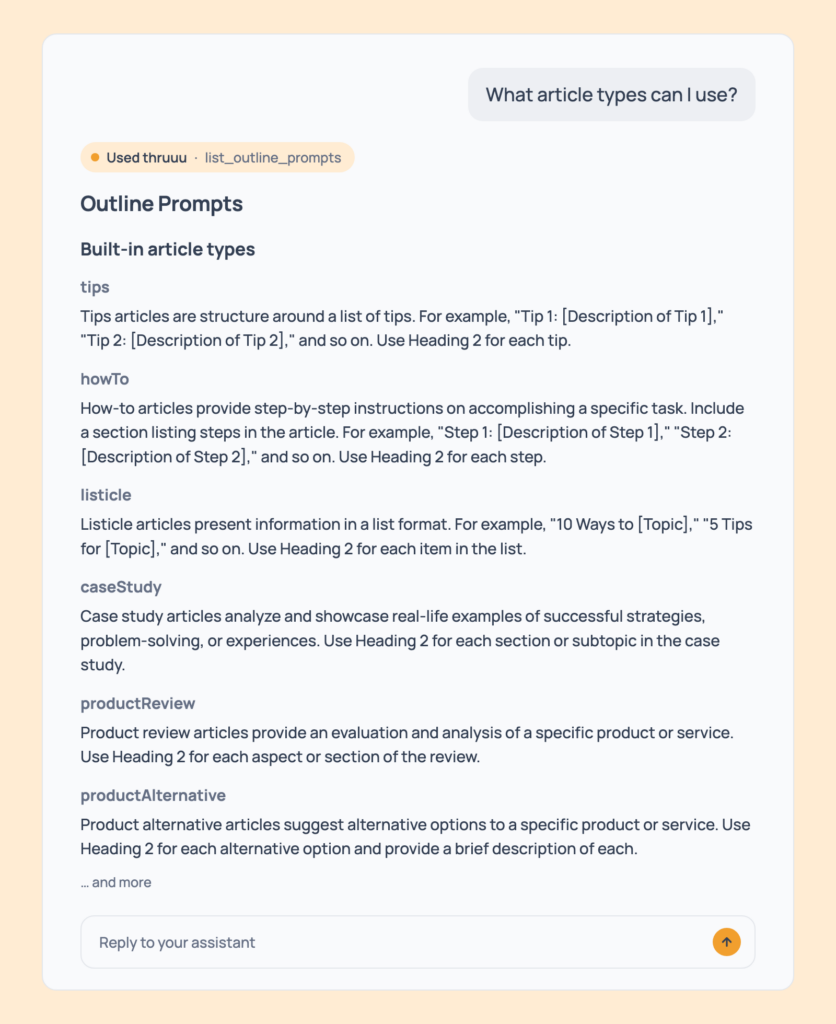
Prompt 98: List the article types
What article types can I use?Eight built-in types (tips, how-to, listicle, case study, product review, product alternative, comparison guide, ultimate guide) plus your own, with the instructions behind each.
- Cost: free.
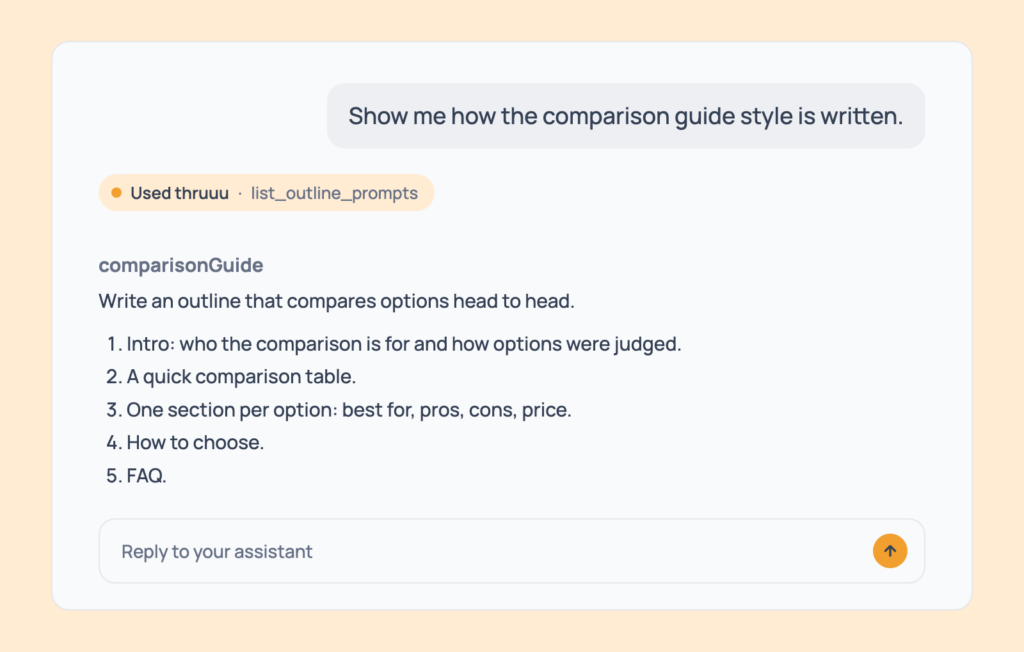
Prompt 99: Read how a style is written
Show me how the comparison guide style is written.The structure rules behind one style.
- Cost: free.
- Tip: use it as a model for your own.
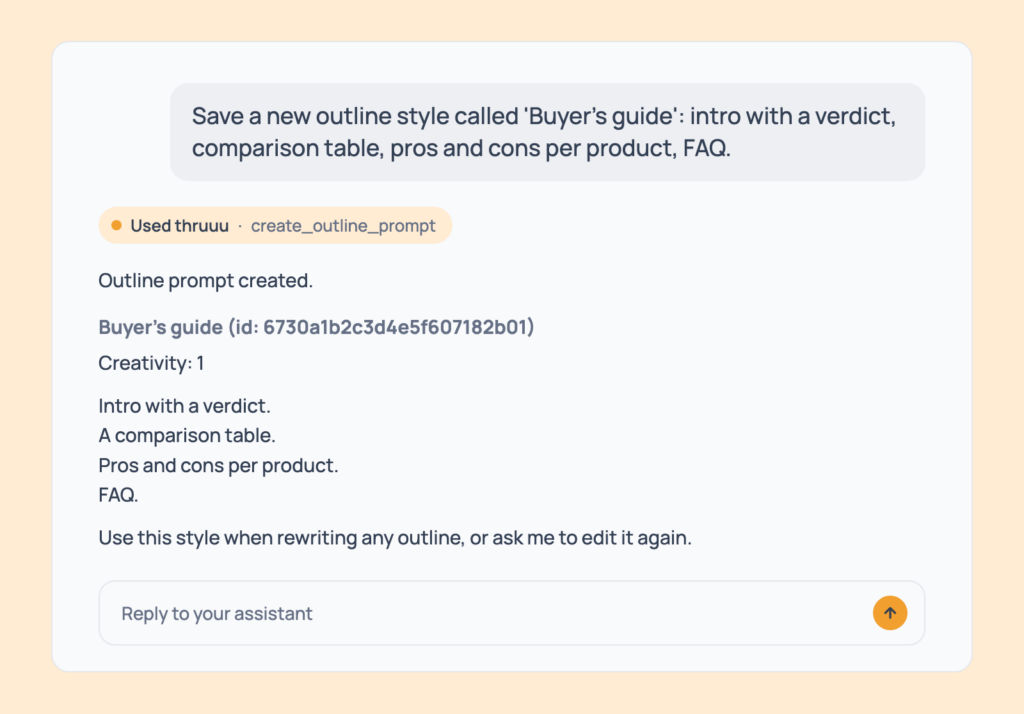
Prompt 100: Save your own outline style
Save a new outline style called 'Buyer's guide': intro with a verdict, comparison table, pros and cons per product, FAQ.A reusable style, selectable in the app and by the assistant.
- Cost: free. Professional and above. On a team, teammates in the workspace can see and edit it.
- Tip: you can set how creative the style is.
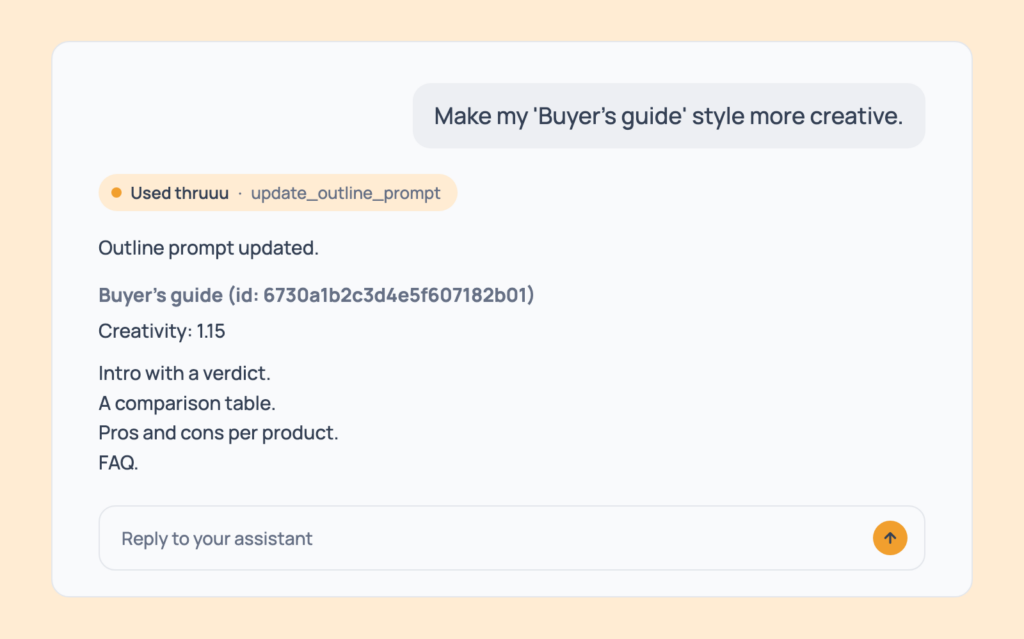
Prompt 101: Edit your own style
Make my 'Buyer's guide' style more creative.Your style updated: name, instructions or creativity. Only the fields you mention change.
- Cost: free. Professional and above.
- Tip: built-in styles can’t be edited, so the assistant offers to make your own copy.
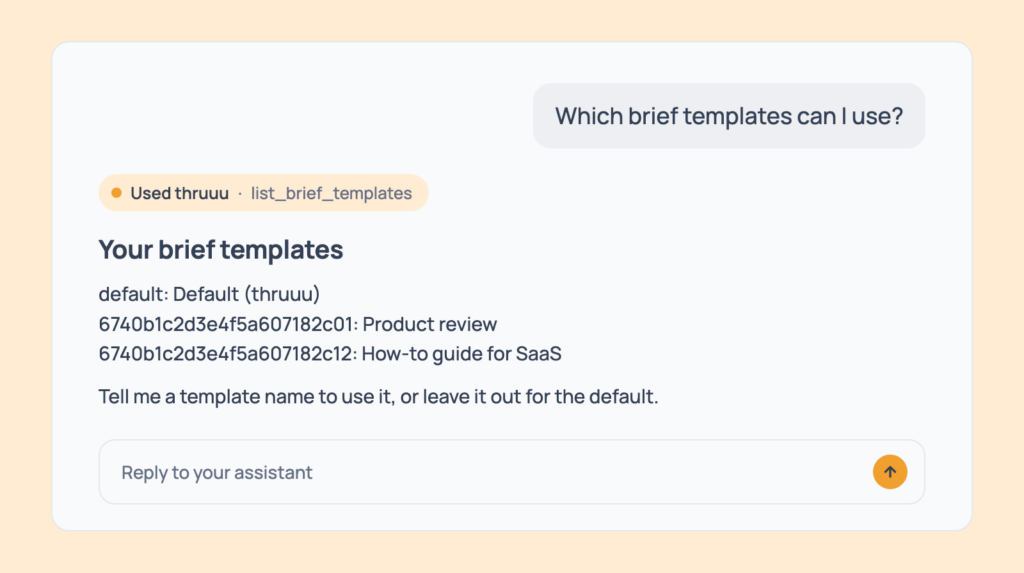
Prompt 102: List your brief templates
Which brief templates can I use?Your saved templates and the built-in default.
- Cost: free.
- Tip: use a template name in Prompt 79 or Prompt 112.
Prompts for Writing AI Drafts and Running a Content Pipeline
This is where a brief becomes an article.
The first group writes and checks one AI draft at a time. The second sends batches of keywords through the whole chain, from analysis to draft, and stops once for your review.
AI Drafts
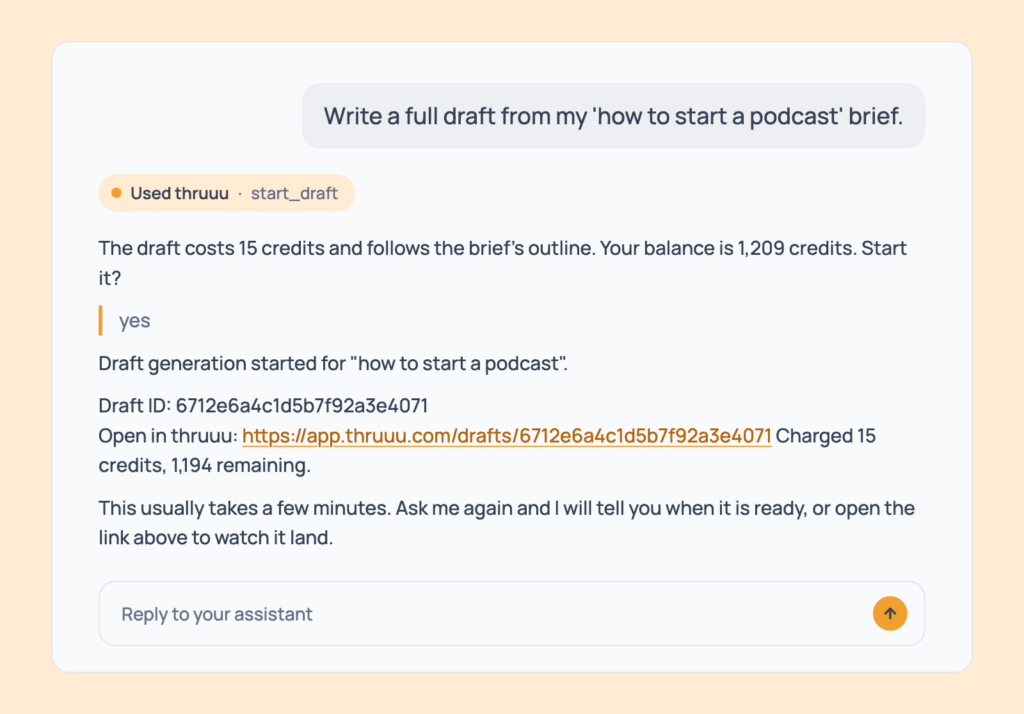
Prompt 103: Write a full draft
Write a full draft from my 'how to start a podcast' brief.A draft started from your brief, with a link. It takes a few minutes, and there’s one draft per brief.
- Cost: 15 credits. Professional and above.
- Tip: improve the outline first (Prompts 96 and 97), because the draft follows it.
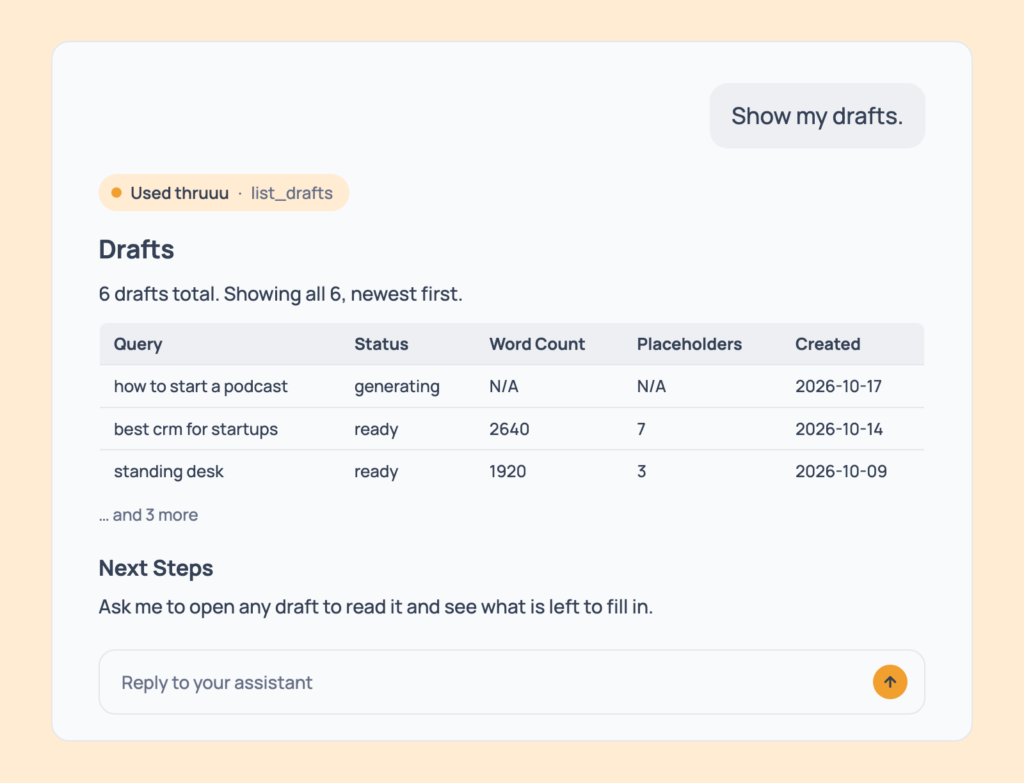
Prompt 104: List your drafts
Show my drafts.Your drafts, newest first, with title, status, word count, to-do count, date and link.
- Cost: free. Professional and above.
- Tip: filter by keyword or workspace.
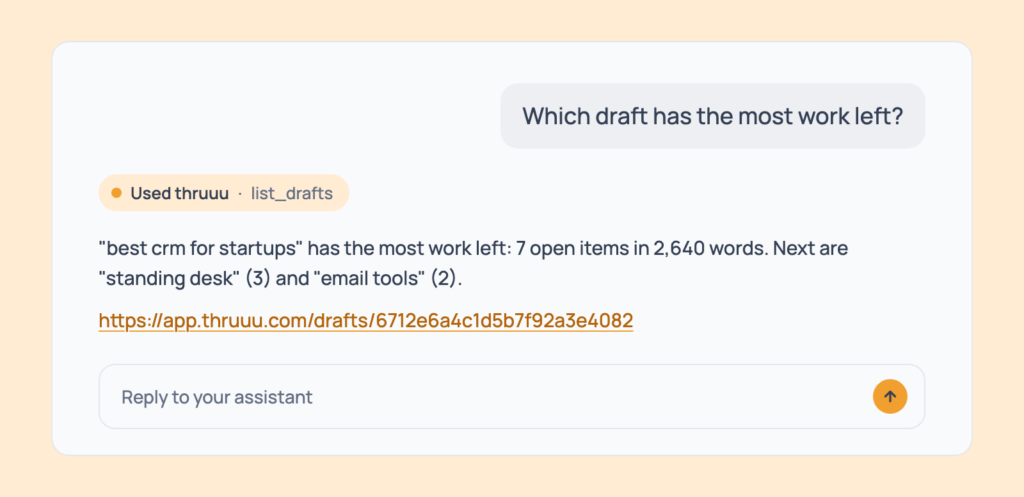
Prompt 105: Find the draft with the most work left
Which draft has the most work left?Your drafts sorted by open to-dos, starting with the one that has the most.
- Cost: free. Professional and above.
- Tip: that’s your editing to-do list.
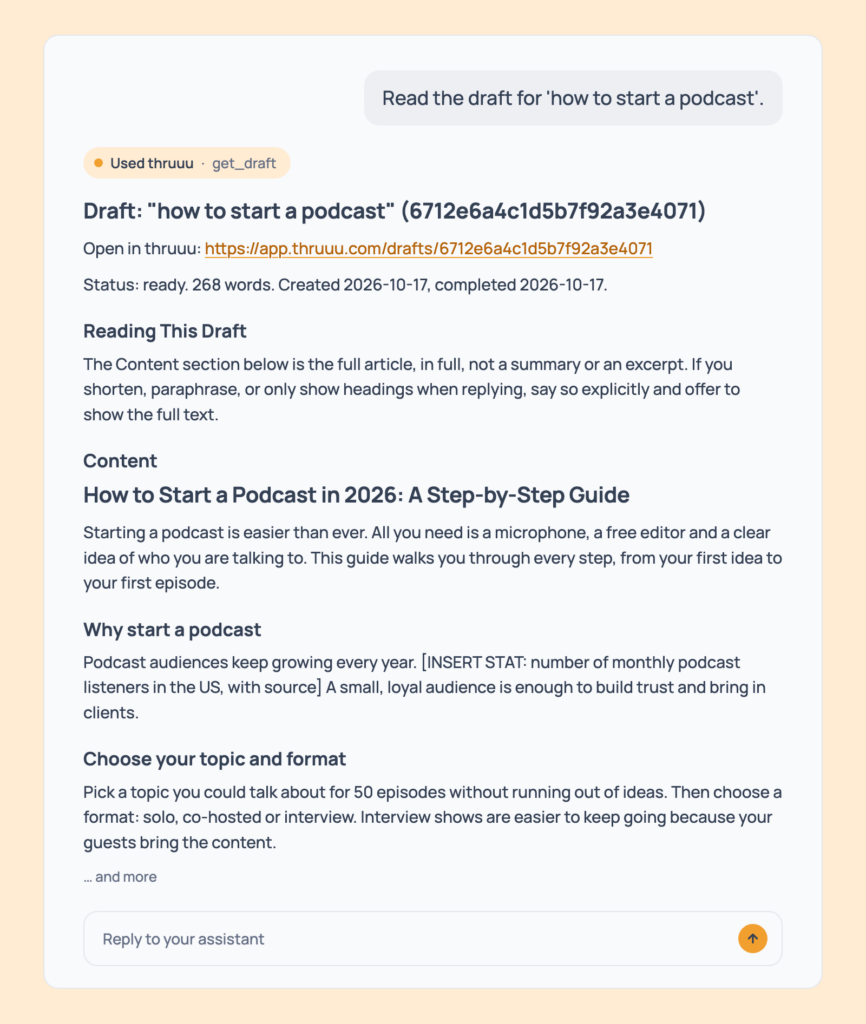
Prompt 106: Read a draft
Read the draft for 'how to start a podcast'.The full article, its word count and a link to the draft in thruuu.
- Cost: free. Professional and above.
- Tip: if the draft is still generating, the assistant tells you.
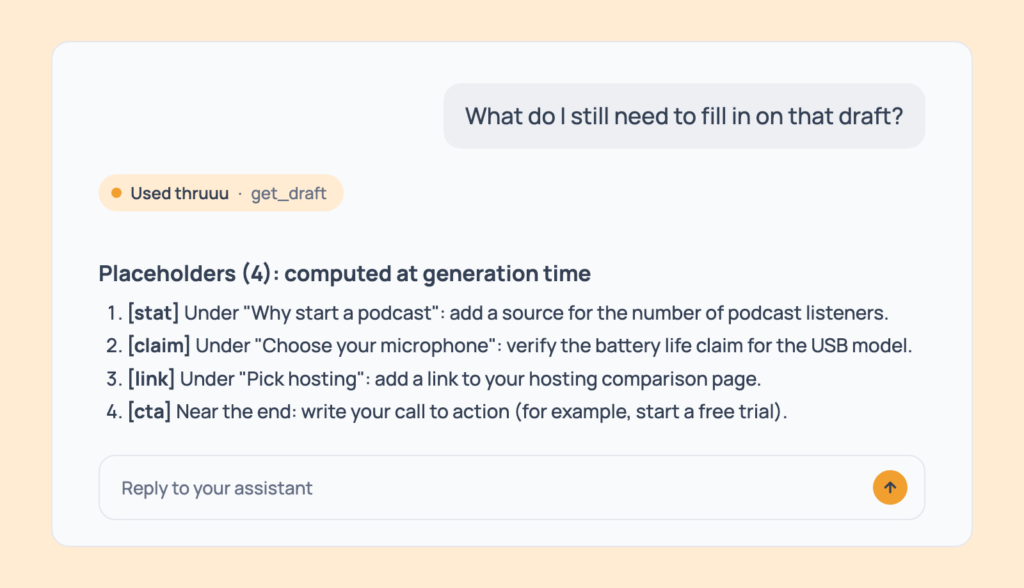
Prompt 107: List what’s left to fill in
What do I still need to fill in on that draft?A follow-up to Prompt 106: a checklist of stats to source, claims to verify, links to find and calls to action to write, each under its heading.
- Cost: free. Professional and above.
- Tip: thruuu doesn’t invent facts. It leaves a clear marker instead.
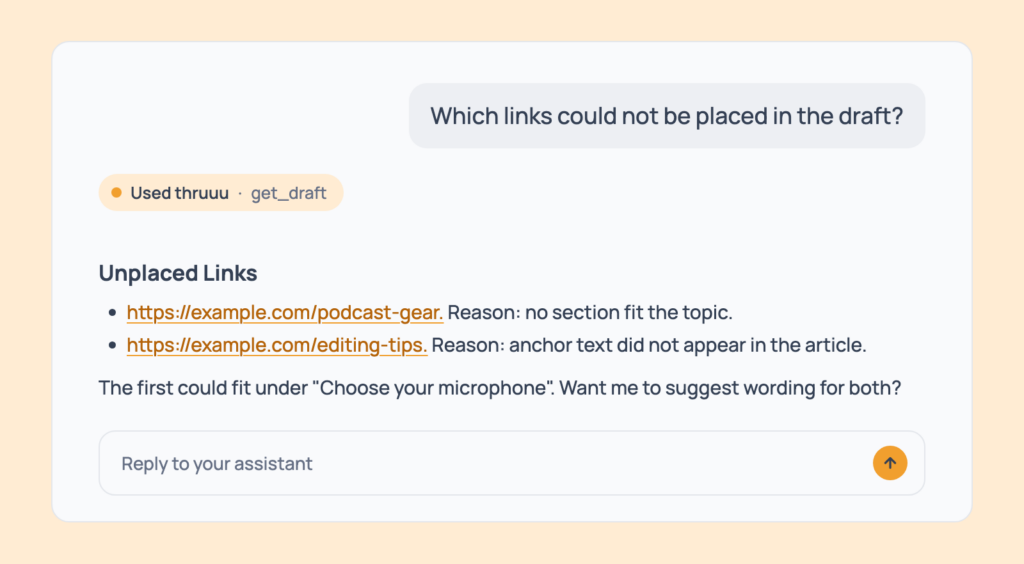
Prompt 108: Find the links the draft couldn’t place
Which links could not be placed in the draft?The unplaced links, with the reason for each.
- Cost: free. Professional and above.
- Tip: ask the assistant where each one could fit.
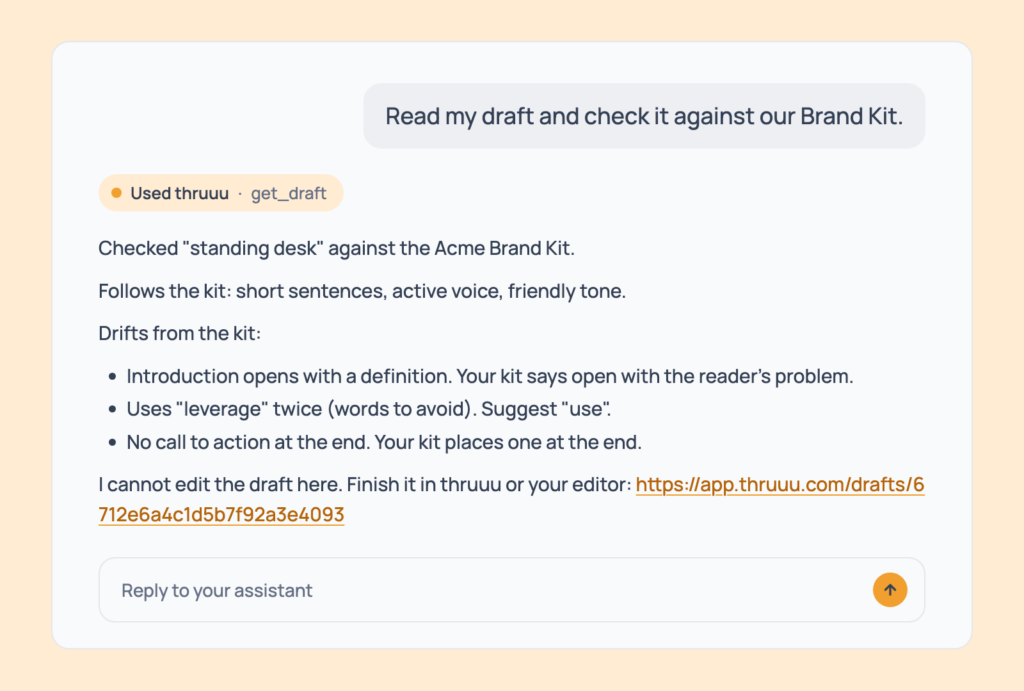
Prompt 109: Check a draft against your Brand Kit
Read my draft and check it against our Brand Kit.Where the draft follows or drifts from your tone, rules and words to avoid, with suggested rewrites.
- Cost: free. Professional and above.
- Tip: you finish the draft in the thruuu app or your own editor. The assistant doesn’t edit it.
Content Pipeline
The Content Pipeline takes up to 20 keywords at a time through SERP analysis, deeper analysis, brief and draft, with one review stop before the draft. Professional and above.
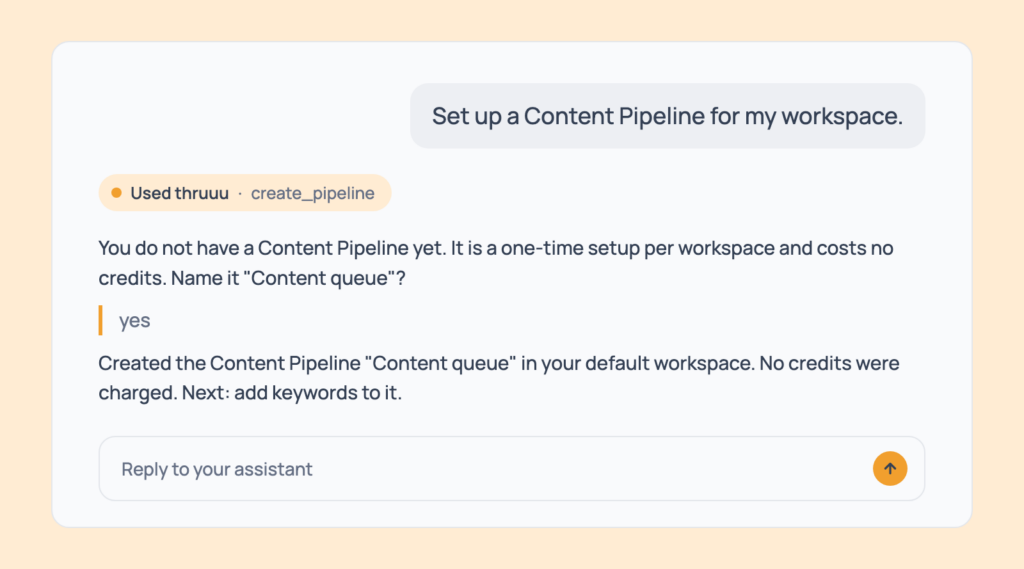
Prompt 110: Set up a Content Pipeline
Set up a Content Pipeline for my workspace.Your pipeline, ready for keywords, after a one-time setup the assistant asks about first.
- Cost: free. Professional and above. On a team, the account admin creates it.
- Tip: the assistant offers this on its own if you add keywords without one.
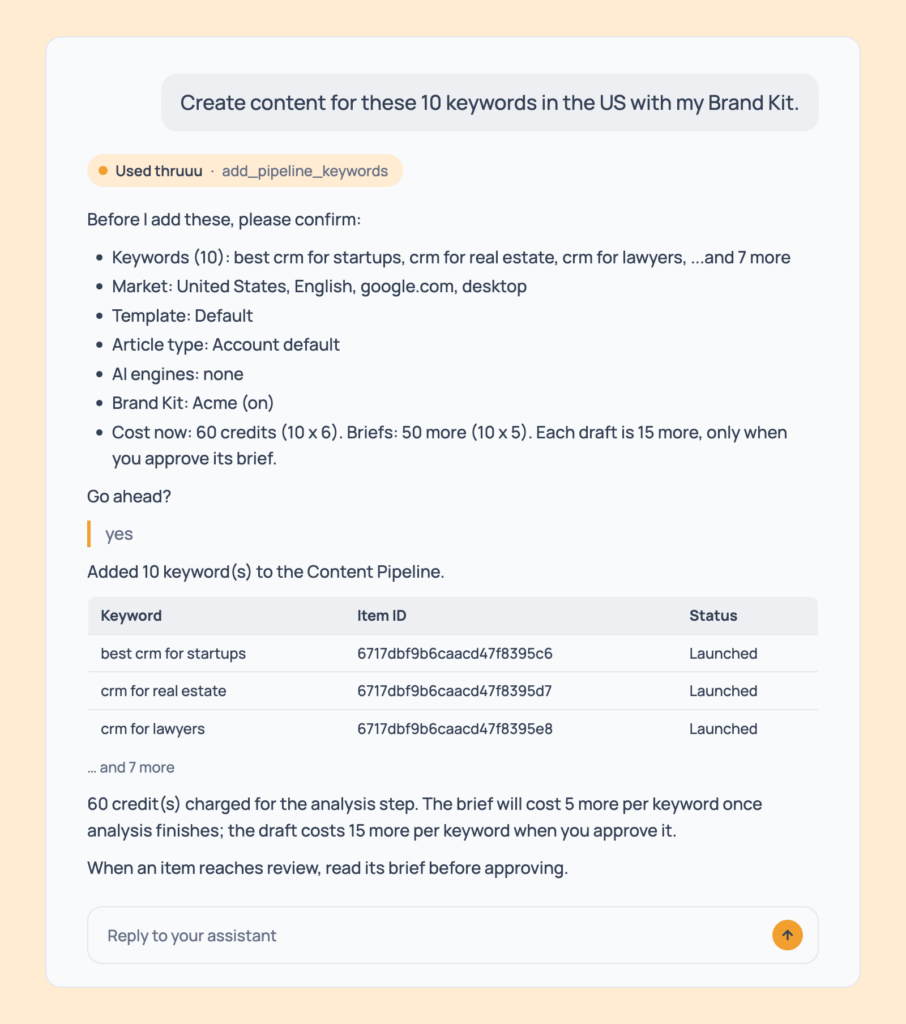
Prompt 111: Send a batch of keywords through the pipeline
Create content for these 10 keywords in the US with my Brand Kit.All ten keywords added and launched once you confirm the market, template, article type, AI engines, Brand Kit and total cost, with a link to the Content Pipeline.
- Cost: per keyword, 6 credits for the analysis, plus 1 per AI engine, plus 1 for search volume. Then 5 for the brief. The 15-credit draft is charged only when you approve. At least 11 credits per keyword before approval.
- Tip: it runs the whole chain with no further asks until the review stop.
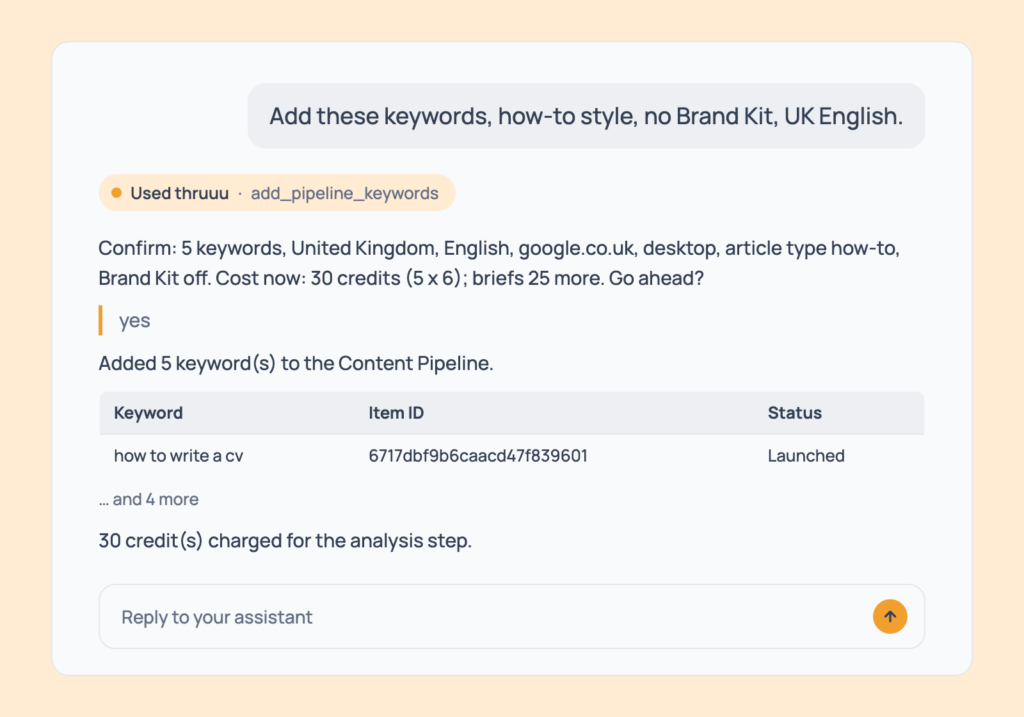
Prompt 112: Choose the style, template and market
Add these keywords, how-to style, no Brand Kit, UK English.The same batch with your article type, template and market, and the Brand Kit switched off.
- Cost: same pricing.
- Tip: choose a built-in style or one of your own.
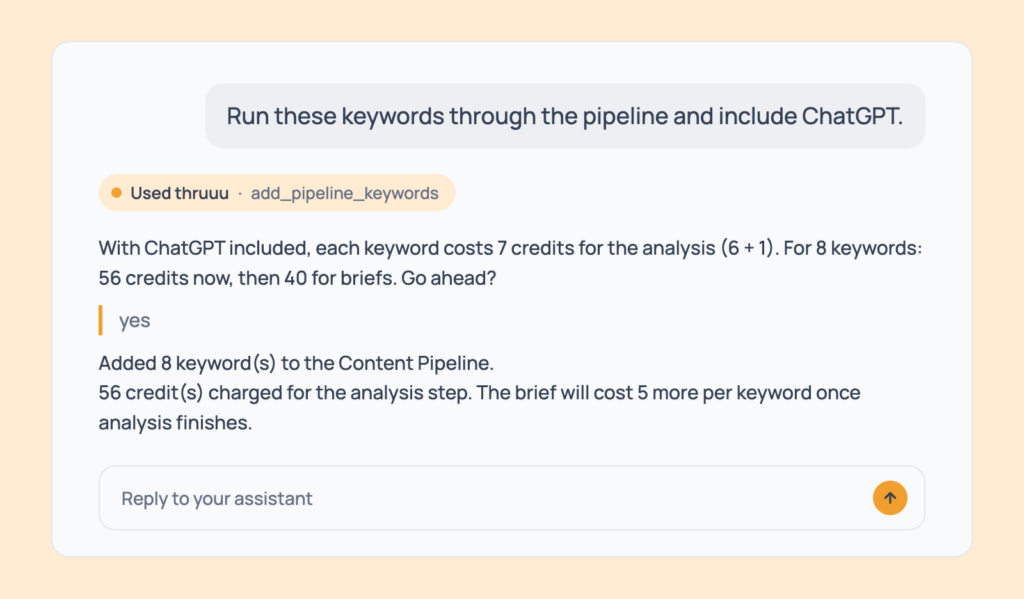
Prompt 113: Add AI engines to a batch
Run these keywords through the pipeline and include ChatGPT.AI engine answers collected for every keyword in the batch.
- Cost: +1 credit per engine per keyword. Engines depend on your plan.
- Tip: the assistant tells you the total before you say yes.
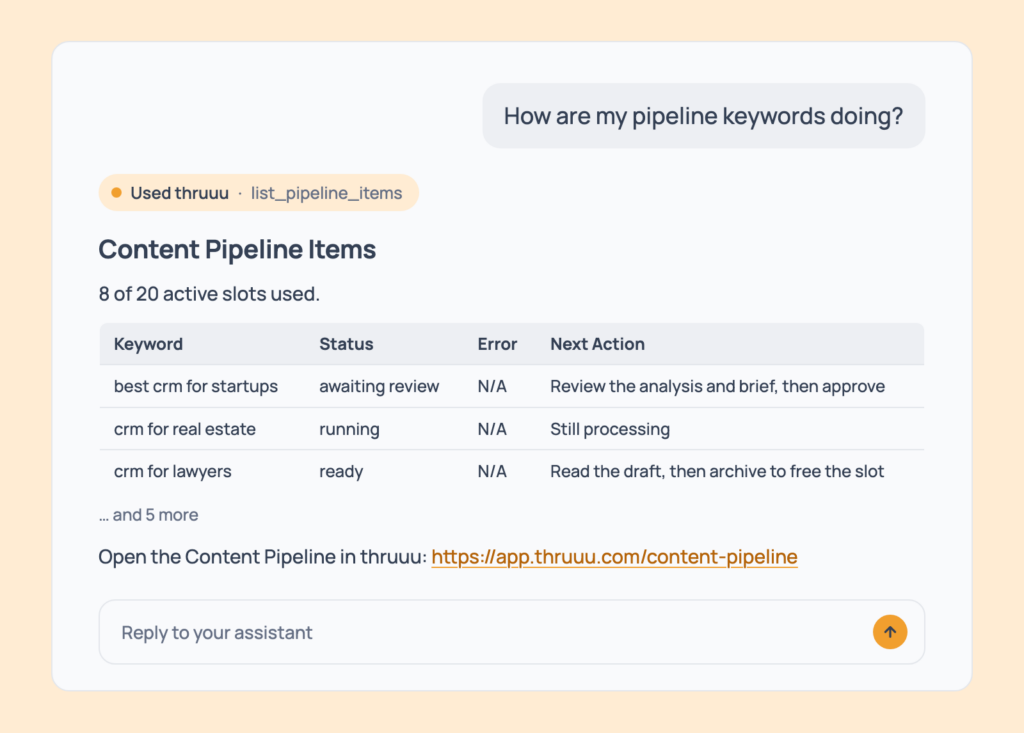
Prompt 114: Check the pipeline’s progress
How are my pipeline keywords doing?Each keyword’s status, any error and what to do next, with a link to the Content Pipeline.
- Cost: free. Professional and above.
- Tip: filter by status.
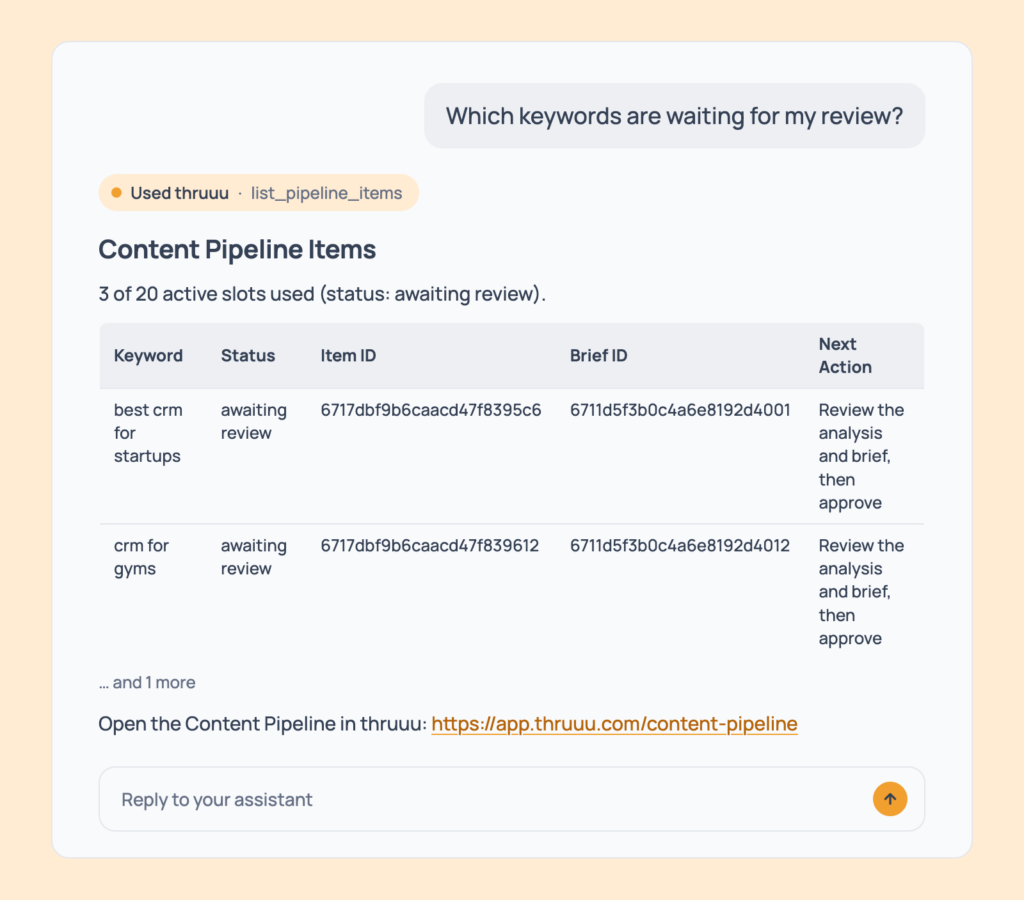
Prompt 115: See what’s waiting for your review
Which keywords are waiting for my review?The items at the review stop, whose brief is ready to read.
- Cost: free.
- Tip: nothing is charged for the draft until you approve.
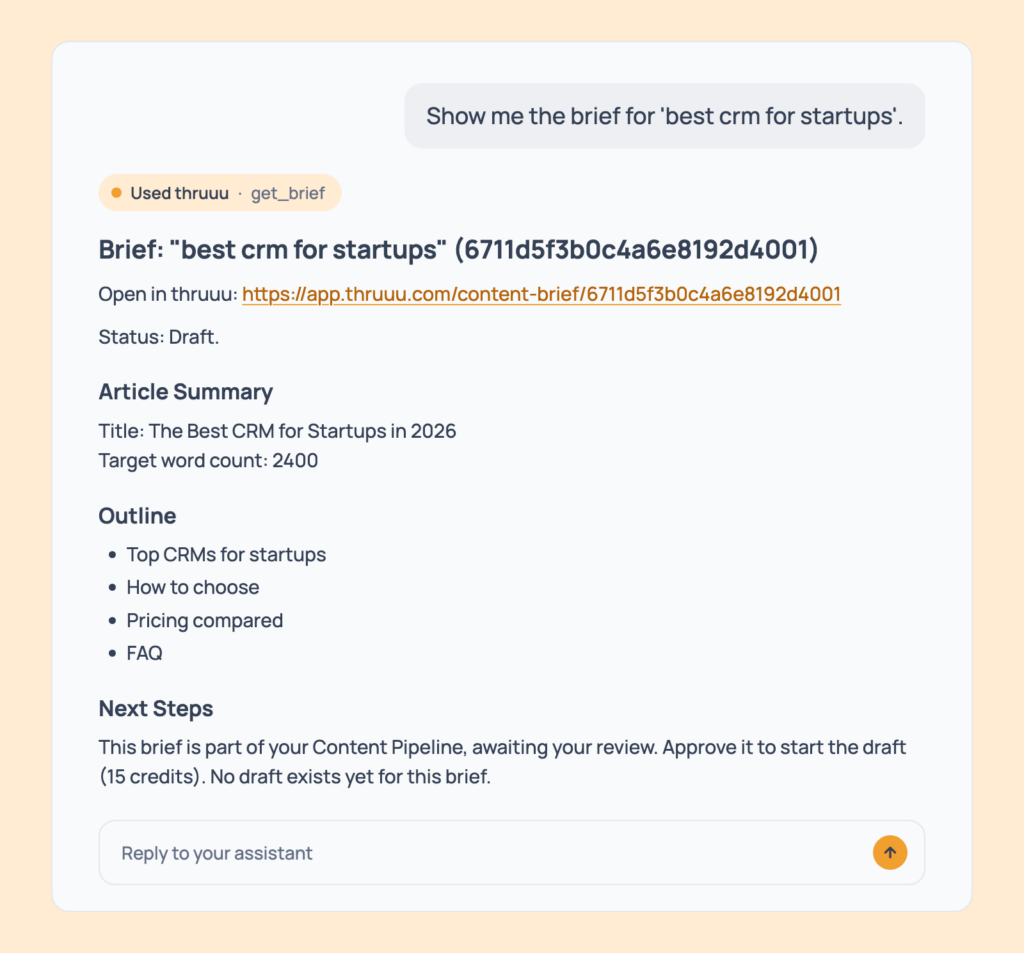
Prompt 116: Read a brief before you approve
Show me the brief for 'best crm for startups'.The brief and the analysis behind it.
- Cost: free.
- Tip: ask the assistant to flag anything that looks off.
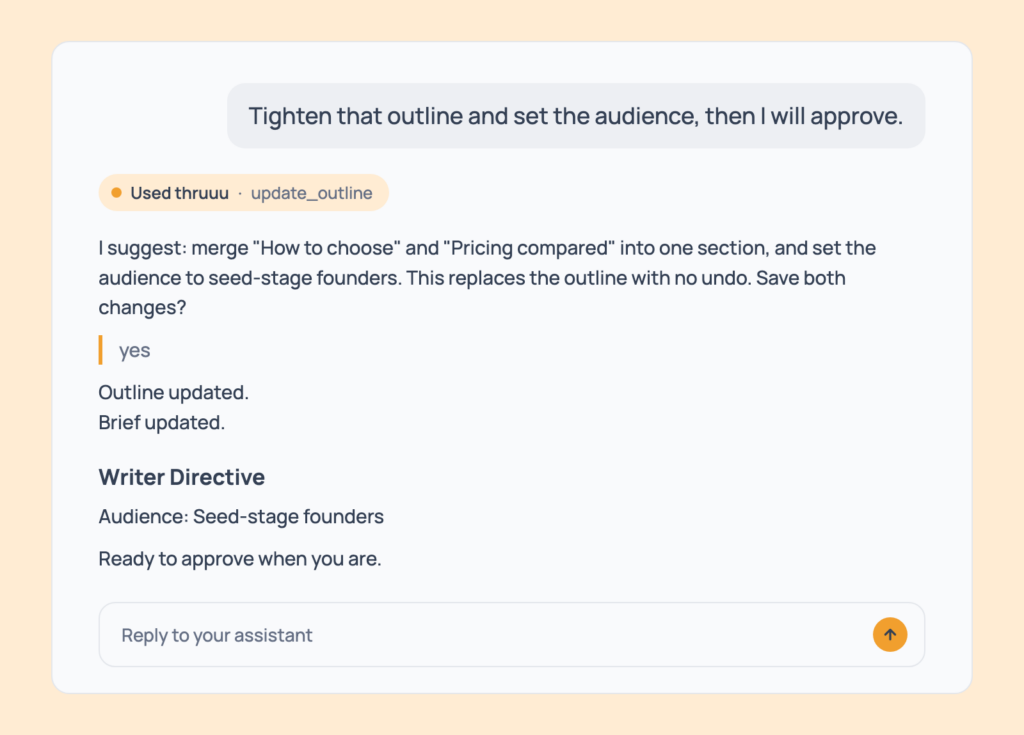
Prompt 117: Edit the brief at the review stop
Tighten that outline and set the audience, then I will approve.A follow-up to Prompt 116: the brief edited, with your OK on each change.
- Cost: free. Pay as you go and above for edits.
- Tip: make your edits before you approve, because approving starts the draft.
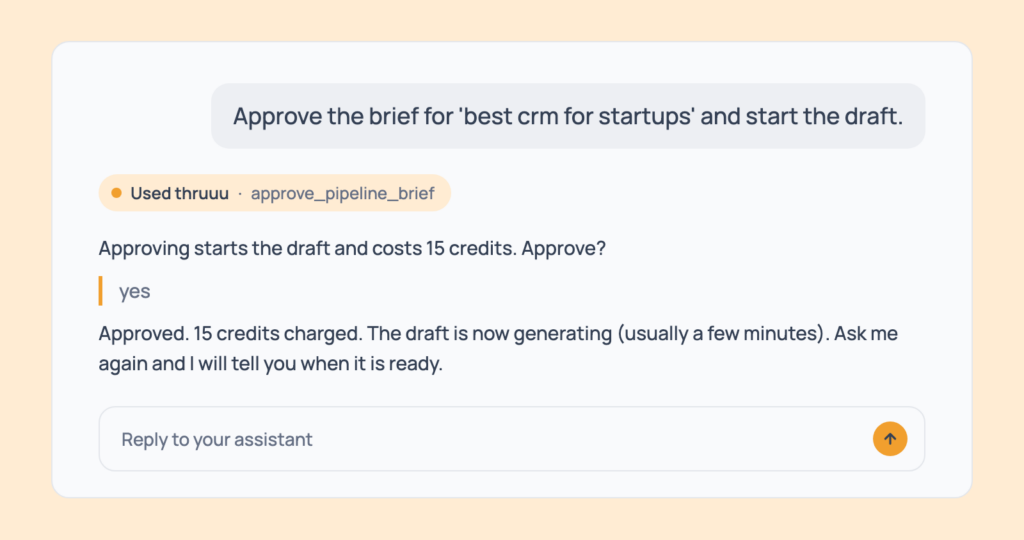
Prompt 118: Approve a brief and start the draft
Approve the brief for 'best crm for startups' and start the draft.The brief approved and the draft generating, once you confirm the cost. It takes a few minutes.
- Cost: 15 credits.
- Tip: if you’re short on credits, the brief is still marked reviewed and the draft starts after you add credits.
Prompt 119: Approve every waiting brief
Approve every brief that is awaiting review.Several drafts started, after the assistant lists the items and states the total.
- Cost: 15 credits per draft.
- Tip: skim each brief first, or ask for a one-line summary of each.
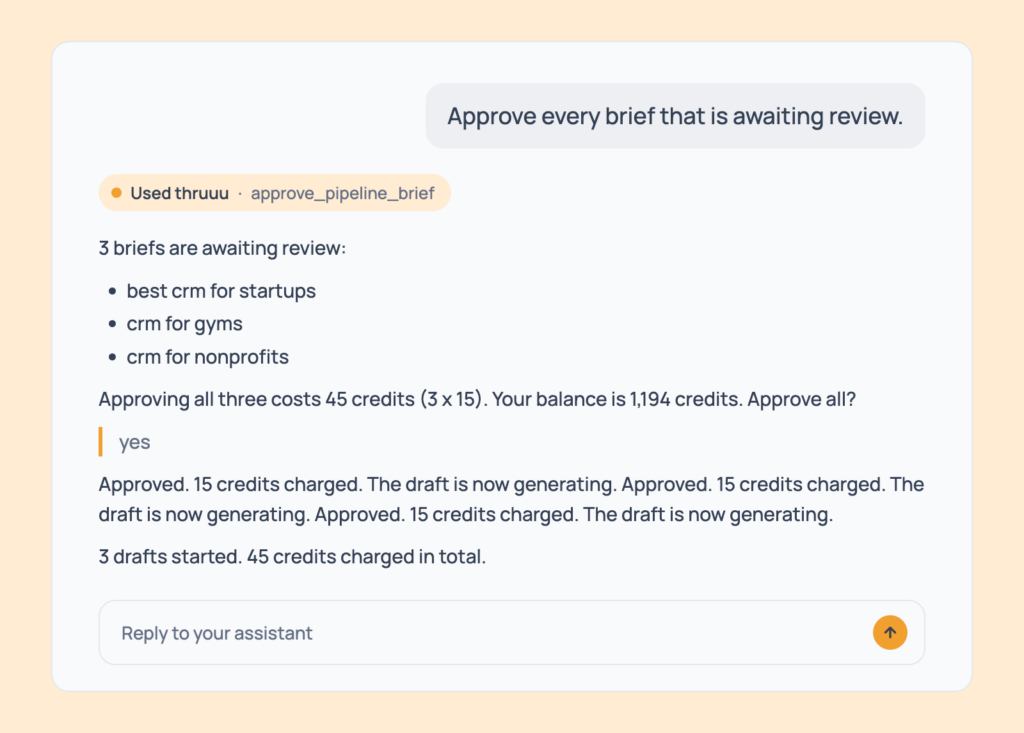
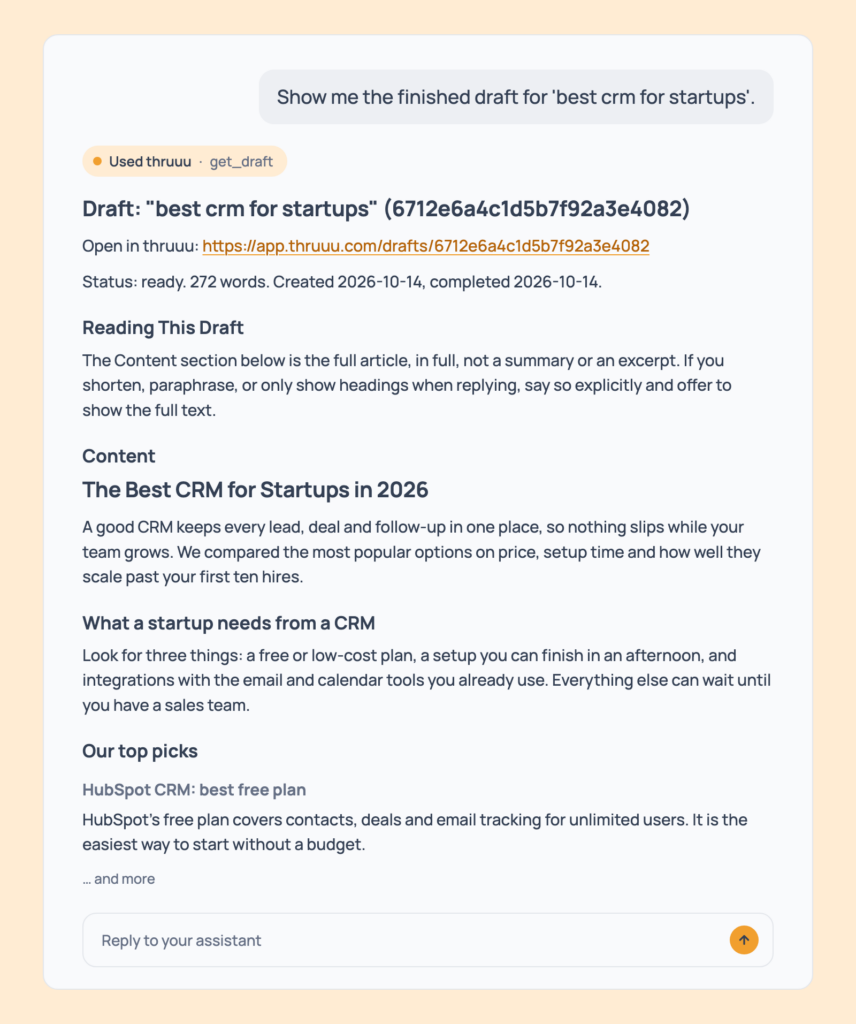
Prompt 120: Read a finished pipeline draft
Show me the finished draft for 'best crm for startups'.The full article and its to-do list, the same as Prompt 106, reached from the pipeline.
- Cost: free.
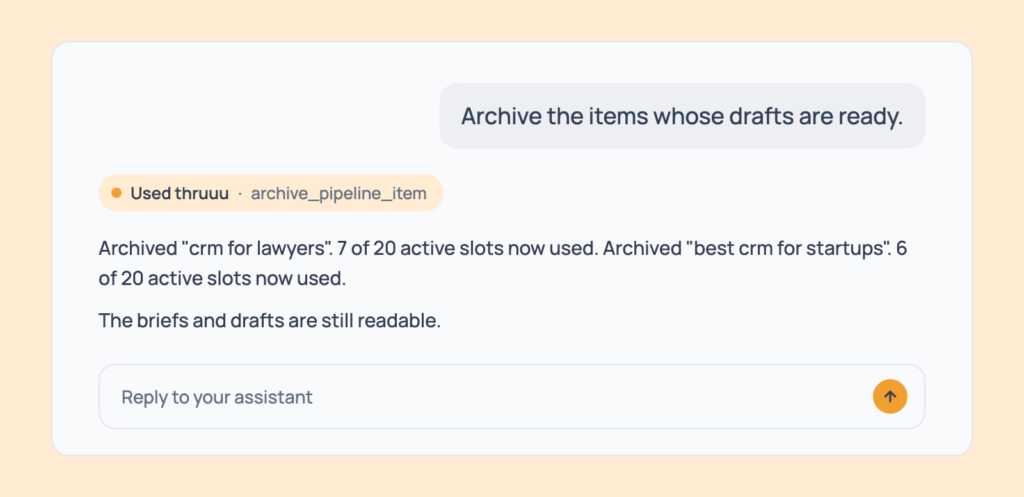
Prompt 121: Archive finished items
Archive the items whose drafts are ready.Finished items archived to free their slots. The brief and draft stay readable.
- Cost: free.
- Tip: the pipeline holds 20 active items at a time.
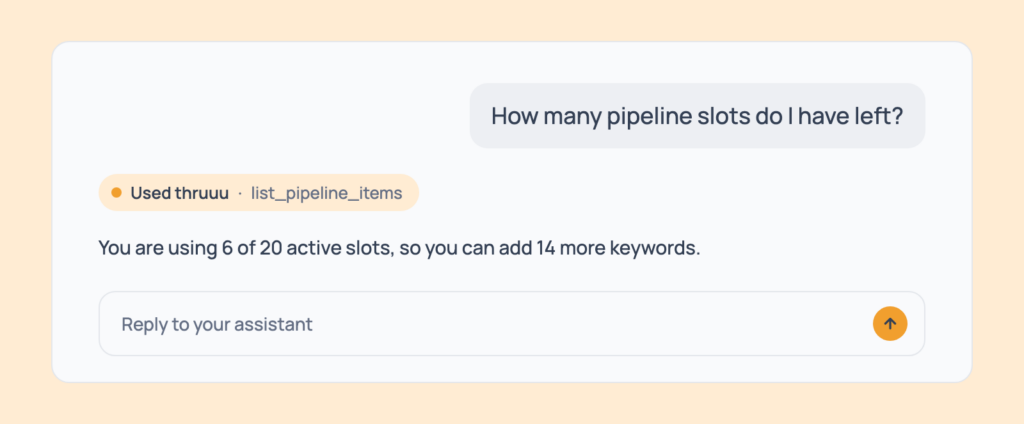
Prompt 122: Check your free pipeline slots
How many pipeline slots do I have left?Slots used out of 20.
- Cost: free.
- Tip: archive finished items to make room.
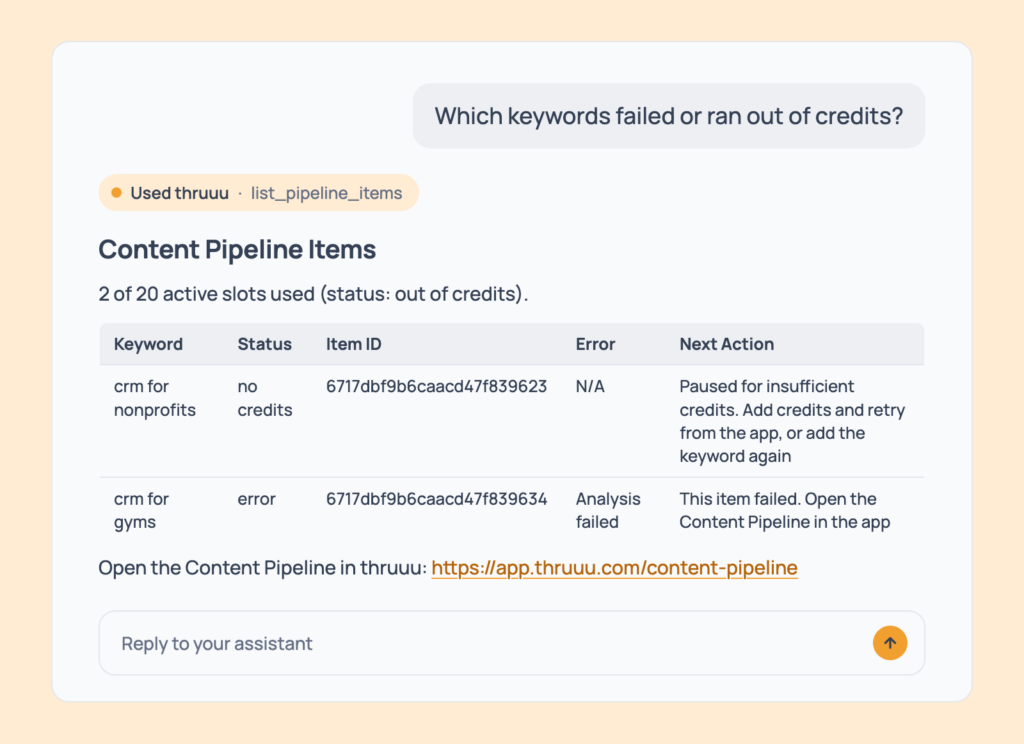
Prompt 123: Find failed or stuck keywords
Which keywords failed or ran out of credits?The stuck items, each with the reason and what to do next.
- Cost: free.
- Tip: add credits, then re-add the keyword with Prompt 111.
Multi-Step SEO Prompts: Whole Workflows in One Message
One message, several steps.
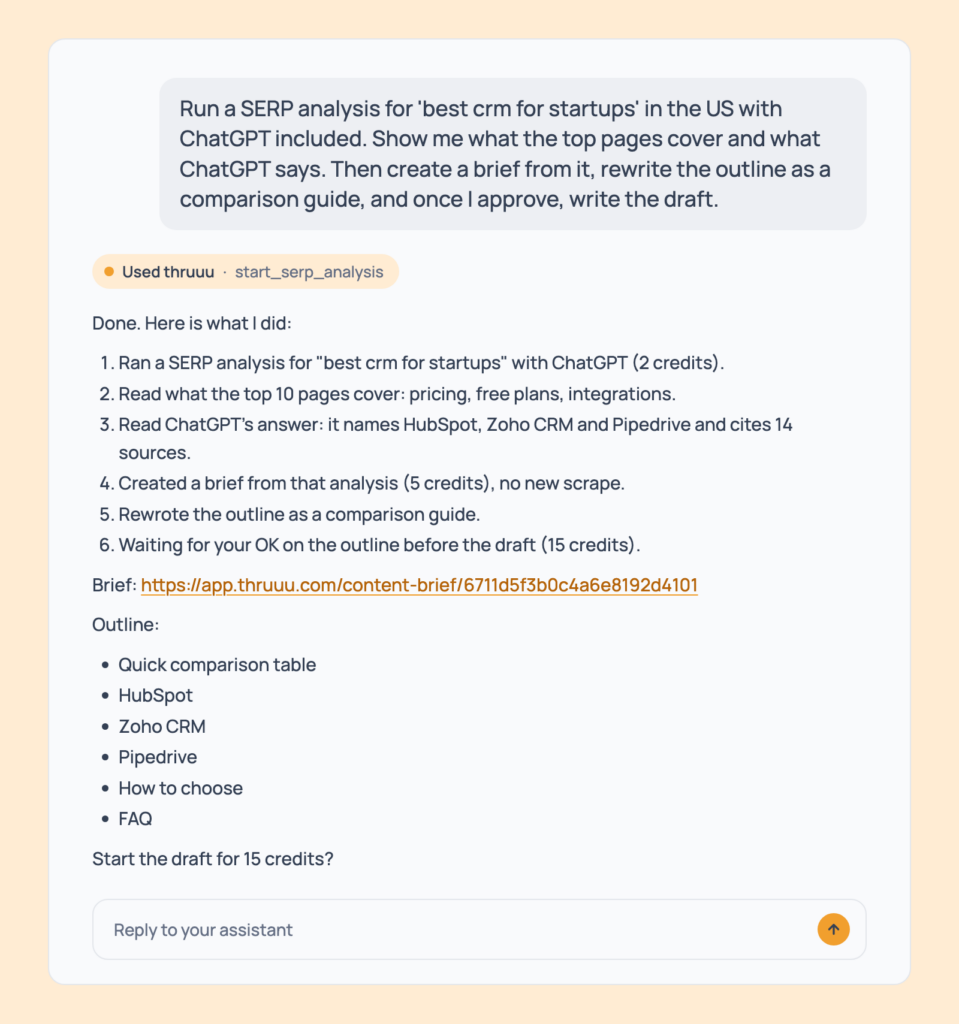
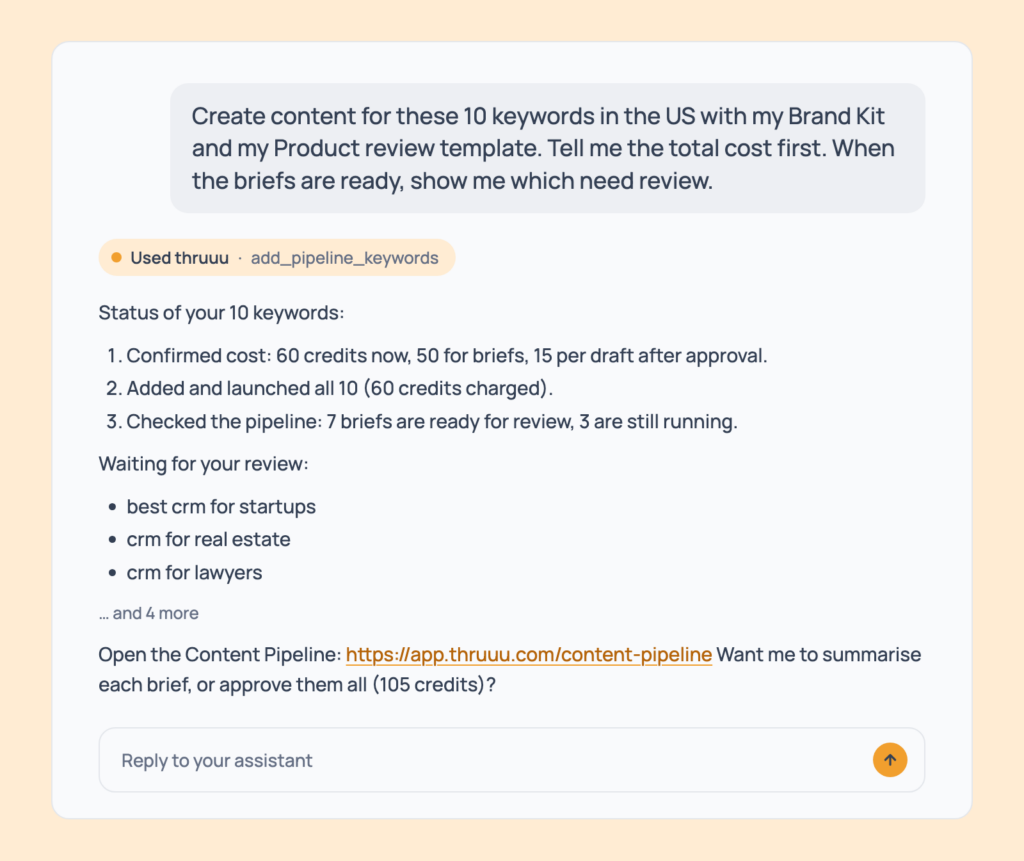
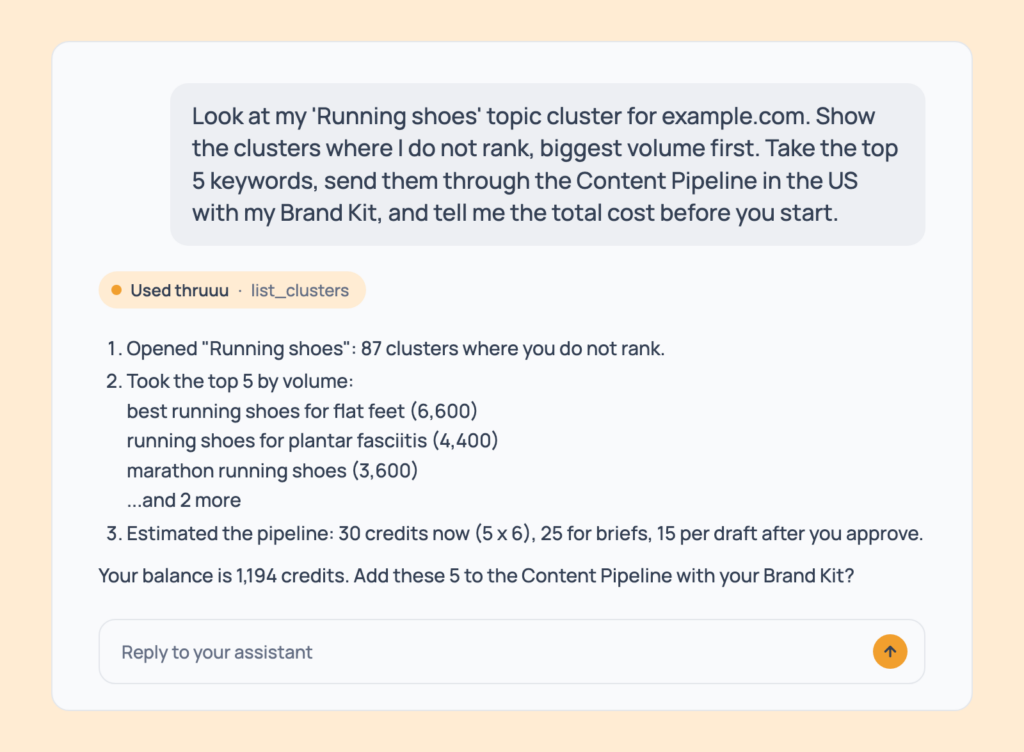
The assistant confirms the cost before each spend, and each example shows the final answer with one line per step it took. The step lists point back to the single prompts above, so you can also run any content workflow one step at a time.
Prompt 124: Keyword to finished draft
Run a SERP analysis for 'best crm for startups' in the US with ChatGPT included. Show me what the top pages cover and what ChatGPT says. Then create a brief from it, rewrite the outline as a comparison guide, and once I approve, write the draft.Runs Prompts 1 and 30, 12, 32, 81, 97 and 103, and returns an analysis, a brief, a restyled outline and a draft.
- Cost: about 2 credits for the analysis with one engine, 5 for the brief, 15 for the draft. Professional and above.
Prompt 125: Keywords to pipeline, review and drafts
Create content for these 10 keywords in the US with my Brand Kit and my Product review template. Tell me the total cost first. When the briefs are ready, show me which need review.Runs Prompt 110 if needed, then 111, 115, 116, and 118 or 119, and returns ten briefs to review, then drafts.
- Cost: see Prompt 111. Professional and above.
Prompt 126: Find gaps, then fill them
Look at my 'Running shoes' topic cluster for example.com. Show the clusters where I do not rank, biggest volume first. Take the top 5 keywords, send them through the Content Pipeline in the US with my Brand Kit, and tell me the total cost before you start.Runs Prompts 61, 66 and 111, and returns a gap list, then five briefs on the way.
- Cost: the gaps and the plan are free. Pipeline pricing as in Prompt 111. Professional and above.
Prompt 127: AI Overview report to page fixes
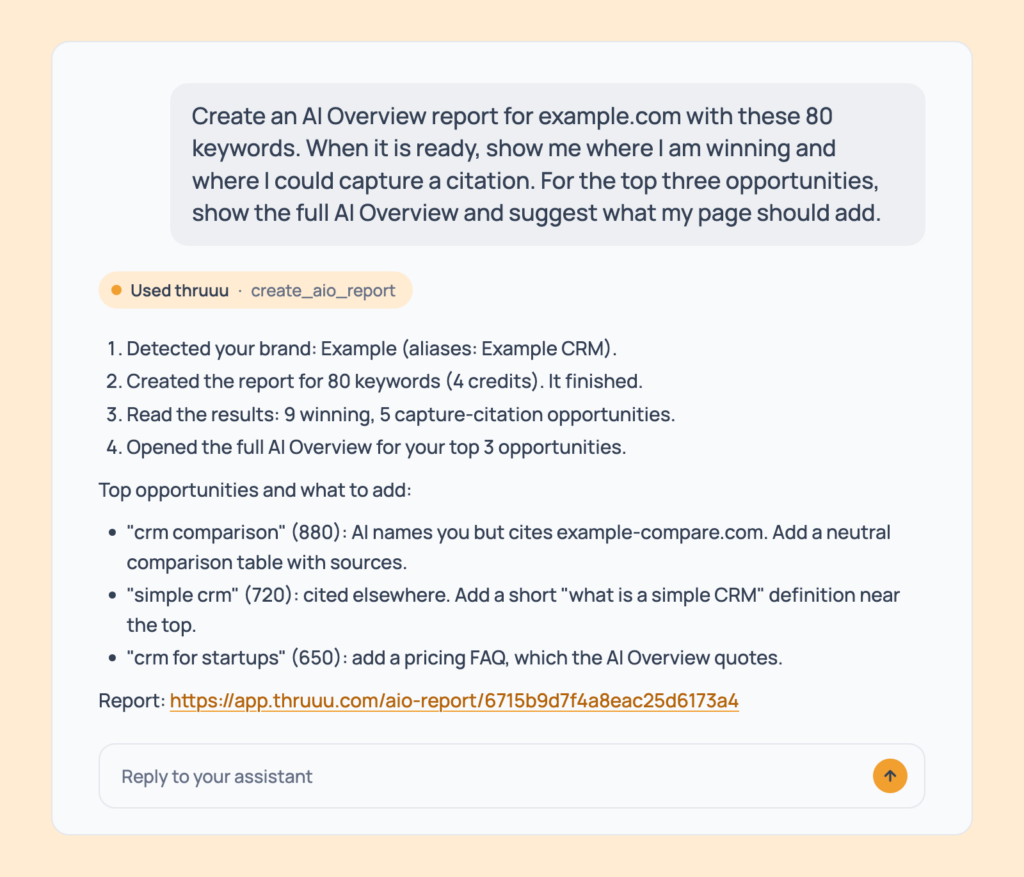
Create an AI Overview report for example.com with these 80 keywords. When it is ready, show me where I am winning and where I could capture a citation. For the top three opportunities, show the full AI Overview and suggest what my page should add.Runs Prompts 38, 39, 45, 47 and 52, then Prompts 89 to 95, and returns a report, priorities and concrete content changes.
- Cost: report cost as in Prompt 39 (for example 4 credits for 80 keywords at top 20). Professional and above.
Prompt 128: Analysis Agent to brief update
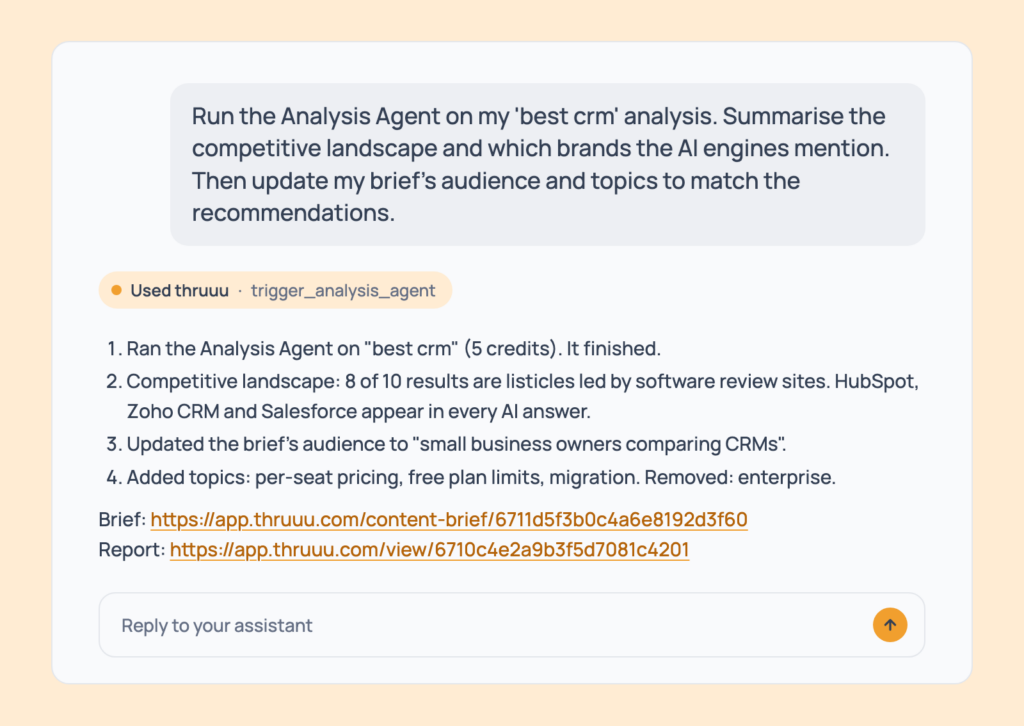
Run the Analysis Agent on my 'best crm' analysis. Summarise the competitive landscape and which brands the AI engines mention. Then update my brief's audience and topics to match the recommendations.Runs Prompts 18, 21, 35, 90 and 94, and returns a strategy report and a brief aligned to it.
- Cost: 5 credits for the report. Agency, or free on a trial analysis.
Prompt 129: One article or two, then brief
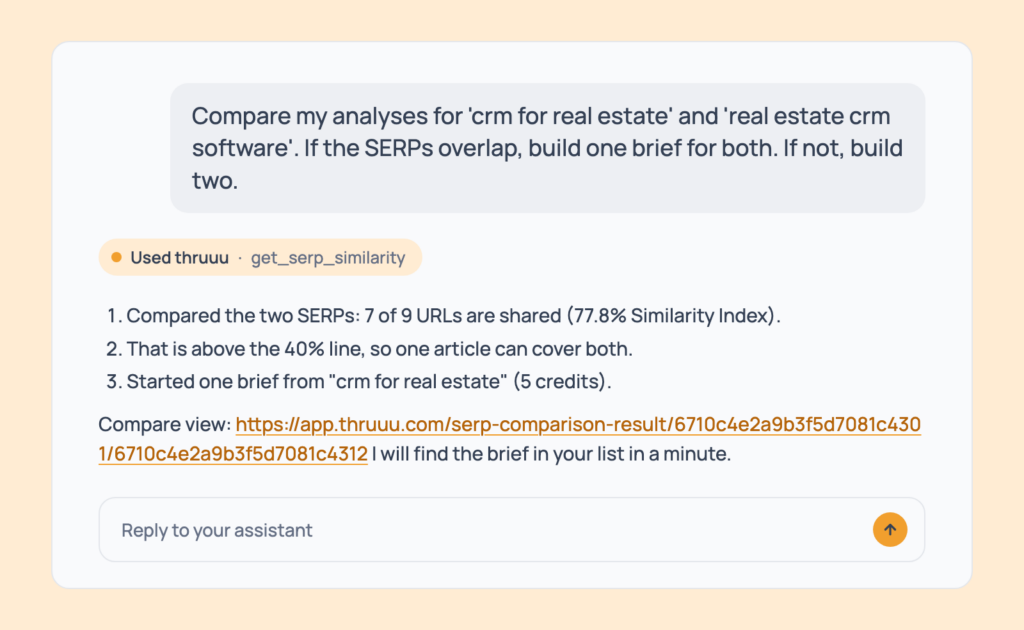
Compare my analyses for 'crm for real estate' and 'real estate crm software'. If the SERPs overlap, build one brief for both. If not, build two.Runs Prompt 16, then Prompt 81 once or twice, and returns a clear decision and the matching briefs.
- Cost: 5 credits per brief.
Prompt 130: Plan a month of content
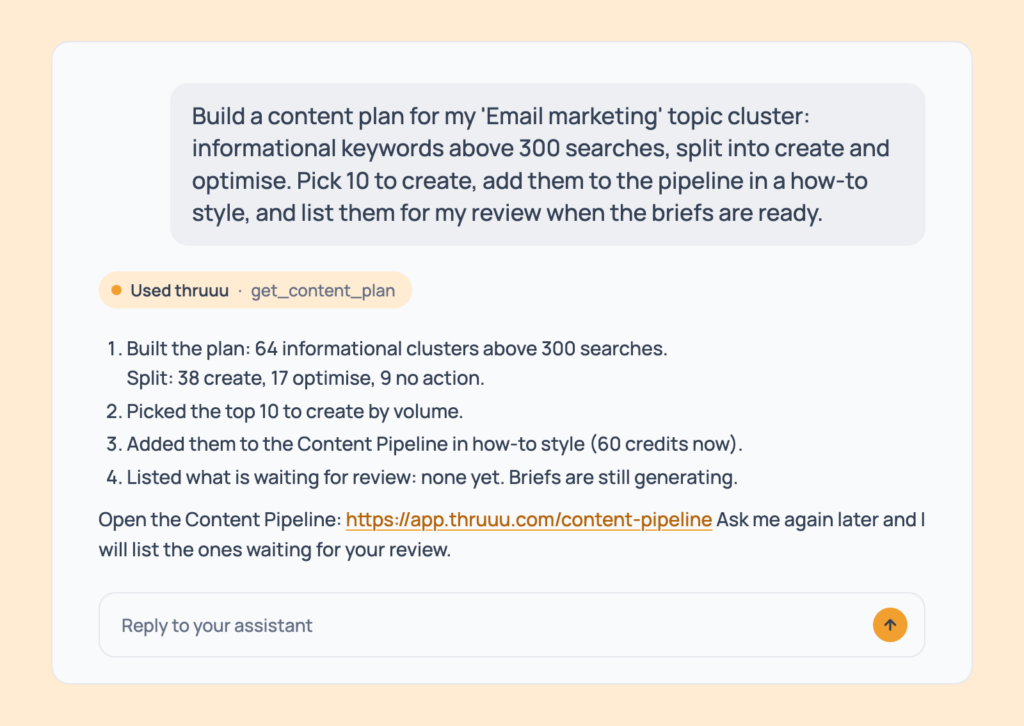
Build a content plan for my 'Email marketing' topic cluster: informational keywords above 300 searches, split into create and optimise. Pick 10 to create, add them to the pipeline in a how-to style, and list them for my review when the briefs are ready.Runs Prompts 66, 67, 112 and 115, and returns a plan, ten keywords in motion and a review list.
- Cost: pipeline pricing as in Prompt 111. Professional and above.
Prompt 131: See what AI engines say, then brief it
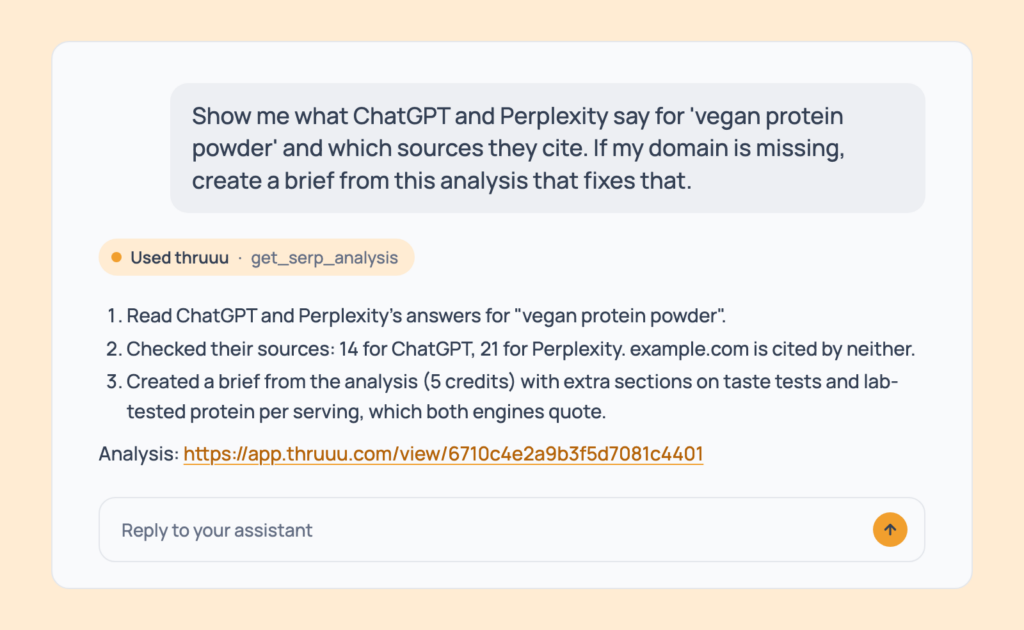
Show me what ChatGPT and Perplexity say for 'vegan protein powder' and which sources they cite. If my domain is missing, create a brief from this analysis that fixes that.Runs Prompts 32, 33 and 81, and returns the engine answers, their cited sources and a brief that targets the gap.
- Cost: 5 credits for the brief. Engines need Professional and above.
Prompt 132: Review drafts against the Brand Kit
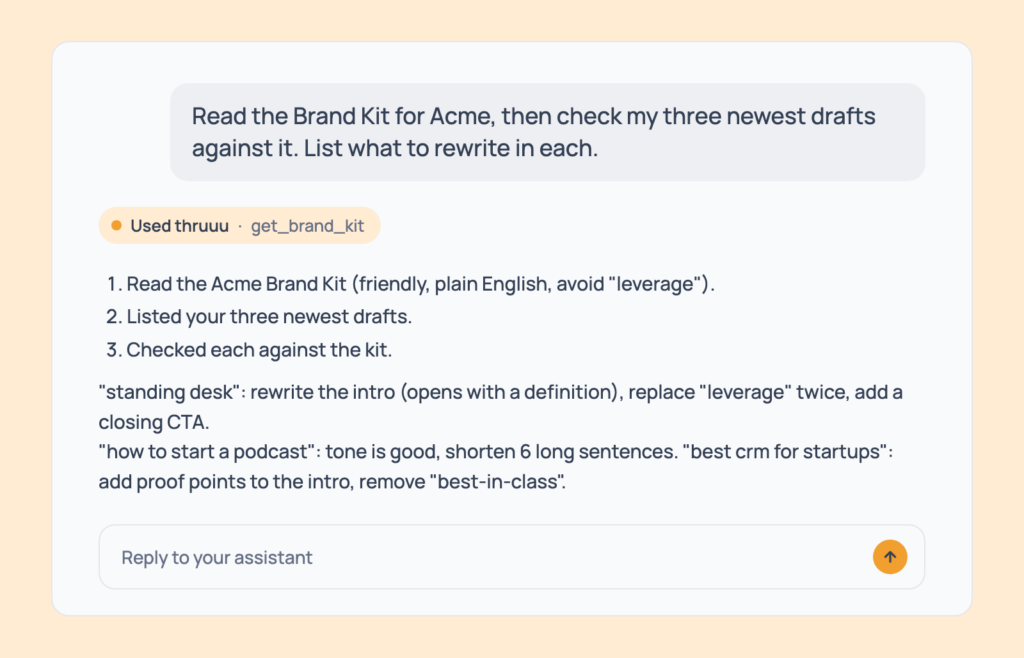
Read the Brand Kit for Acme, then check my three newest drafts against it. List what to rewrite in each.Runs Prompts 141, 104 and 109, and returns a punch list per draft, in the client’s voice.
- Cost: free. Professional and above.
Prompt 133: Weekly agency check across clients
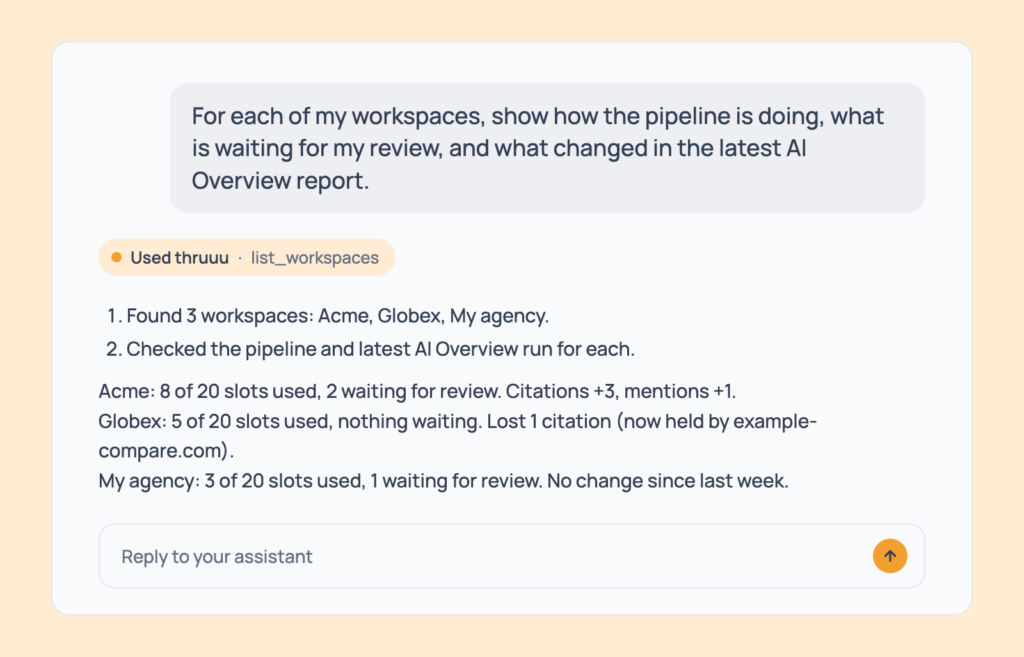
For each of my workspaces, show how the pipeline is doing, what is waiting for my review, and what changed in the latest AI Overview report.Runs Prompts 137, 114, 115 and 50, and returns a roundup per client.
- Cost: free. Professional and above.
Setup and Credit Prompts
Want to know what you can run before you spend anything? Start here.
Your balance, your plan, your workspaces, the markets you can search and your Brand Kits. All free to ask, on any plan unless noted.
Prompt 134: Check your credit balance
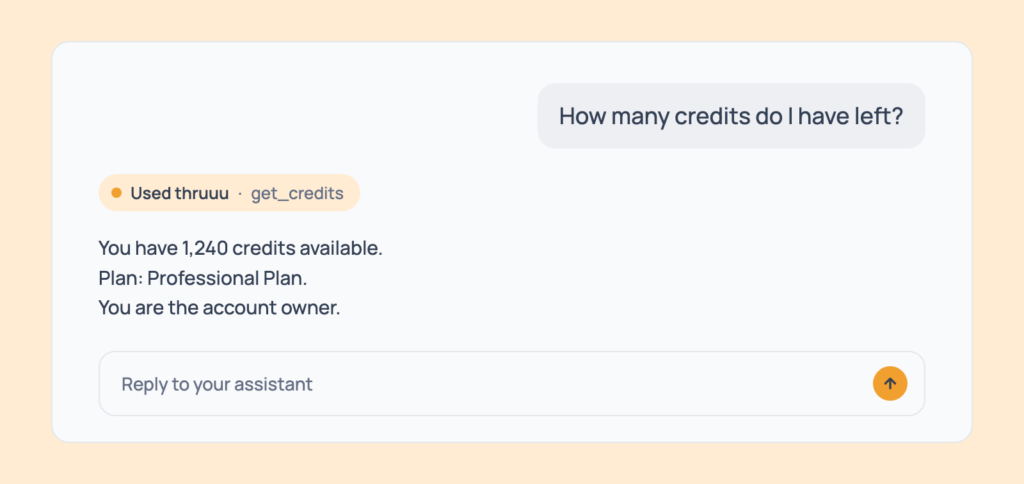
How many credits do I have left?The credits available. On a company account, that’s the shared company balance, the same number the app header shows.
- Cost: free, every plan.
- Tip: it’s a good first message to test the connection.
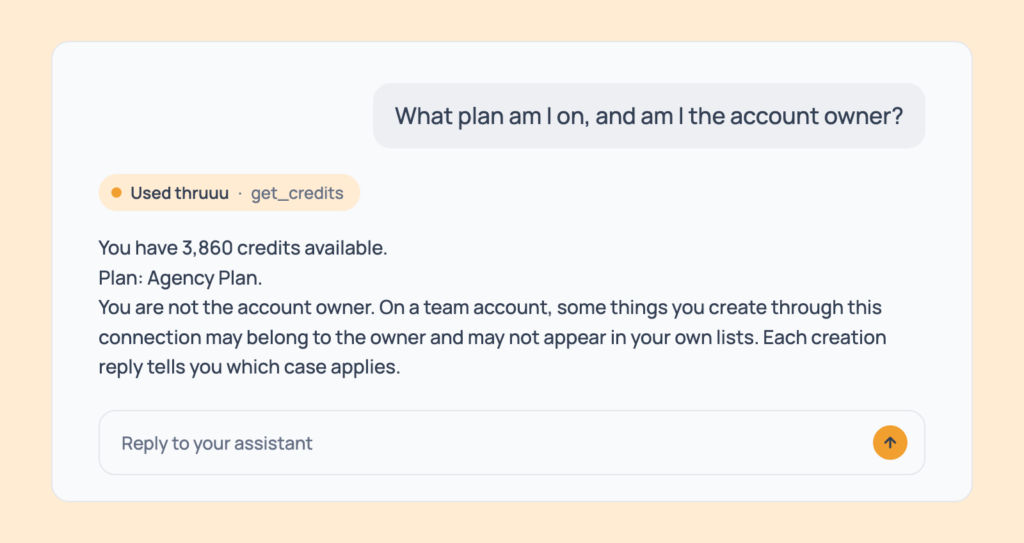
Prompt 135: Check your plan and role
What plan am I on, and am I the account owner?Your plan, whether you’re the account owner, and your balance.
- Cost: free, every plan.
- Tip: the assistant uses this to tell you what you can and can’t run before it tries.
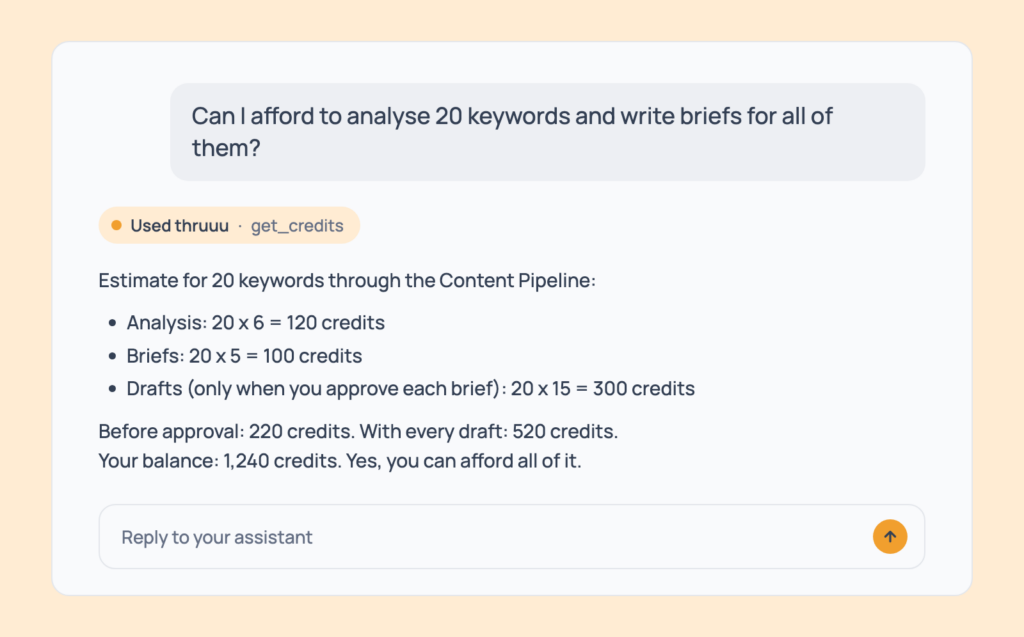
Prompt 136: Check you can afford a batch
Can I afford to analyse 20 keywords and write briefs for all of them?A plain yes or no, with the estimated cost against your balance.
- Cost: free.
- Tip: ask it before any big batch.
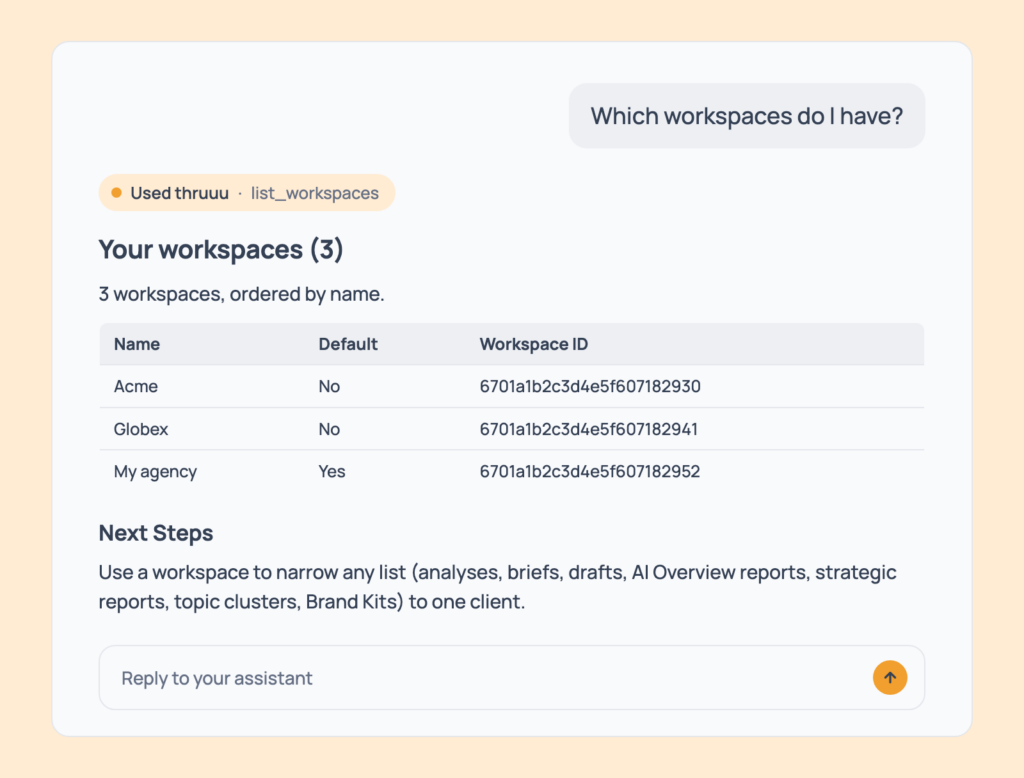
Prompt 137: List your workspaces
Which workspaces do I have?Each workspace your account belongs to, with the default one marked. Many accounts have none, and that’s fine.
- Cost: free, every plan.
- Tip: agencies use workspaces to point work at the right client (“do this in the Acme workspace”).
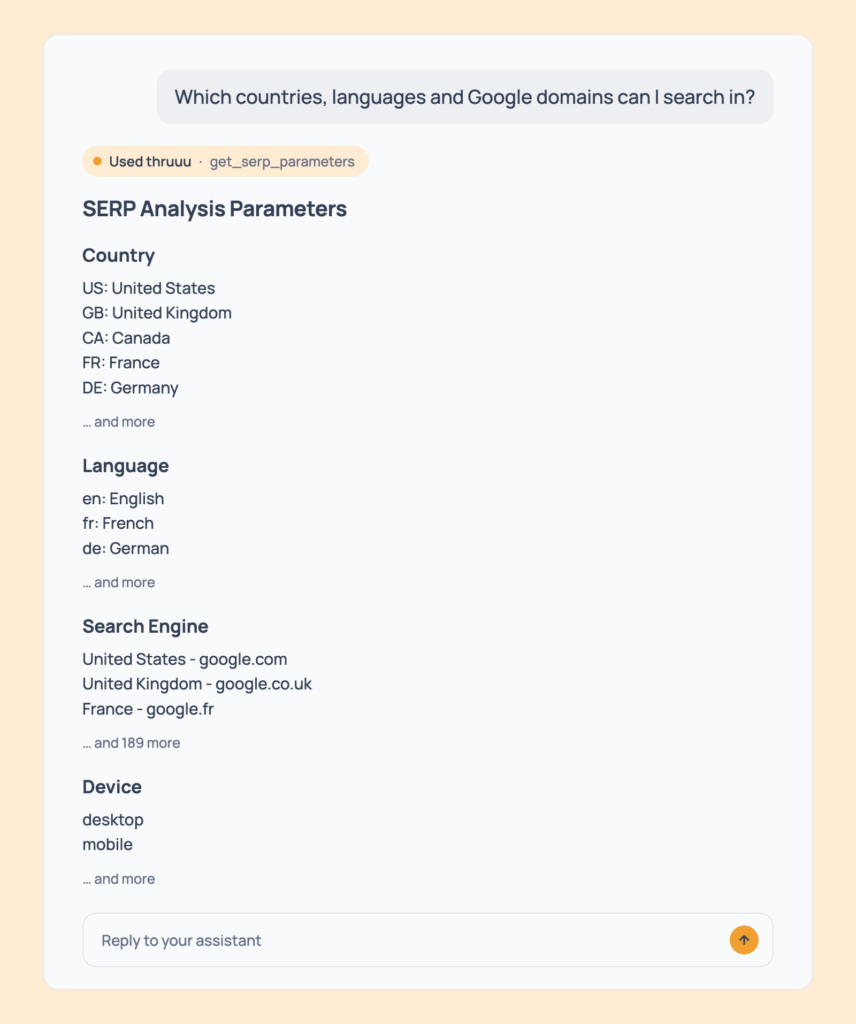
Prompt 138: List the markets you can search
Which countries, languages and Google domains can I search in?The countries, languages and Google domains thruuu supports, plus the device and results-depth options.
- Cost: free. Free plan accounts run with fixed settings (United States, English, desktop, first page).
- Tip: searches are country-level. City or region targeting isn’t available here.
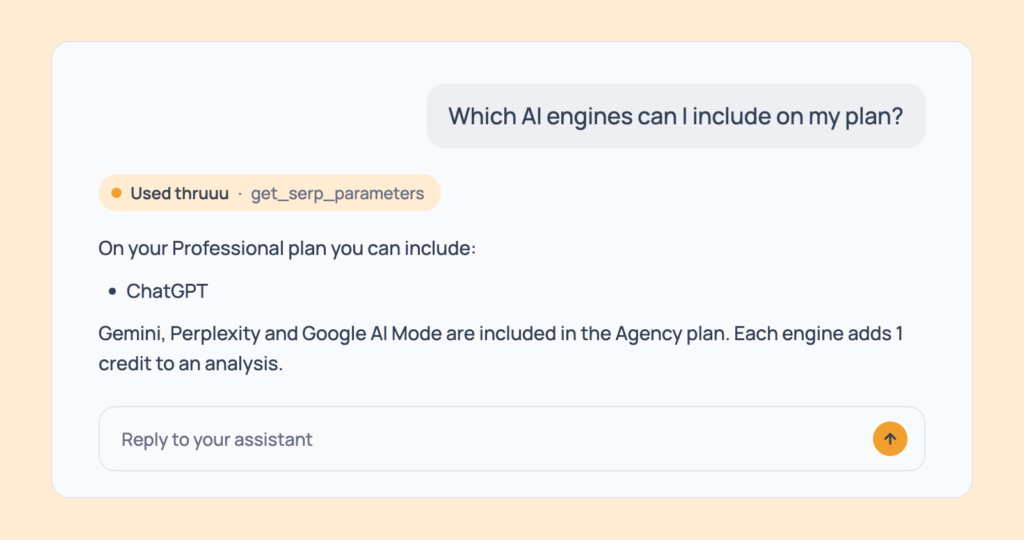
Prompt 139: Check which AI engines your plan includes
Which AI engines can I include on my plan?Which of ChatGPT, Gemini, Perplexity and Google AI Mode your plan allows, and which plan unlocks the others.
- Cost: free. Professional includes ChatGPT. Agency includes all four.
- Tip: ask it before you launch an analysis.
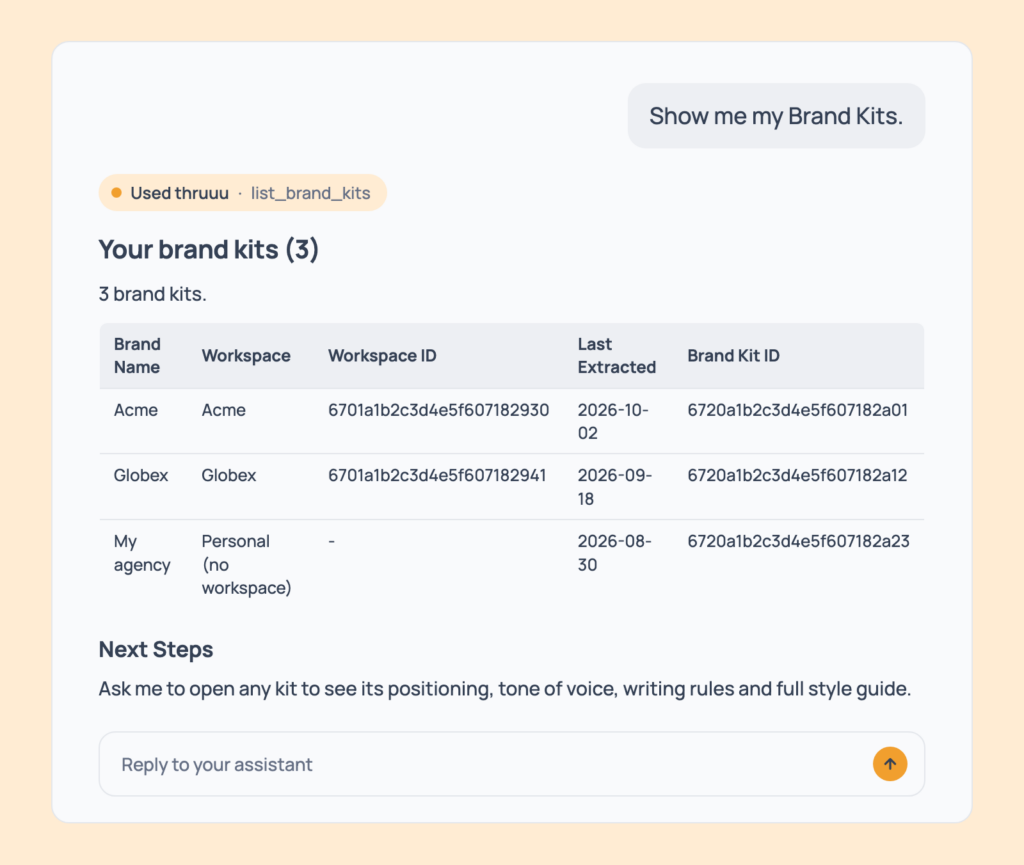
Prompt 140: List your Brand Kits
Show me my Brand Kits.Every Brand Kit you can access, with brand name, workspace (or Personal) and last refresh date.
- Cost: free. Professional and above.
- Tip: agencies get one kit per client workspace.
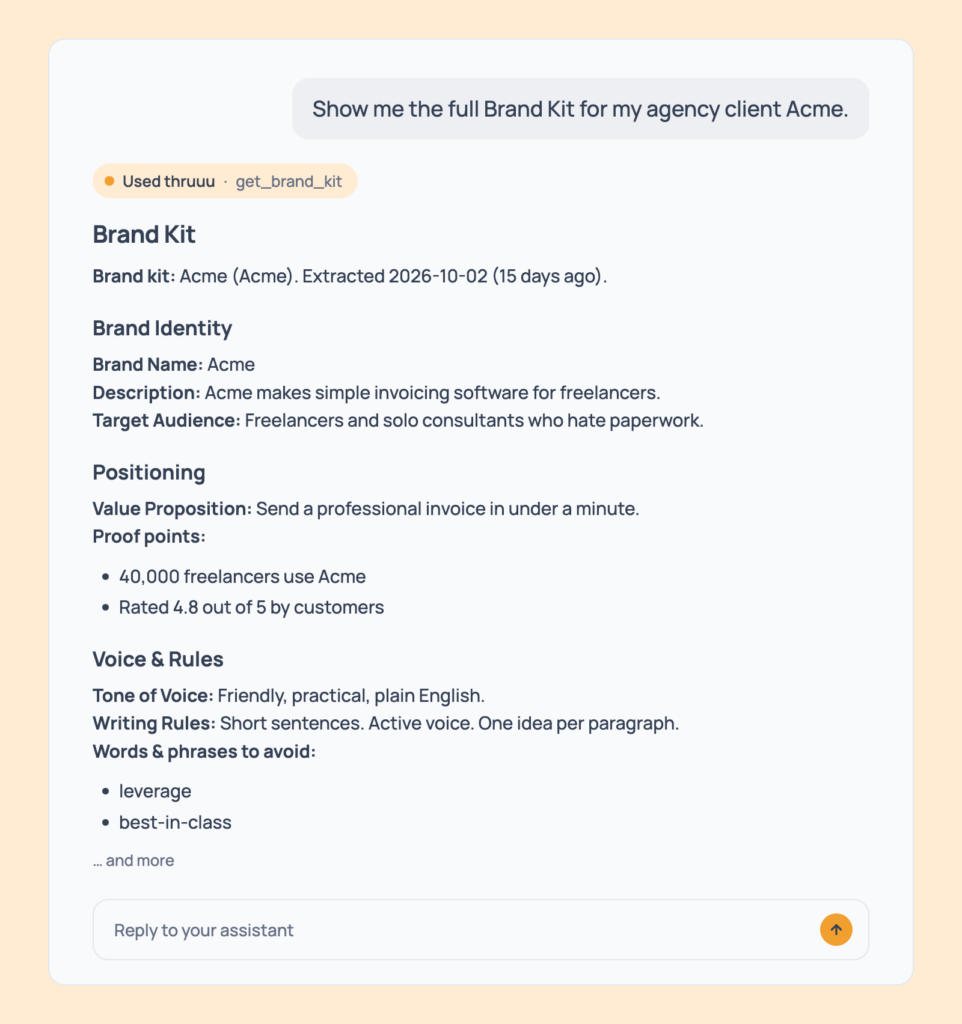
Prompt 141: Read a full Brand Kit
Show me the full Brand Kit for my agency client Acme.One kit in full: identity, audience, value proposition, proof points, tone, writing rules, words to avoid, style guide and call-to-action style.
- Cost: free. Professional and above.
- Tip: the assistant reads this before it plans or reviews content, so its recommendations match your voice.
How to Write SEO Prompts That Work
Every prompt above is plain language. Rewrite any of them in your own words.
What separates a prompt that returns the data from one that returns a tidy paragraph about it? These nine habits.
Say the Job, the Market and the Output You Want
A prompt that works every time has three parts:
- Say the job in one sentence: “Show me the search intent for my analysis of ‘standing desk’.”
- Name the market in plain words: “United States, English, desktop”. The assistant looks up the exact values. A market it gets wrong is refused, so be specific.
- Describe the shape of the answer: “the full table, every row and column, no summary”, or “one section only”.
Do you need a spending rule too? No.
Showing the cost and waiting for your yes is already the default, so it protects you even when you forget.
Feed It Real SERP Data, Not a Guess
An assistant with no data still answers.
Ask it for keyword difficulty, search volume or who ranks, and you get plausible numbers.
Through thruuu, the data comes from a live search: the ranking pages, their outlines, People Also Ask, the AI Overview and the AI engine answers.
So make the analysis step one. “Analyse ‘standing desk’ in the US, then tell me what the top pages cover” gets you an answer built on the pages Google ranks today. Drop the first half and you get the model’s memory of the topic.
Give It Your Context
The same keyword means different work for different sites. Tell the assistant whose content this is.
Say “in the Acme workspace” and the analysis, brief or report lands with that client. Name a Brand Kit and the assistant reads your audience, positioning, tone and words to avoid before it plans a cluster (Prompt 66), builds a pipeline batch (Prompt 111) or reviews a draft (Prompt 109). Add a target domain to a topic cluster and it knows where you already rank.
Give it a keyword, not an ID. The assistant finds the right analysis, workspace, brief or report for you. If you do paste an ID, copy it exactly.
Ask for a Format, and Ask for the Raw Data
By default, the assistant summarises what it reads.
Want the data itself? Say so: “the whole table, every row and every column”. Or add “Show me the raw data” to the end:
Show me the results of my "standing desk" analysis with the SERP title, meta description, dates and schema of every result. Show me the raw data.Run the search intent, heading and content analyses on my "standing desk" analysis. When they have finished, show me the raw data.For big data, ask one question per message: the results table, then the outlines, then the intent. Shorter answers are less likely to be condensed.
Make It Show Its Work
Ask for the original wording: “Quote exactly, keep the original language, tell me if you shortened anything.” The AI Overview and the engine answers come back in full, and the assistant is asked to flag any shortening.
Ask which analysis, engine and run an answer came from, too.
Most answers end with an “Open in thruuu” link to the analysis, brief, report or draft behind them. When a number matters, click it. The app shows the same data the assistant read.
Verify the Numbers Before You Use Them
Check a figure against the linked analysis before it goes into a report or a brief.
Comparing with an export from the web app? Match the settings. Device, number of pages, language and volume all change the results.
Watch the totals. Lists show a slice and state the true total: the list of analyses shows the 20 most recent (50 at most), and other lists say “…and N more” rather than hiding rows. Narrow by keyword or workspace to find an older item.
Separate Research from Writing
Run the research prompts first (SERP research and AI Search), and read what they return before you ask for a brief or a draft.
Why? A brief built on an analysis you’ve read is a brief you can correct. A brief built in the same breath as the research isn’t.
The Content Pipeline builds this in. It runs the analysis and the brief, then stops at a review step (Prompt 115). Nothing is drafted until you approve.
Reuse Before You Re-Run, and Keep an Eye on Credits
Before you analyse a keyword, ask “Do I already have an analysis for this keyword?” (Prompt 7). It’s free, and an analysis you already paid for can become a brief with no new search (Prompt 81).
Reading, listing, comparing and checking never cost anything. Starting new work does, and the assistant states the cost and waits for your yes every time.
Check your balance first (“How many credits do I have left?”) and ask Prompt 136 before a big batch. Every cost is in the table in the next section.
Treat the Output as a Starting Point, Not a Final Answer
A brief is a plan. A draft is a draft.
thruuu doesn’t invent facts in a draft. It leaves a marker where a stat, a claim, a link or a call to action needs a human, and Prompt 107 lists them. Prompt 109 checks the draft against your Brand Kit.
The finishing happens in the thruuu app or your own editor. The assistant can’t edit a draft.
What SEO Prompts Can’t Do: Limits and Costs
What’s free? Reading, listing, comparing and checking. Always.
Anything that starts new work costs credits, and the assistant states the cost and waits for your yes first.
If you don’t have enough, nothing is charged and you’re told how short you are. On a company account, credits are pooled.
Here’s what each job costs:
| What you ask for | Approximate cost in credits |
|---|---|
| SERP analysis | 1, plus 1 for volume, plus 1 per AI engine |
| Brief | 5, plus 1 for volume |
| Brief from an existing analysis or cluster | 5 |
| Analysis Agent | 5 |
| AI draft | 15 |
| Topic cluster or AI Overview report | Keywords divided by 20, 10 or 5 depending on depth, rounded up |
| Analyse a cluster | 1 |
| Content Pipeline | 6 per keyword for analysis (plus engines and volume), 5 for the brief, 15 for the draft after you approve |
| Search intent, heading and content analyses | Free |
The connection works on every plan, and anything your plan doesn’t include replies with a short upgrade note and charges nothing.
- Free runs a basic SERP analysis and briefs with fixed settings.
- Pay as you go and Starter add market choices, topic clusters, outlines and brief editing.
- Professional adds AI engines (ChatGPT), AI Overview reports, Brand Kits, outline styles, AI drafts and the Content Pipeline.
- Agency adds all four AI engines, the Analysis Agent, brand details in AI answers, and AI Overview sub-paths and aliases.
- A free trial lets you try the research and AI Search features; Brand Kits, AI drafts and the Content Pipeline need a Professional or Agency plan.
New analyses, briefs, clusters, reports and drafts take from under a minute to a few minutes. The assistant starts them and tells you where to look.
Edits to briefs and outlines are free but have no undo, so the assistant checks with you first.
And here’s what the connection doesn’t do:
- Searches are country-level. City and region targeting isn’t available.
- The default results table shows the top 10 rows of the first results page. Ask for “all rows of page 1” (or page 2, page 3) to see a whole results page.
- Local pack, news and People Also Ask answers appear only when the SERP provider captured them for that search.
- In a SERP analysis, topics and related searches are capped at 15 each, to keep them readable.
- The assistant returns text, not files. For an Excel workbook, use the Export button in the web app.
- A pipeline batch takes up to 20 keywords. Topic clusters take up to 2,000 keywords from the assistant, AI Overview reports up to 500.
- The assistant can’t start scheduled AI Overview monitoring, or restart a failed pipeline item.
SEO Prompts FAQ
Can ChatGPT or Claude Generate SEO Content?
Yes, of course they can. The content gets better when you connect Claude or ChatGPT to thruuu’s Content Pipeline, because the research happens before the writing.
The pipeline analyses the SERP, collects what AI search engines answer for the keyword, and compiles everything into a brief with a structured outline. Then it writes the draft from that brief. The Content Pipeline needs the Professional plan or above, and the AI engines are optional.
We cover the full setup in our guide to writing SEO content with Claude.
Can I Rely on ChatGPT or Claude for Keyword Research?
Yes, but there are limits. Without a data source, the assistant estimates search volume and rankings from memory, and the numbers look real.
Connected to thruuu, it runs a live search for any keyword and shows you the pages that rank. Ask for search volume and you also get the monthly volume and the CPC, for 1 extra credit.
How Do I Verify an AI’s SEO Suggestions?
You’re the SEO expert. The assistant is there to support your process.
Be aware that it will always try to give you an answer. So bring your own knowledge, and challenge the ideas and suggestions your AI assistant gives you.
Run These 141 Prompts with Your AI Assistant
Connect thruuu to Claude, ChatGPT, Codex or the AI agent you already use, and every prompt in this list runs on live SERP data.